3-6
P460/P360 Memory Scanners Product Reference Guide
Transmitting Batch/Stored Data to the Host
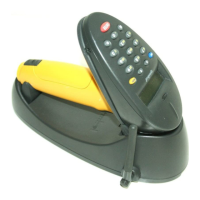
When you are ready to transmit your stored (Batch) data to the host, press the <FUNC>
key, then the <1> key. Then, place the scanner in the cradle or connect a communication
cable.
Note:When attached to a cable, the scanner will automatically begin
running the Scan & Transmit application. The stored (Batch) data will
not be transmitted to the host until the <FUNC> key, then the <1>
key are entered.
When the screen below appears, the scanner is ready to initiate the transfer. You have 30
seconds to either insert the scanner into a cradle or attach a communications cable. If you
fail to do so, a retry screen will appear.
To exit this mode and prevent the transmission of stored (Batch) data to the host, press the
<FUNC> key then the <BK> key. After the stored data is transmitted to the host, the
following screen appears:
Press the <ENTER> key to clear the transmitted records/data from the scanner’s memory.
Press the <BK> key to retain records/data in the scanner’s memory. If you press the <BK>
key, any subsequent scanned bar codes are appended to the end of the existing data.
Daisy-Chaining Cradles
Up to 12 cradles can be connected in series (daisy-chained) to communicate through a
single serial port. This out-of-the-box capability is a standard feature of the Phaser memory
scanner’s default Batch/Inventory application. To enable it, simply daisy-chain the cradles
together through COM2. See Setting Up the Cradle on page 2-4 for more details. Each
cradle still requires its own power supply.
Status:
Connect unit to host
Finished. Clear Data
<Enter>=Yes
<BK>=No



 To Next Page