3-8
P460/P360 Memory Scanners Product Reference Guide
System Menu
The system menu allows the user to set up the operation of the scanner, such as loading a
new application, erasing files, setting the scanner ID, etc.
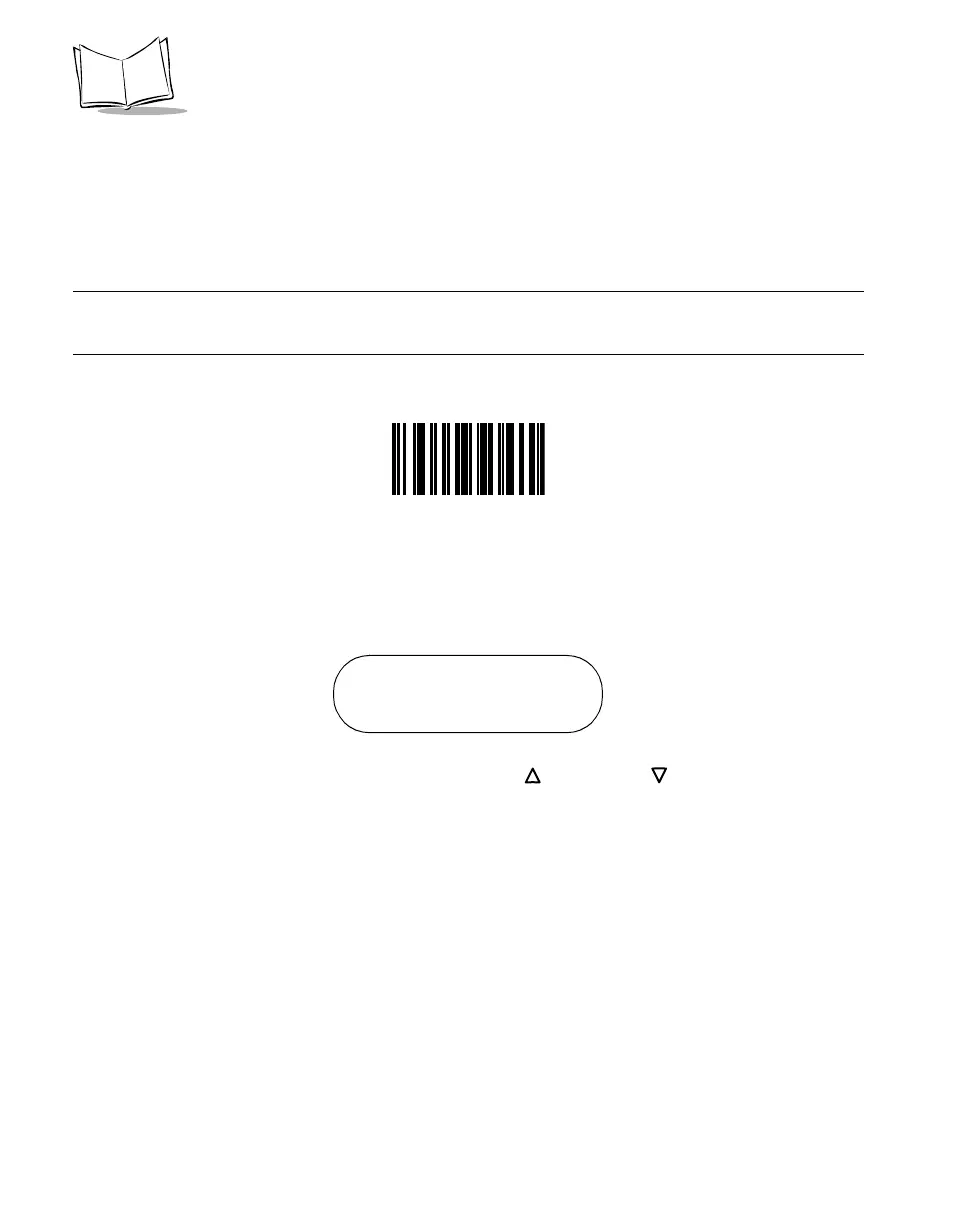
Enter System Menu by scanning the bar code below or by entering a keypad sequence.
Note:Commonly used System Menu programming bar codes have been
consolidated on page 1-4
To access the System Menu using the keypad sequence, press the <FUNC>, then the <*>
key, followed by the <FUNC> key, then the <BK> key.
When you enter the system menu, the following screen appears:
Below is the list of available options. Press the Up and Down arrow keys to scroll
through them. Press <ENTER> to select a menu option. You can also select a menu option
by typing the associated menu option number and then pressing <ENTER>.
0. System Setup
1. App. Control
2. Parameter Control
3. System Status
4. Erase File
5. Version
9. Return to App
The system menu options are described below.
Enter System Menu Bar Code
Phaser Setup
0. System Setup



 To Next Page