25
The Challenger Version 8.0 User Guide : Issue I , Revision I : October 1997
ALARM
Reset an Alarm:
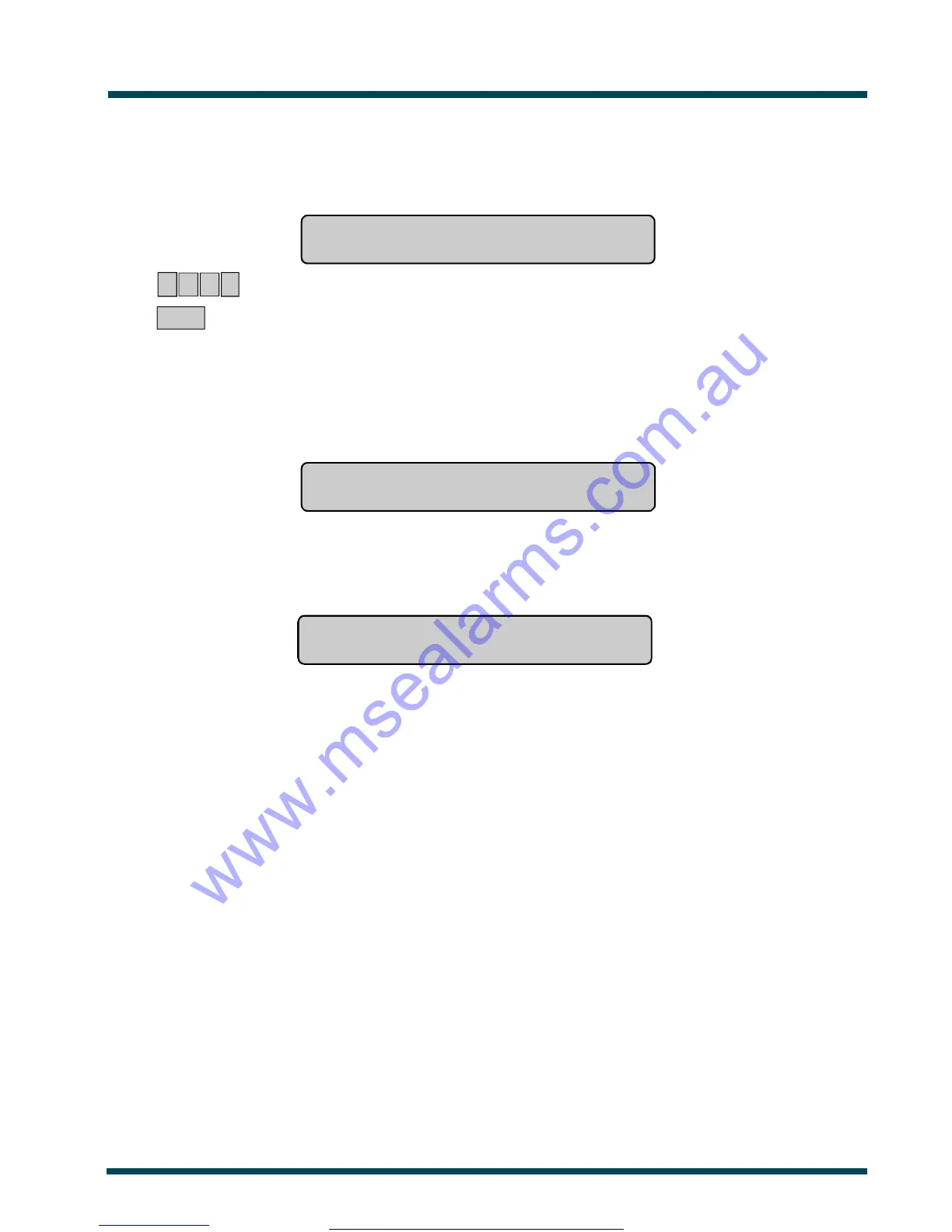
1. Before commencing, the display must show:
Code:
2. 1 2 3 4 ~ Enter your PIN
OFF ~ Press
3. If the reset function is successful:
- The area light stops flashing and returns to the state it was in before the alarm occurred.
- The display will show:
There Are No Alarms In This Area
Code:
4. If the reset function is not successful:
- The display will show the input/s causing the alarm:
e.g. Alarm On 1. Workshop PIR Detector
NEXT or ENTER
This indicates that the input is still unsealed and needs to be re-sealed before attempting to reset the alarm.
From this display: Refer to the procedure "To determine the cause of the alarm", and re-seal the input/s
before attempting to reset the alarm again.
Notes: 1. If the alarm conditions are no longer valid (false alarm), and the alarm has been reset, it is important
that you contact your monitoring company to ensure that no further action is taken by them.
2. If you are unable to reset an alarm because of a faulty input, refer to the section on Isolate Input -
Menu Option 10.
3. If you reset an alarm before determining it’s cause, you may use the function Quick AlarmHistory
to check alarm details.
4. You can only reset an alarm for an area which is assigned to your PIN. If you are unable to reset the
alarm, ensure that the flashing area light is for an area you can access with your PIN. If not, your
attempt to reset the alarm will result in you arming/disarming the system.
See Also: Local Alarm
Panel Status - Menu Option 1
Inputs in Alarm - Menu Option 3
Quick Alarm History
www.msealarms.com.au


 To Next Page