27
The Challenger Version 8.0 User Guide : Issue I , Revision I : October 1997
THE CHALLENGER MENU
The Challenger menu has 24 options available for performing various functions. Some of the functions are specific only
to certain installations, while others may not be authorized to you. It is therefore unlikely that you will see all the menu
options when you access the menu, but only those which have been programmed to be available when your PIN is used.
To display the menu options available to you:
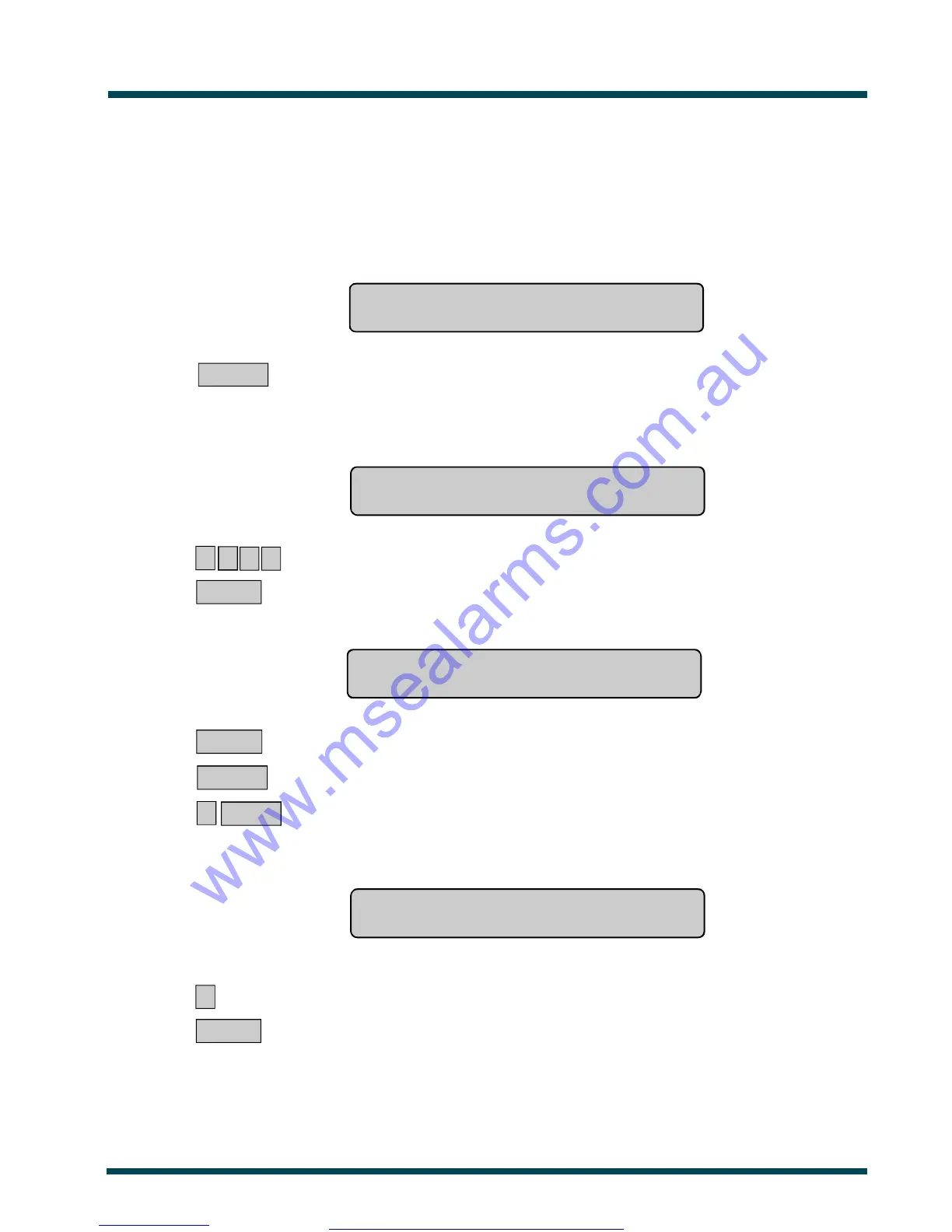
1. Before commencing, ensure that the prompt below is shown on the bottom line of the display:
Code:
2. MENU * ~ Press
The display will show:
To Access Menu Enter Code
Code:
3. 1 2 3 4 ~ Enter your PIN
ENTER ~ Press
The display will show:
"0"-Exit “ENTER"-Down “*”-Up
0-Exit, Menu:
4. ENTER ~ Move forwards one by one through the menu options.
or MENU * ~ Move backwards one by one through the menu options.
or 0 ENTER ~ Exit the menu and return to the display shown in step 1.
Note: When scrolling through, each menu option will be displayed.
eg. 10-Isolate
0-Exit, Menu:
Selecting a Menu Option:
? ~ Enter the option number
ENTER ~ Press
Note: The option need not be shown on the display. If you know the option number you need not move to it to
select it.
www.msealarms.com.au


 To Next Page