61
The Challenger Version 8.0 User Guide : Issue I , Revision I : October 1997
UNLOCK, LOCK, DISABLE & ENABLE DOORS - Menu Option 23
This function is used to Unlock, Lock Disable & Enable a valid door via the LCD Arming Station.
The function can only be used with Door numbers 17 to 64. i.e. Doors controlled by Intelligent Access Controllers.
The door will remain in the state selected until an opposite event occurs in the system that will change the state
of that door.
e.g. Door 21 automatically unlocks at 8 a.m. and relocks at 5 p.m. (Using an "Override Timezone")
If the user wishes to secure the premises and leave at 4 p.m., the door can be locked using the "lock" option,
but will still automatically unlock at 8 a.m. again the following morning.
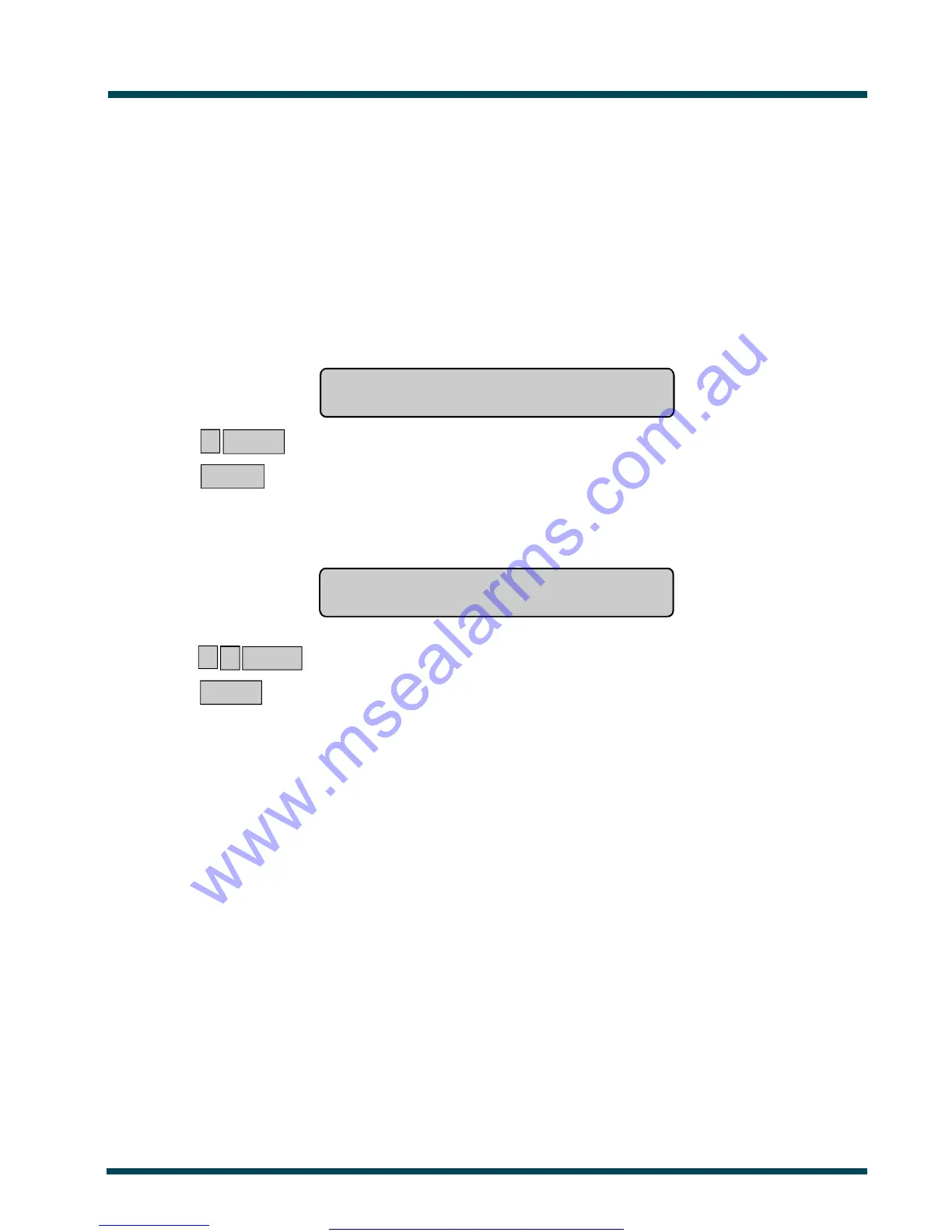
The display will show:
1-Unlock 2-Lock 3-Disable 4-Enable
Option:
? ENTER ~ Select the Door function option you wish to perform.
or ENTER ~ Return to the menu.
The display will show the option selected:
eg. Unlock Door
Door No:
? ? ENTER ~ Select the Door Number to Unlock and return to the menu.
or ENTER ~ Return to the menu.
Note: 1.Only doors programmed to be opened by your code may be operated using this option.
i.e.The Door Group assigned to the user may not allow access to all doors.
2.Using Panel Link changes the standard numbering system seen here, to reflect that of Panel Link's system.
See Also:Door Groups - Menu Option 20.
User Identification.
www.msealarms.com.au


 To Next Page