- Launch the testo Saveris 2 App once you have activated the WLAN
on your smartphone or tablet.
- Select Logger commissioning in the testo app.
- Enter the access data for your WLAN, so that this can be transmitted
WiFi data loggers to be configured are displayed in the testo app and
set up automatically.
4.2.4 Offline configuration via PDF form
As an alternative to creating the configuration file in the Quick Start Guide with
subsequent download of the XML configuration file, the WiFi data logger can
also be configured via a PDF form.
You need the Adobe Reader program (version 10 or later) to use the
PDF form correctly. If you have not installed Adobe Reader, you can go
to the following address to download it free of charge:
http://get.adobe.com/reader/.
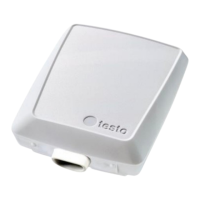
Make sure that the batteries are inserted.
- Connect the data logger to the PC via USB connection.
- Open the file WiFiConf.pdf on the external drive testo 160.
- Copy your Account ID and paste it into the relevant field on the PDF
form. You will find the Account ID in the web interface of the Testo
Cloud under
Configuration -> Account ID
- Enter configuration slot.
The testo 160 WiFi data loggers can be configured for up to three
WLAN networks. For each configuration slot, network name (SSID),
password and security settings are stored.
- Enter the Network name (SSID) and, if necessary, your WLAN
password
in the relevant fields on the PDF form.
- Click on the Save configuration button.


 To Next Page