34
03
35
03
Menu Overview I
Using the Video Player
Menu Overview I
Using the Video Player
Using the Video Player
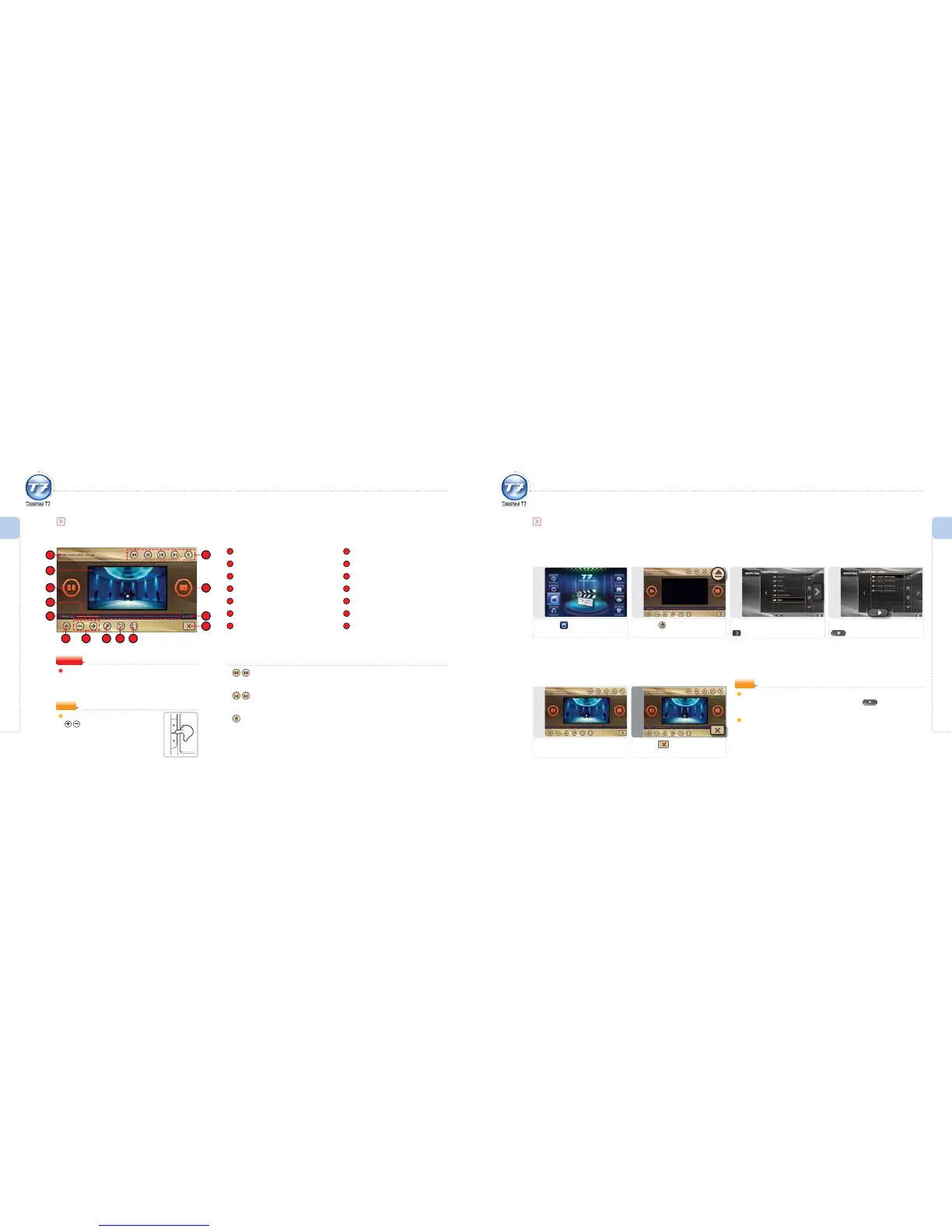
Video Screen
1
File Name
2
Video Playback Screen
3
Play/Pause
4
Progress Bar
5
Elapsed Time
6
Mute On/O
7
Volume Control
8
Full Screen View
9
Playback Mode
10
Repeat Section
11
Video Control Icons
12
Stop
13
Total Time of File
14
Exit
To ensure safety, the driver should not watch Video
programs while driving.
The driver is fully responsible for any accidents caused
due to watching Video program.
Warning
1
3
5
12
2
4
11
13
14
6 8 9 107
Video Control Icons
Backward / Fast Forward
Backward/Fast Forward for a certain time.
Previous Video File / Next Video File
To move to the previous/next video le during playback.
Open File
To move to the le browser to select a le.
NOTE
You can adjust the volume with the
button in the main unit.
Activate Player Immediately
Select the folder containing video files and press icon to playback
the video files within the selected folder.
The multi-tasking function does not work between the video player and
other programs except Settings.
NOTE
1
Selecting Video
Press the icon.
4
Selecting a le
Select the Video folder and press
icon.
3
Selecting a folder
Select the Video folder and press
icon.
2
Browsing a le
Press the icon.
Using the Video Player
If you stop a video le in ThinkNavi T7 and then playback again, the last scene you played will be displayed.
Simple Video Playback
5
View Video
The video le is played back.
6
Exit
Press the icon.



 To Next Page