52
03
53
03
Menu Overview I
Using the AV-IN
Menu Overview I
Using the AV-IN
Using the AV-IN
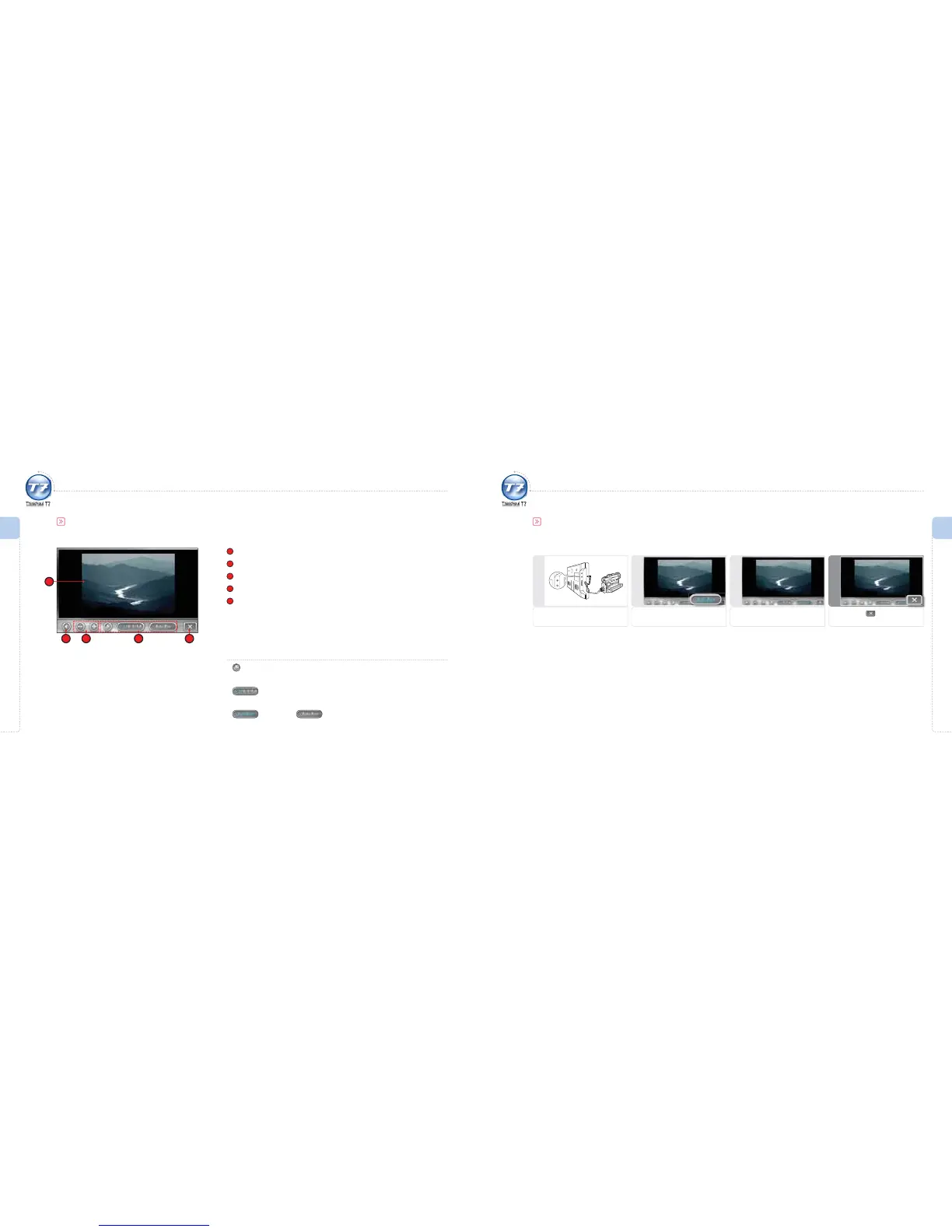
You can connect the AV cable of rear camera or camcorder.
AV-IN Screen
1
Video Output Display
2
Mute On/O
3
Volume Control
4
AV-IN Control Icons
5
Exit
2
1
3 54
AV-IN Control Icons
Full Screen
Converts to full screen.
Screen Ratio Change
Change the screen ratio among 4:3, 16:9 and Full.
Automatic / Manual
To use this, you have to set Auto Run in advance. If an input signal is detected through
the AV IN port, this will be activated automatically. If Auto Run is not set, the input
signal will not be activated automatically. To activate the signal, press the External
Input button.
Using the AV-IN
Simple AV-IN Playback – If Auto Run is set
1
Connect to the AV cable
Connect to the AV cable of the rear
camera or camcorder.
4
Exit
To exit, press icon.
3
Run AV-IN
Use AV-IN function icons.
2
Operate AV-IN
Run AV-IN automatically.



 To Next Page