38
03
39
03
Using the Audio Player
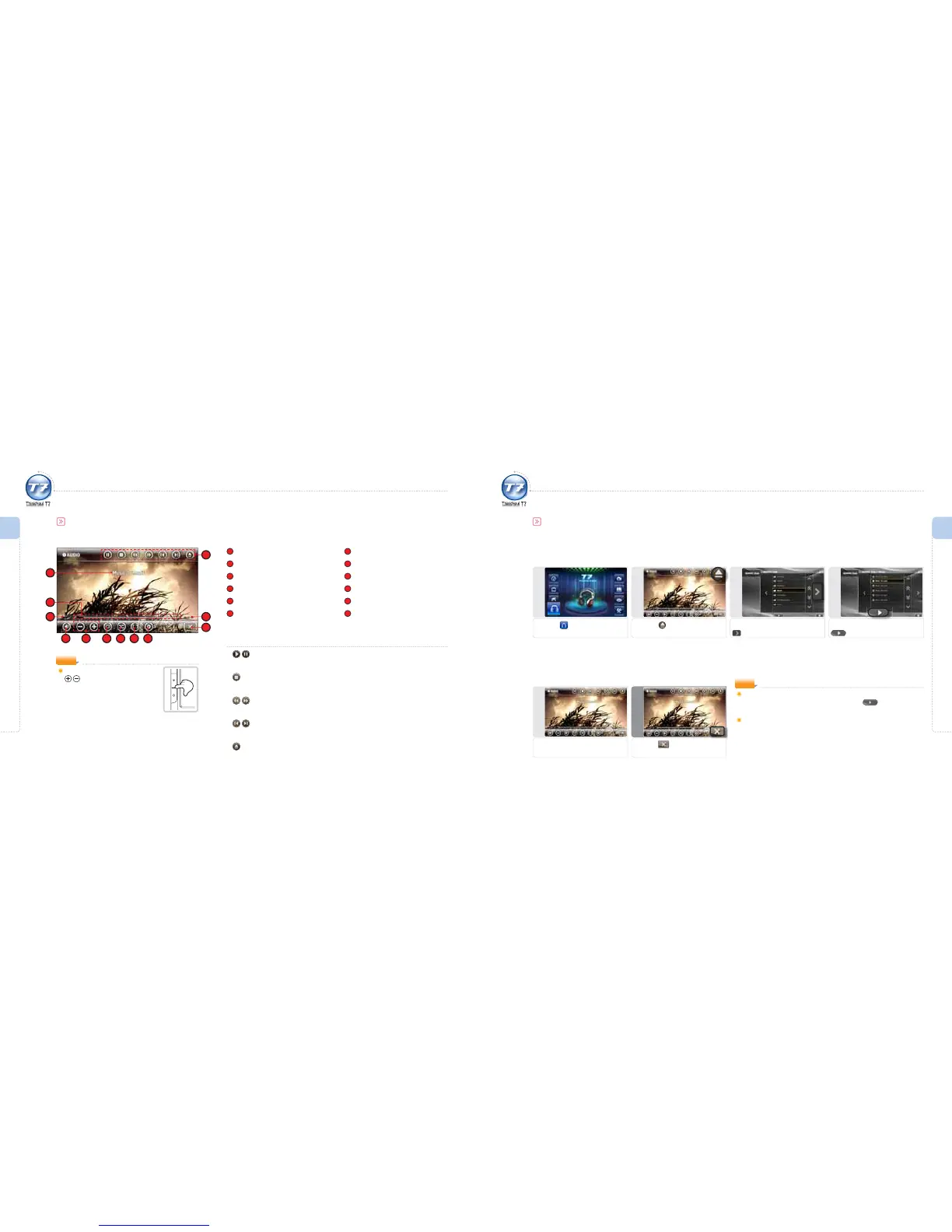
Audio Screen
1
Music Title
2
Progress Bar
3
Elapsed Time
4
Mute On/O
5
Volume Control
6
Playback Mode
7
Sequentia / Random Playback
8
Repeat Section
9
Audio Options
10
Audio Control Icons
11
Total Time of File
12
Exit
3
1
2
10
11
12
4 7 8 95
Audio Control Icons
Play / Pause
To play an audio le or pause during playback.
Stop
The audio le being played is stopped.
Backward / Fast Forward
Backward/Fast Forward for a certain time.
Previous Audio File / Next Audio File
To move to the previous/next video le during playback.
Open File
To move to the le browser to select a le.
NOTE
You can adjust the volume with the
button in the main unit.
6
Activate Player Immediately
Select the folder containing audio files and press icon to playback
the audio files within the selected folder.
Programs Available for Multi-tasking : ThinkNavi, Image Viewer, e-Book,
AV IN, Setting
(You can activate two programs at the same time.)
NOTE
1
Selecting Audio
Press the icon.
4
Selecting a le
Select a le to playback and press
icon.
3
Selecting a folder
Select the audio folder and press
icon.
2
Browsing a le
Press the icon.
Using the Audio Player
Simple Audio Playback
5
Listening to Music
Audio is played back.
6
Exit
Press the icon.
Menu Overview I
Using the Audio Player
Menu Overview I
Using the Audio Player



 To Next Page