36
03
37
03
Menu Overview I
Using the Video Player
Menu Overview I
Using the Video Player
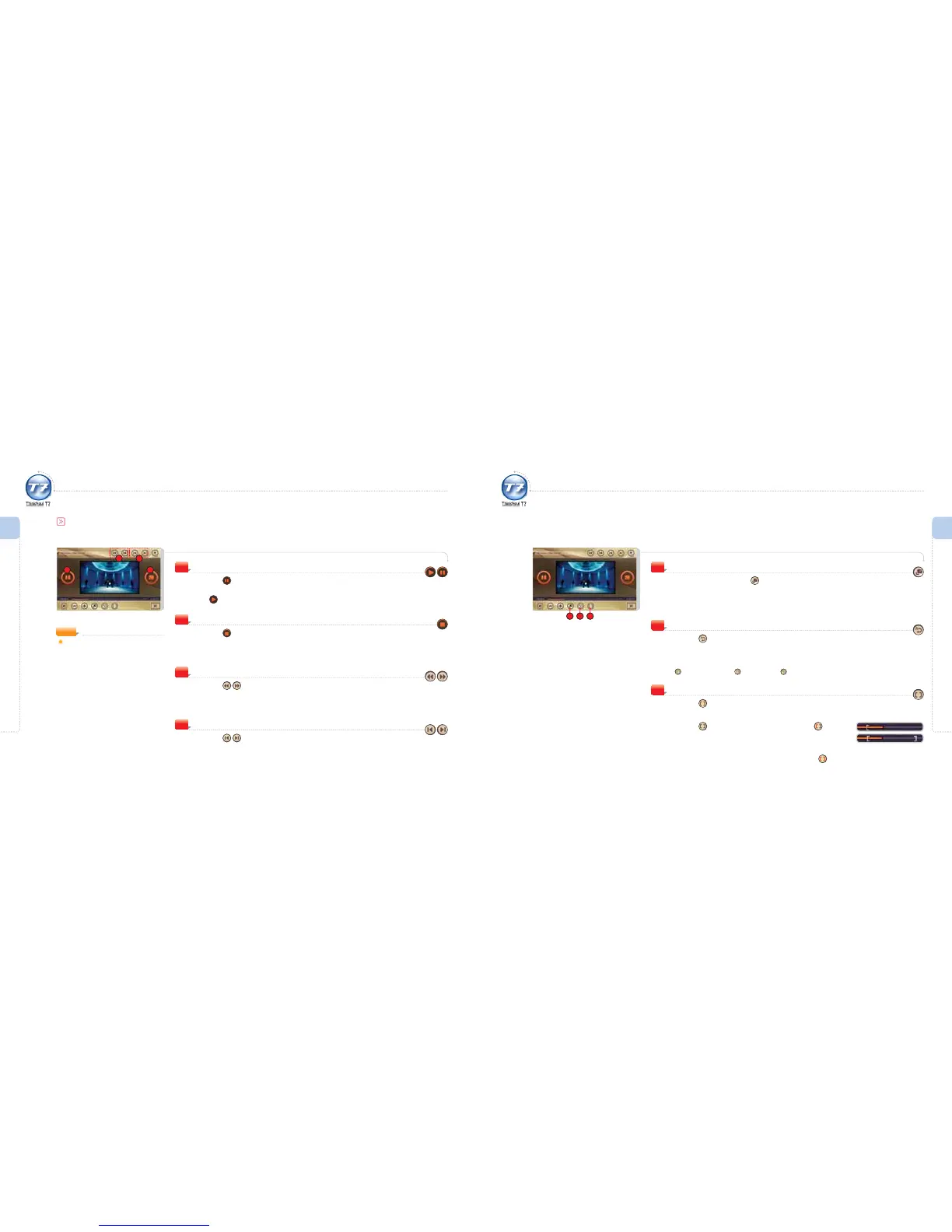
Play / Pause
Press the icon during playback.
The video le being played is paused.
The
icon appears. (Toggling method)
1
Using the Video Player
Video Controls
Stop
Press the icon during playback.
The video le being played is stopped.
2
Backward / Fast Forward
Press the icon during playback.
Backward/Fast Forward the current video le.
3
Previous / Next Video File
Press the icon during playback.
Go to the previous/next video le.
4
NOTE
Supported file formats:
AVI, ASF, WMV, MPG, MPEG
Codec for video : MPEG4, WMV9 Divx
(V3.XX-V5.xx), Xvid all version, MPEG1(VCD),
Codec for audio : MP3, AC3
1 2
3 4
Using the Video Player
Full Screen View
During playback, press the icon to convert to full screen view.
The full screen view appears.
When in full screen view, touching the screen returns the screen to the previous view.
Touch the screen to see video function icons.
5
Playback Mode
Press the icon during playback.
Set a desirable playback mode.
The playback modes shown are as follows :
Playback All Once X Repeat a File X Repeat All
6
5 6 7
Activating / Deactivating Repeat Section
Press the icon on the screen.
The beginning of the section to be repeated will be shown on the progress bar.
Press the icon to set the start point, and then icon to set
the end point.
The selected section is played back repeatedly.
To deactivate the repeat section setting, press the icon.
7



 To Next Page