48
03
49
03
Menu Overview I
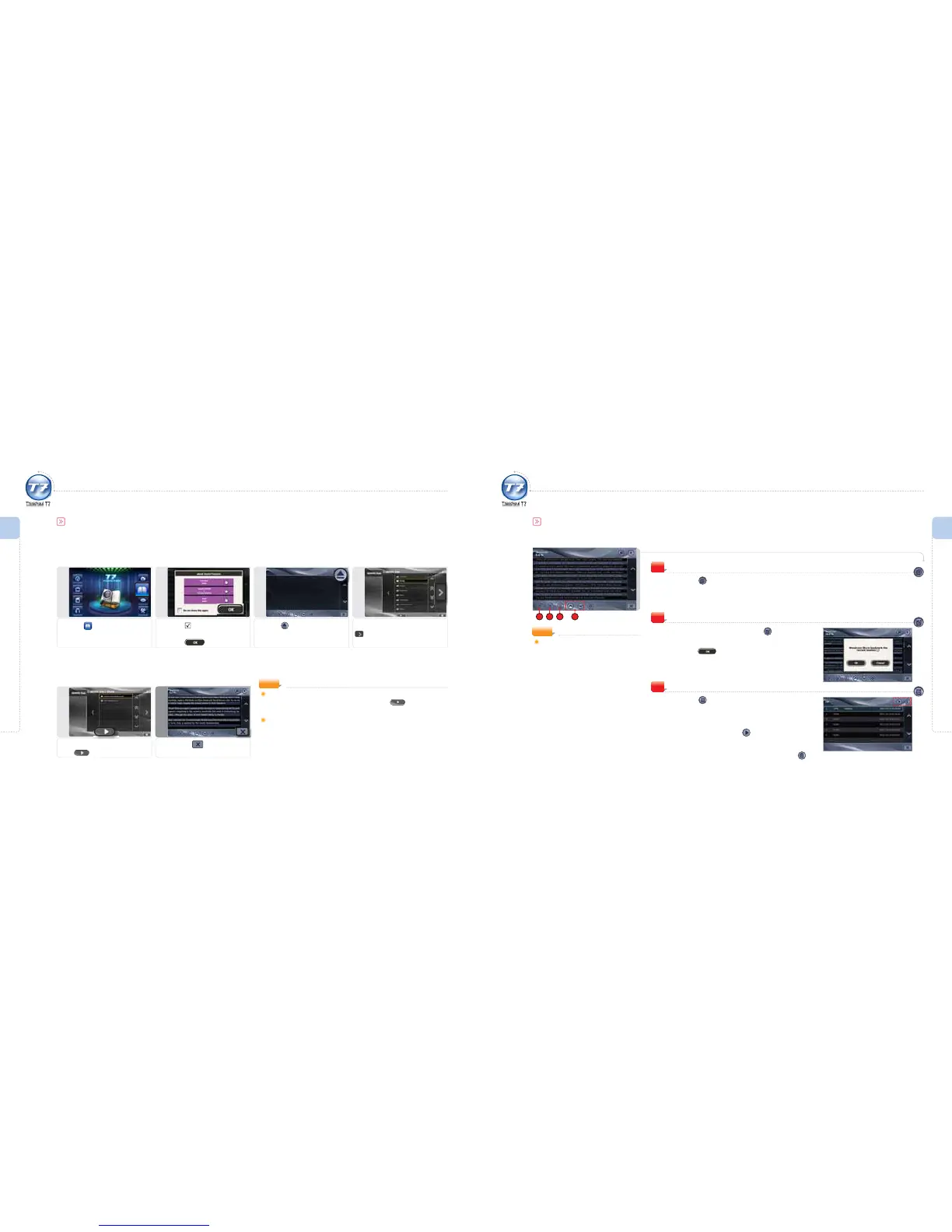
Using the e-Book
Menu Overview I
Using the e-Book
Activate Player Immediately
Select the folder containing e-Book files and press icon to playback
the e-Book files within the selected folder.
Programs Available for Multi-tasking : TinkNavi, DVB-T, MP3 Player, e-Book,
AV IN, Setting
(You can activate two programs at the same time.)
NOTE
1
Selecting e-Book
Press the icon.
4
Selecting a folder
Select the Ebook folder and press
icon.
3
Browsing a le
Press the icon.
2
eBook Useful Functions
Check the icon in order not to
show this window.
Select the
icon.
Using the e-Book
Simple e-Book Viewing
5
Selecting a le
Select a le to playback and
press
icon.
7
Viewing an Ebook and Exit
To exit, press icon.
Using the e-Book
Automatic e-Book Viewing
Press the icon on the e-Book screen.
The page automatically turns.
Set in the e-Book Options. (refer to page 51)
1
e-Book Controls
NOTE
Supported file formats:
TXT (Only text files in unicode will be
supported.)
1
3
2 3
Bookmark Setting
During text playback, press the icon
to call up a window as shown.
Press the icon to set and save a bookmark.
2
Recalling a Saved Bookmark
Press the icon on the e-Book screen.
Saved bookmarks appear in the bookmark list.
After selecting the desired bookmark from the
bookmark list, press the
icon.
The text from the selected bookmark appears on screen.
Select a bookmark to be deleted and press icon.
3



 To Next Page