Tasks
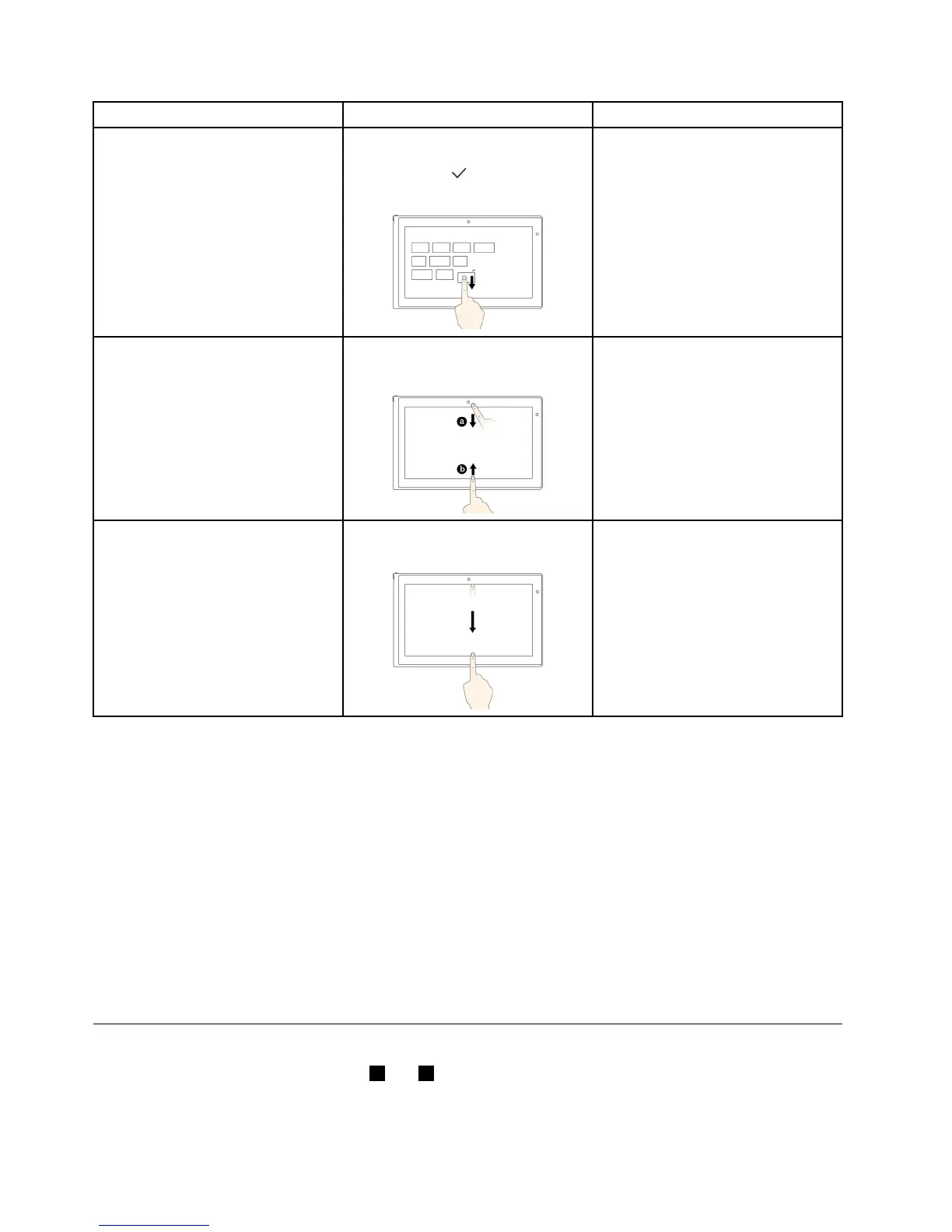
Touchgestures(touchmodelsonly)
Mouseactions
Movethedesiredicondownward
untilatickicon(
)isdisplayed,then
releaseyourfinger.
Toviewtheapplicationcommandson
anopenapplication,suchasCopy,
Save,andDelete,dependingonthe
application
Swipeinfromthetoporbottomedge.
Right-clickanopenapplication.
Toclosethecurrentapplication
Swipeinfromthetopedgetothe
bottom.
Movethepointertothetopedgeof
thescreen,clickandholdtheleft
buttononyourmouse,thenmovethe
pointertothebottomofthescreen.
Releasetheleftbuttonwhenyou
reachthebottomofthescreen.
Tipsonusingthemulti-touchscreen
•Themulti-touchscreenisaglasspanelcoveredwithaplasticfilm.Donotapplypressureorplaceany
metallicobjectonthescreen,whichmightdamagethetouchpanelorcauseittomalfunction.
•Donotusefingernails,glovedfingers,orinanimateobjectsexcepttheapproveddigitizerpenforinputon
thescreen.
•Regularlycalibratetheaccuracyofthefingerinputtoavoidadiscrepancy.
Tipsoncleaningthemulti-touchscreen
•Turnoffthecomputerbeforecleaningthemulti-touchscreen.
•Useadry,soft,andlint-freeclothorapieceofabsorbentcottontoremovefingerprintsordustfromthe
multi-touchscreen.Donotapplysolventstothecloth.
•Gentlywipethescreenusingatop-downmotion.Donotapplyanypressureonthescreen.
Specialkeys
Yourcomputerhasseveralspecialkeys1and2tohelpyouworkmoreeasilyandeffectively.Thefollowing
figureshowsthelocationsofthespecialkeys.
24UserGuide



 To Next Page