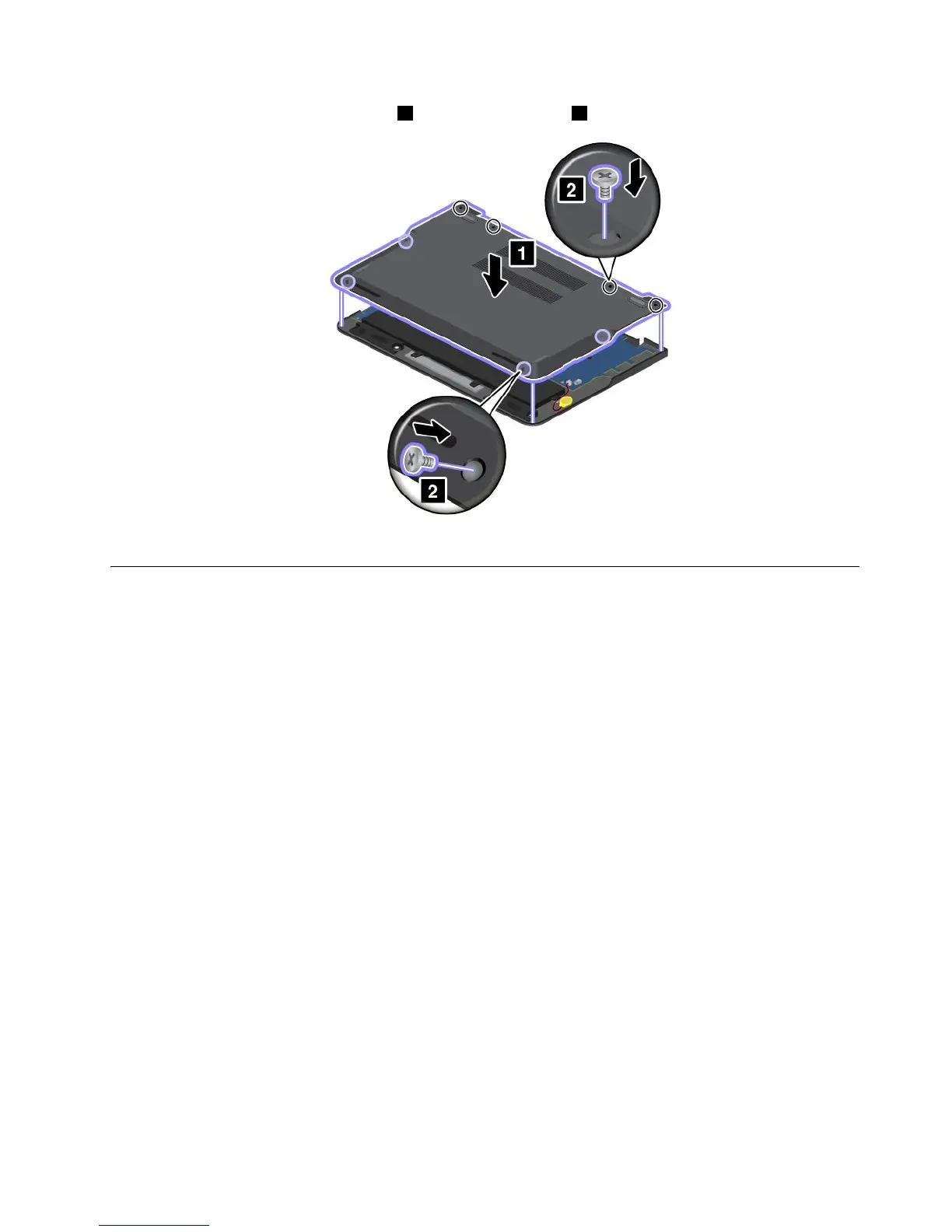
4.Installthenewbasecoverassembly1andinstallthescrews2.
5.Turnthecomputeroveragain.Connecttheacpoweradapterandallcables.
Replacingtheharddiskdriveorsolid-statedrive
Beforeyoustart,printtheseinstructions.
Attention:Theharddiskdriveisverysensitive.Incorrecthandlingcancausedamageandpermanentloss
ofdata.Observethefollowingguidelines:
•Replacetheharddiskdriveorsolid-statedriveonlyifyouupgradeitorhaveitrepaired.Theconnectors
andslotoftheharddiskdriveorsolid-statedrivearenotdesignedforfrequentchanges,ordrive
swapping.
•Donotdroptheharddiskorsolid-statedriveorsubjectittophysicalshocks.Puttheharddiskdriveor
solid-statedriveonamaterial,suchassoftcloth,thatabsorbsanyphysicalshocks.
•Donotapplypressuretothecoveroftheharddiskdriveorsolid-statedrive.
•Donottouchtheconnectors.
•Beforeremovingtheharddiskdriveorsolid-statedrive,makeabackupcopyofalltheinformation
onit,andthenturnoffthecomputer.
•Neverremovetheharddiskdriveorsolid-statedrivewhilethecomputerisoperating,insleepmode,
orinhibernationmode.
Toreplacetheharddiskdriveorsolid-statedrive,dothefollowing:
Note:Dependingonthemodel,yourharddiskdriveorsolid-statedrivemightlookdifferentfromthe
illustrationsinthistopic.
1.Disablethebuilt-inbattery.See“Disablingthebuilt-inbattery”onpage65.
2.Closethecomputerdisplay,andturnthecomputerover.
3.Removethebasecoverassembly.See“Replacingthebasecoverassembly”onpage66.
Chapter6.Replacingdevices67



 To Next Page