TH2883 Series Operation Manual Chapter 7 User guide
7-1
Chapter 7 User guide
7.1 Use of keys
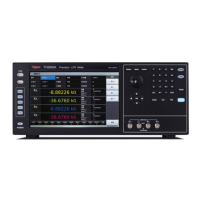
7.1.1 Use of the roller
The roller can be used as a roller and a key. The roller can be rotated in clockwise and
anti-clockwise directions, thus achieving parameter setups.
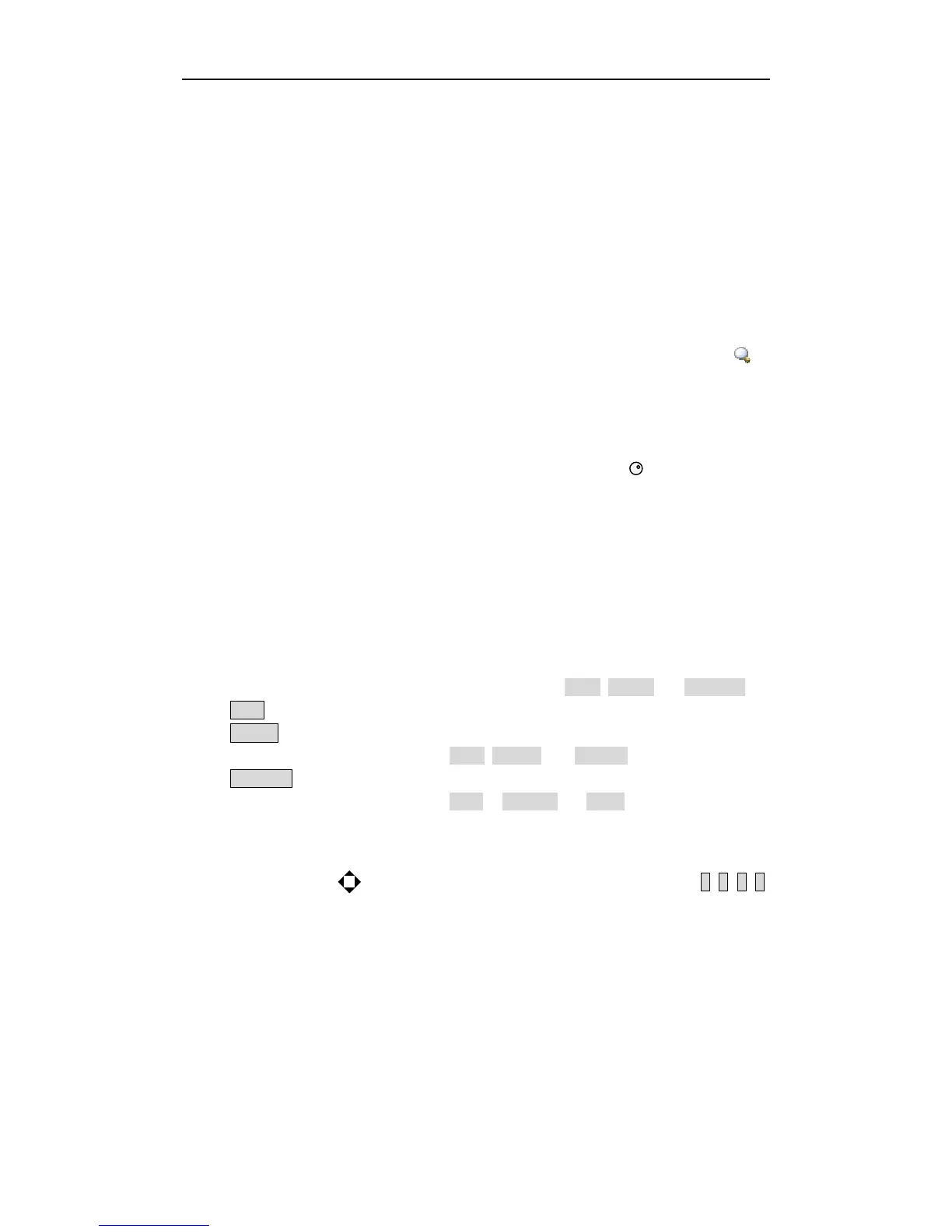
1. Indicate operations to the displayed waveform. Press the roller, if the icon
is
displayed, user can amplify or zoom the tested waveform. Press this roller again, if the
icon is displayed, in the state that the waveform is amplified user can shift the
waveform right or left. Another press of the roller will disable the amplification and the
shift functions.
2. Enable the roller. In the measurement display page, if the icon is displayed on the
soft key, press the soft key to enable the roller. When this icon is lightened, the roller
can be used; otherwise it is darkened, all functions of the roller will be invalid.
3. Choose and modify parameters. Revolve the roller in the purpose of moving the cursor
to the parameter to be modified. Press the roller to choose the parameter and then
revolve the roller to modify its value. When the value is modified, press the roller
again to confirm and exit from the modification.
7.1.2 Switch the display page
There are three function pages displayed on the instrument: DISP, STEUP and SYSTEM.
1. DISP Press this key to enter the measurement display page.
2. SETUP Press this key to enter the parameter setup page. Continuously press this key,
the display page will toggle among Setup, Int. File, and Ext. File.
3. SYSTEM Press this key to enter the system setup page. Continuously press this key,
the display page will toggle among System, Interface and About.
7.1.3 Numeric arrow key
Lighten this icon to enable this key. Respectively press the four keys, 8, 2, 4, 6,
the cursor will move up, down, left and right. When the icon becomes dark, the
numerical arrow key is disabled.



 To Next Page