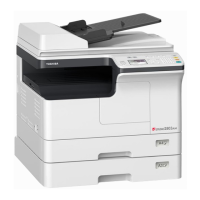
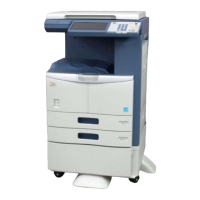
e-STUDIO2006/2306/2506/2007/2307/2507/2303A/2303AM/2803AM/2309A/2809A
© 2013-2017 TOSHIBA TEC CORPORATION All rights reserved
FIRMWARE UPDATING
11 - 12
11.4 Firmware Updating with BIOS Mode
Notes:
• Use the BIOS mode if firmware updating cannot be done with either a USB device or a PC
update tool.
• Firmware updating with the BIOS mode is available only for the system ROM and not for the
engine ROM.
11.4.1 General description
The BIOS mode can upgrade the version of the system ROM only while this mode is being operated by
connecting your PC and the equipment with a USB cable by means of a PC update tool.
11.4.2 System requirements
Tools introduced in this manual shall be operated under the following systems:
Windows Vista SP2 (x86 / x64)
Windows 7 SP1 (x86 / x64)
Windows 8.1 (x86 / x64)
Windows 10 (x86 / x64)
11.4.3 Preparation
(1) Before using a PC update tool, install the scanner driver of the equipment in your PC.
(2) Add the “.bin” extension to the file name of the firmware to be updated.
11.4.4 Update procedure
(1) Turn OFF the power of the equipment, and connect it and the PC with a USB cable.
(2) Turn the power ON while pressing the [OK] button simultaneously.
(Start the equipment with the BIOS mode)
(3) Confirm that the BIOS mode has started from the LCD panel of the equipment.
Fig.11-12
Notes:
Able to proceed to the next step after you check the display.
*BIOS MODE*
20XX/XX/XX V0.XX
SERVICE CALL



 To Next Page
 Loading...