29
Chapter 6 : Additional TV Features
CHAPTER 6
Additional TV Features
This section contains descriptions of the more advanced features of your TV.
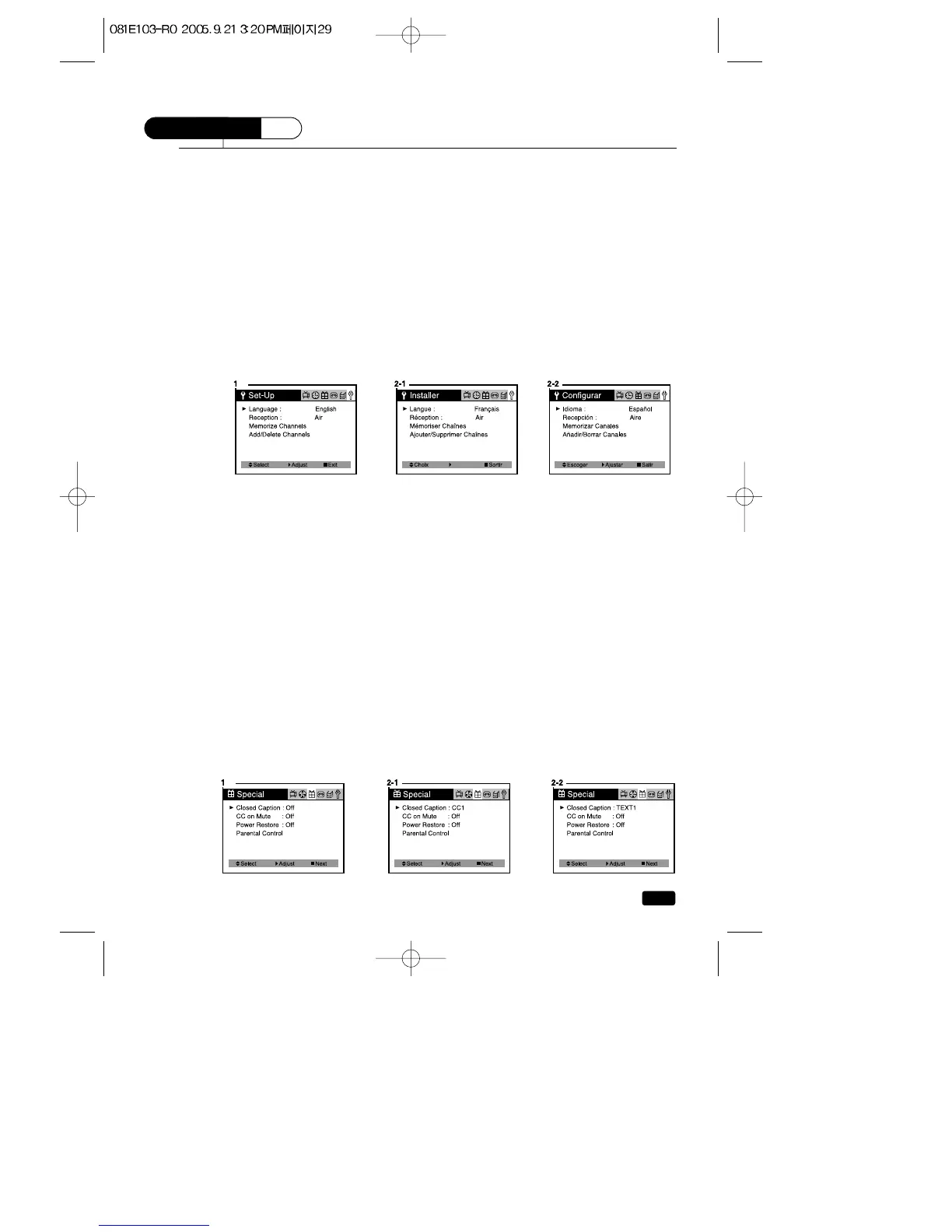
Changing the Language of the On-Screen Menus
You can choose to display the on-screen menus in English, French, Spanish.
To change the on-screen language:
1.With the TV/VCR on, press the MENU button until “Set-Up”menu
will be displayed.
2.The “Language”item will be selected. Press the VOL▶ button to
select the language you want to use: French, Spanish.
3.To return normal TV viewing, press the MENU button until menu
OSD will be disappeared.
Captioning
Many TV shows contains “closed captions”. These captions are hidden
words that can be displayed on your TV/VCR screen. There are two
types of these words : “captions”usually follow the action on-screen,
providing a written version of the dialogue, narration, and sound effects
; “text”is not usually related to the action on-screen, often providing
information such as news or weather. A TV program might be providing
more than one set of captions or one set of text.
To set your TV/VCR to display captions or text.
1.With the TV/VCR turned on, press the MENU button until “Special”
menu will be displayed.
2.The “Closed Caption”item be selected. To turn captioning on, use
the VOL▶ button to select Captions (CC1 or CC2) or Text (TEXT1,
TEXT2) At the time these instructions were written, only CC1 is nor-
mally available, but feel free to try the other selections.
3.Press the MENU button to return to normal TV viewing.
Your setting will remain intact until you change it.



 To Next Page