EasyManua.ls Logo

TSC ME240 - User Manual

TSC ME240
85 pages
Print Icon
To Next Page IconTo Next Page
Loading...
i
USERS
MANUAL
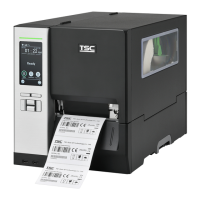
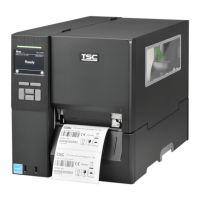
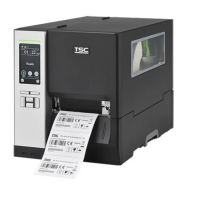
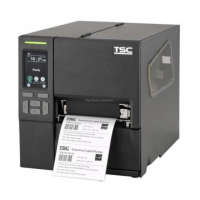
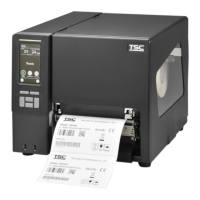
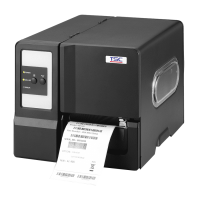
ME240/ ME340
THERMAL TRANSFER / DIRECT THERMAL
BAR CODE PRINTER

Other manuals for TSC ME240

Questions and Answers

  • B
    Betty WatsonSep 2, 2025
    How to stabilize label feeding on TSC Barcode Reader?
    • D
      darin12Sep 2, 2025
      To stabilize label feeding and prevent skewing when printing with your TSC Barcode Reader, adjust the media guide so that it touches the edge of the media. If the label is moving to the right, move the label guide to the left. Conversely, if the label is moving to the left, move the label guide to the right.
  • S
    Sharon BassAug 31, 2025
    What to do if TSC Barcode Reader skips labels when printing?
    • V
      Victoria JordanAug 31, 2025
      If your TSC Barcode Reader is skipping labels during printing, verify that the label size is set up correctly. You may also need to calibrate the sensor using the Auto Gap or Manual Gap options. Additionally, ensure that the media sensor is clean and free from dust by using a blower to clear the GAP/Black mark sensor.
  • J
    James ThomasAug 29, 2025
    Why is my TSC Barcode Reader not printing?
    • M
      Melanie HernandezAug 29, 2025
      Your TSC Barcode Reader might not be printing due to several reasons. The cable may not be properly connected to the serial, USB interface, or parallel port; in this case, reconnect the cable to the interface. If you are using a serial cable, replace it with one that is pin-to-pin connected and check the baud rate setting, as the default is 9600, n, 8, 1. If using an Ethernet cable, check if the green LED is lit and the amber LED is blinking on the RJ-45 connector. Also, verify the ribbon-inked side, reload the ribbon, and clean the printhead. Ensure there is a command PRINT at the end of your file and CRLF at the end of each command line. Finally, ensure the printhead’s harness connector is securely connected by turning off the printer and plugging the connector again.
  • A
    Amy MendezAug 28, 2025
    Why is there a gray line on blank labels from my TSC Barcode Reader?
    • A
      Alexander CooperAug 28, 2025
      A gray line appearing on blank labels from your TSC Barcode Reader is typically due to a dirty print head or platen roller. Clean both the printhead and the platen roller to resolve this issue.
  • T
    Tammy CastroAug 26, 2025
    What to do if LCD panel is dark on my TSC Barcode Reader?
    • L
      linda52Aug 26, 2025
      If the LCD panel on your TSC Barcode Reader is dark while the LEDs are lit, it suggests that the printer initialization was unsuccessful. Try turning the printer OFF and then ON again. If the problem persists, initialize the printer.
  • A
    Alexander HuntAug 25, 2025
    How do I correct the left side printout position on my TSC Barcode Reader?
    • K
      Kenneth BrownAug 25, 2025
      To correct an incorrect left side printout position on your TSC Barcode Reader, ensure that you have set the correct label size. Additionally, the parameter Shift X in the LCD menu may be incorrect; press [MENU] [SELECT] x 3 ? [DOWN] x 5 [SELECT] to fine tune the parameter of Shift X.
  • T
    Tim DonovanAug 22, 2025
    What causes poor print quality with TSC Barcode Reader?
    • T
      Thomas MoralesAug 22, 2025
      Poor print quality on your TSC Barcode Reader can stem from several issues. The ribbon and media may be loaded incorrectly, so ensure they are reloaded properly. Dust or adhesive accumulation on the print head can also degrade quality, so clean the printhead. The print density settings might be improperly configured, so adjust the print density and print speed. A damaged printhead element can also be a culprit; run a printer self-test to check the print head test pattern for missing dots. Ensure the ribbon and media are compatible. Finally, the printhead pressure may not be set correctly, so adjust the printhead pressure adjustment knob.

Summary

Agency Compliance and Approvals

Introduction

Product Introduction

Overview of TSC ME240/ME340 thermal label printers.

Product Features

Details standard and optional features of the ME240/ME340 printers.

General Specifications

Physical, electrical, and environmental specifications of the printer.

Print Specifications

Resolution, printing method, speed, and size for print jobs.

Ribbon Specifications

Details on ribbon size, length, core, width, and winding type.

Media Specifications

Specifications for label roll capacity, types, width, thickness, and core diameter.

Operations Overview

Unpacking and Inspection

Instructions for unpacking and inspecting the printer and its accessories.

Printer Overview

Visual identification of printer components and their locations.

Front View

Identifies front panel keys, indicators, and covers.

Interior View

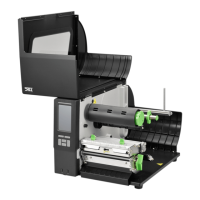
Identifies internal components like spindles, sensors, and print head.

Rear View

Identifies rear interfaces, power switch, and SD card slot.

Operator Controls

Explains the function of front panel keys and LED indicators.

Front Panel & Keys

Details the function of standard and optional front panel keys.

LED Indicators

Explains the meaning of status indicated by POWER, ON-LINE, and ERROR LEDs.

Setting up the Printer

Step-by-step guide for connecting and setting up the printer.

Installation of Ribbon

Procedures for installing and loading the ribbon.

Loading the Ribbon

Procedure for installing a ribbon roll into the printer.

Installation of Media

Instructions for loading various types of media into the printer.

Loading the Roll Label

Instructions for loading a standard roll label.

Loading the Fan-fold Label

Instructions for loading fan-fold media.

Loading Media in Peel-off Mode

Procedure for loading media when using the peel-off module.

Loading Media in Cutter Mode

Procedure for loading media when using the cutter module.

Print Head Pressure Adjustment

Guide for adjusting print head pressure for optimal print quality.

LCD Panel Menu Function (Option)

Main Menu Overview

Visual representation of the printer's menu structure.

Setup Menu Overview

Visual representation of the printer's menu structure for setup options.

Printer Setup (TSPL2)

Configuration options for TSPL2 printer language, covering various settings.

Printer Setup (ZPL2)

Configuration options for ZPL2 printer language, covering various settings.

Sensor Settings

Options for checking sensor status and performing calibration (Gap, Bline, Cont.).

Label Position Adjustments

Settings for adjusting vertical (Label Top) and horizontal (Left Position) print placement.

Serial Communication Settings

Configuration for serial port parameters like baud rate, parity, data bits, and stop bits.

Ethernet Configuration

Settings for network connectivity, including IP address, MAC, DHCP, and static IP.

File Manager

Functions for managing files stored on the printer's memory (DRAM, Flash, Card).

Diagnostics

Tools for printing configuration, dump mode data, and rotating the cutter.

Language Settings

Options to change the display language of the printer's LCD.

Service Functions

Options to initialize printer settings and view mileage information.

Diagnostic Tool

Start the Diagnostic Tool

Guide to launching and using the TSC Diagnostic Utility software.

Printer Function Details

Explains printer functions available in the utility and lists factory default settings.

Ethernet Setup Utility

Setup via USB Interface

Steps to configure Ethernet settings using a USB connection.

Setup via RS-232 Interface

Steps to configure Ethernet settings using an RS-232 serial connection.

Setup via Ethernet Interface

Steps to configure Ethernet settings directly over the network.

Troubleshooting

Common Problems

Lists common printer issues and their solutions.

Mechanism Fine Adjustment for Ribbon Wrinkles

Printer Maintenance

Cleaning Procedures

Instructions and methods for cleaning printer parts like print head and platen roller.

Revise History

TSC ME240 Specifications

General IconGeneral
Resolution203 dpi / 300 dpi
Operating Temperature5°C to 40°C (41°F to 104°F)
Print MethodThermal Transfer & Direct Thermal
InterfaceUSB
Power SupplyAC 100-240V, 50/60Hz
Humidity20% to 85% RH (non-condensing)

Related product manuals