m90User’s Guide
34 © 2007 Unication Co., Ltd.
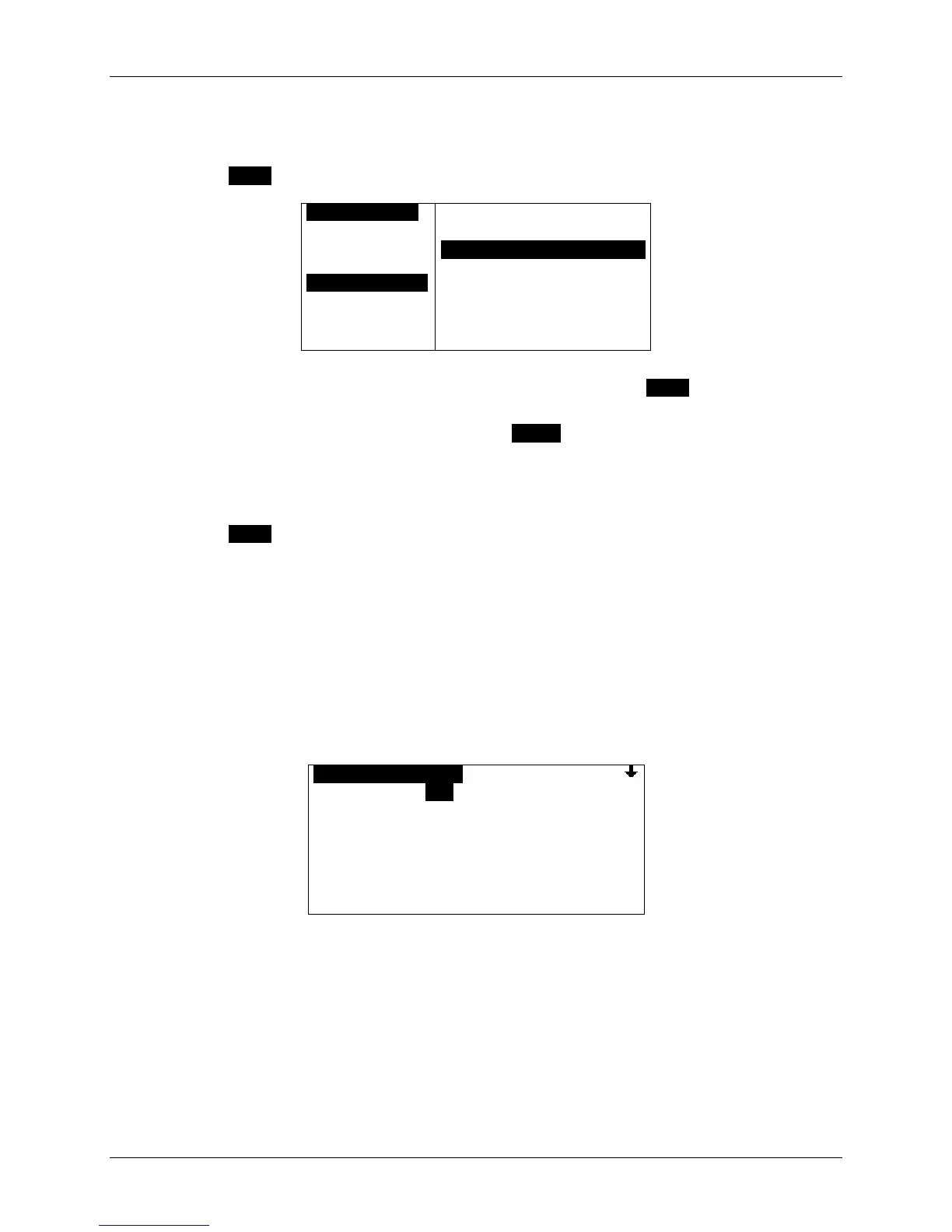
Edit an Existing Quick Text Item
1. In the Quick Text submenu, select the Quick Text item to be edited.
2. Press MENU to open the Quick Text Options popup menu and select Edit.
OQUICK TEXTO
Where shall w
Who will be t
Thanks for yo
Meet me for l
OPTIONS
`New Quick Text
`EditOOOOOOOOOOOOOOOOO
`Delete
`Delete All
3. Make changes to the text in the Quick Text screen, and then press MENU and select Save.
When the edited text is saved in Quick Text, you can view the new version of the text by
scrolling down through the menu, and pressing ENTER when the desired text is highlighted.
Delete an Existing Quick Text Item
1. In the Quick Text submenu, select the item to be deleted.
2. Press MENU to open the Quick Text Options popup menu and select Delete.
3. Verify the deletion in the confirmation message that appears by selecting “Yes”.
The deleted text item no longer appears in the Quick Text submenu.
8.2 Customizing the New Message Alert
You can change your Inbox Alert settings or turn the alert on or off.
1. Go to PREFERENCES
→ Mailbox Alerts.
The Mailbox Alerts submenu is displayed.
OMAILBOX ALERTSO
Alerts: Yes
Volume: Medium
`Inbox
`Weather
`Stock Market
`Entertainment
`News Events
Arrow in upper right corner indicates that you
can scroll down to see more mailboxes.
2. Set Alerts to “Yes” or “No” to enable or disable all mailbox alerts.
3. Set the Volume level to either “Low”, “Medium”, or “High”.
These two options apply to alerts for all mailboxes (i.e. includes both incoming mail and news
messages).


 To Next Page