m90User’s Guide
46 © 2007 Unication Co., Ltd.
2. Set Alerts to “Yes” (ON) or “No” (OFF) and set the Volume level to either “Low”, “Medium”, or
“High”.
Note: This affects both Inbox and News messages. Do not make changes to these two items
unless you intend them for all message alerts.
3. Select one of the News types (Weather, Stock Market, etc.) that you wish to set an alert for.
The News Alert Options submenu is displayed.
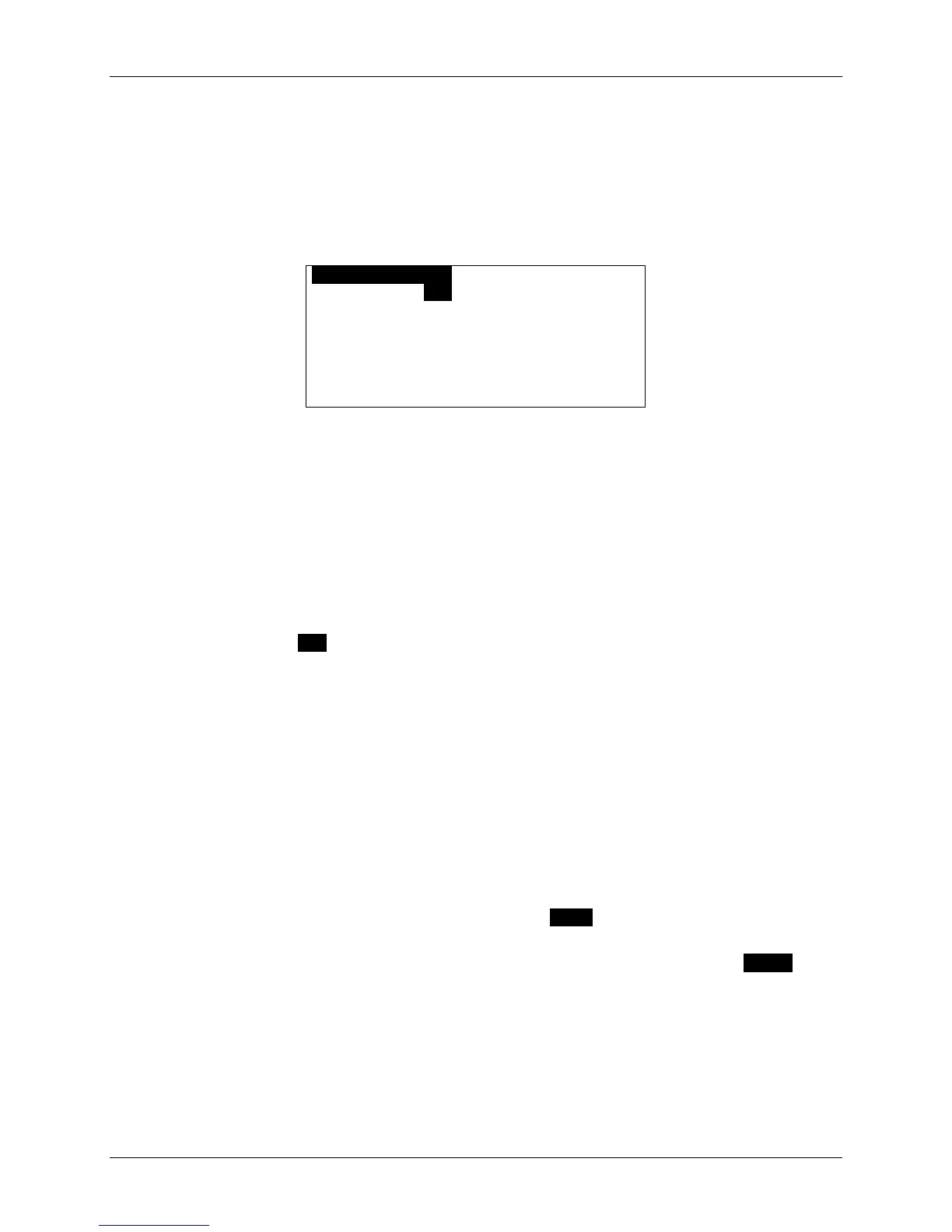
OWEATHER ALERTO
Service: Yes
Type: Vibrate
Quickview: Yes
History: 4
Set News Alert Options
1. Set Service to either:
“Yes” (receive a message and create folder for it) or
“No” (message will not be received and associated folder will be deleted).
2. Set Type to your desired option. This may be one of Silent, Vibrate, etc.
3. Set Quickview to either “Yes” or “No”.
If Quickview is set to “Yes”, then a New Message Received popup appears on the display
when a new message arrives. This is a quick way to view incoming News messages; you can
open the new message by selecting “View Message” in the popup, or you can close the popup
by pressing any ESC.
4. Set History to a number from 1 to 8 for the maximum number of messages to be stored in the
folder.
When the maximum number for a folder is reached, then your M90 will automatically delete
messages from that folder according to the deletion rules for Automatic Deletion when News is
Full on page 44. Messages will also be deleted when the M90 runs out of News message
memory.
10.6 Saving News in the Personal Folder
You can archive any News message in your Personal folder in FOLDERS. For more information on
folders, see Managing Folders on page 49.
1. After selecting the News message for viewing, press MENU to open the News Options popup
menu and select Move to Folder.
2. Scroll to the folder or subfolder where you wish to store your message and press ENTER to
move the message into that folder.
The message will be moved from your News folder to your Personal folder.


 To Next Page