m90User’s Guide
© 2007 Unication Co., Ltd.
45
Delete News Messages while in the News Menu
Alternately, you can delete messages as follows:
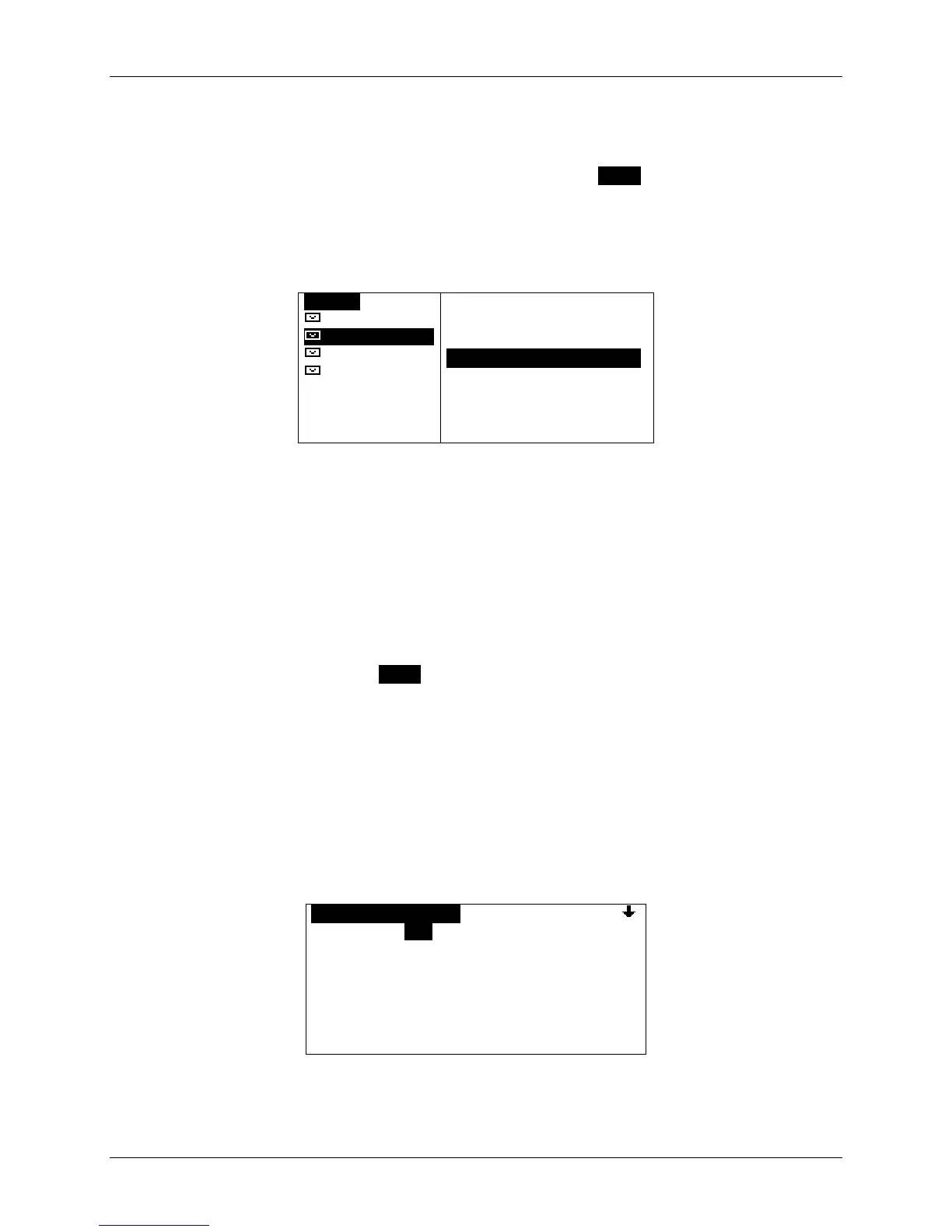
1. While a News folder is highlighted in the News menu, press MENU to open the News Options
popup menu and select one of:
Delete Read Msgs - delete all messages marked as Read in this News folder
Delete - delete all messages in this News folder
Delete All Read - delete all messages marked as Read in all News folders
Delete All Msgs - delete all messages in all News folders.
ONEWSO
Entertainme
MarketOOOOOO
Weather
Sports
OPTIONS
`Move Folder Up
`Move Folder Down
`Delete Read Msgs 0
`Delete
`Delete All Read
`Delete All Msgs
Note: News messages saved in the Personal folder in FOLDERS will not be deleted using any
of these Delete options.
2. If you have set the Confirm Delete option (PREFERENCES → Options → Confirm Delete) to
“Yes”, then you will be asked to confirm or cancel the deletion.
Depending on the Delete option selected, all News messages or all News marked as Read, will
be deleted in the selected folder, or in all folders (but not in the Personal folder).
10.4 Reordering News Folders
1. Select a News folder, press MENU to open the News Options popup menu and select one of:
Move Folder Up
Move Folder Down.
10.5 Customizing News Alerts
You can turn alerts on or off and change the volume for all alerts (both News and Inbox), or modify
the type of alert for different kinds of News messages.
1. Go to PREFERENCES
→ Mailbox Alerts.
The Mailbox Alerts submenu is displayed.
OMAILBOX ALERTSO
Alerts: Yes
Volume: Medium
`Inbox
`Weather
`Stock Market
`Entertainment
`News Events


 To Next Page