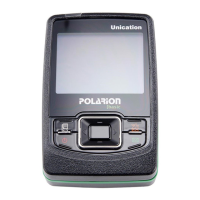
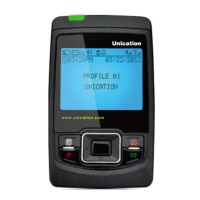
m90User’s Guide
44 © 2007 Unication Co., Ltd.
10.3 Deleting News
You can delete any or all News messages. News messages will also be deleted automatically
when a new message is received and your News folder is already full.
Automatic Deletion when News is Full
When your News folders become full, your M90 will automatically delete News messages to make
room for a new incoming News message. The order of priority for automatic message deletion is:
1. The oldest messages marked as Read are deleted first.
2. If all Read messages have been deleted, then the oldest Unread messages will be deleted.
Note: Any News messages saved in the Personal folder will not be deleted.
Delete News Messages while in a News Subfolder
To delete News messages yourself:
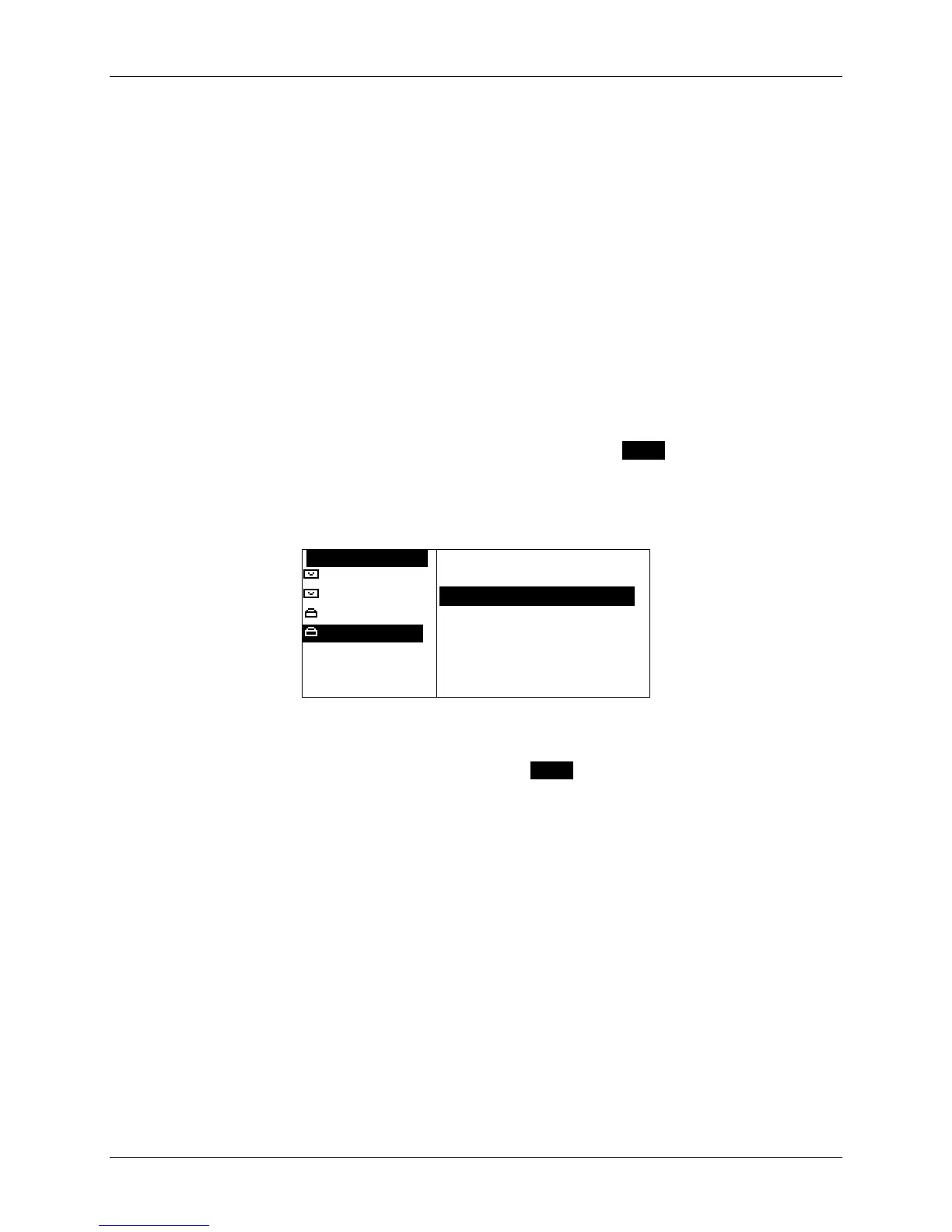
1. While a News message is highlighted in the News menu, press MENU to open the News
Options popup menu and select one of:
Delete delete the selected message
Delete All Read delete all messages marked as Read in this folder
Delete All Msgs delete all messages in this folder.
OSTOCK MARKET OPTIONS
Market Upd
`Forward
Market Upd
`Delete OOOOOOO
Market Upd
`Move to Folder
Market Upd
`Delete All Read
arket Up
[ate ---Dow
[Indu 2293.90
`Delete All Msgs
Or:
After opening a News message for viewing, press MENU to open the News Options popup
menu and select Delete.
2. If you have set the Confirm Delete option (PREFERENCES → Options → Confirm Delete) to
“Yes”, then you will be asked to confirm or cancel the deletion.
Depending on the option selected, the selected News message, all News messages marked as
Read, or all News messages will be deleted.


 To Next Page