EasyManua.ls Logo

US Robotics COURIER - Verifying Modem Installation

US Robotics COURIER
216 pages
Print Icon
To Next Page IconTo Next Page
To Previous Page IconTo Previous Page
Loading...
-
-
-
-
-
-
COURIER HIGH SPEED MODEMS
6.
The final
step
is to connect
the
modem
to
the
computer's
or
terminal's serial
port
with
the
RS-232 cable described earlier
in this chapter.
Attach
the
appropriate
connectors
to
the
modem
and
to
the
serial port.
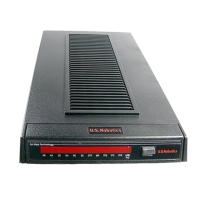
NOTE: To
prevent
overheating,
do
not
cover the
vents
on
the
top
of the
modem
case.
The
modem
is
now
ready
to
be
tested
and
operated.
TESTING THE INSTALLATION
Use
the
following
procedures
to verify
that
your
modem
is
working
properly.
1.
Turn
on
your
computer
or
terminal
and
clear the screen.
Then
turn
the Courier's
power
switch
ON.
The following
front
panel
indicators,
or
LEDs, will
light
up.
CD
Carrier
Detect,
if
you
have
set
DIP
switch
6
ON,
enabling
the
CD
override
MR
Modem
Ready
/Power
ON
CS Clear to
Send
TR Data Terminal Ready, if
you
have
set DIP
switch
1
ON,
enabling
the
DTR
override
For
more
information
on
the front
panel
indicators, see
Appendix
B.
2.
Set
your
terminal
or
software
to 19.2K
bps
or
9600 bps.
In
addition,
set a
word
length
of either 7
bits
plus
1
parity
bit,
or
8 bits
with
no
parity-it
doesn't
matter
which
now-and
1
Stop bit.
3.
If
you're
using
a
personal
computer,
load
your
communica-
tions software.
If
your
software
allows,
perform
the
function
that
lets
you
send
AT
commands
to
the
modem,
that
is,
puts
the
computer
in Terminal
Mode.
Some
communications
programs
do
this automatically
upon
loading.
Others
require
you
to
display
a
communications
or
terminal
screen,
type
a
Function
key,
or
perform
some
other
operation.
If
necessary, refer
to
your
communications
software
docu-
mentation
for instructions.
Set-up and Testing 2-7

Table of Contents

Related product manuals