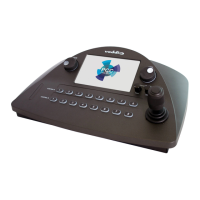
Touch-Panel Display Cheat Sheet
Where to find the controls you need right now.
What do you need to do? Go to this screen
Mute all video and audio outputs Safety Mute (all screens)
View the controller's IP address and other network information Settings: Info
Connect to a specific switcher to control its cameras Directory
Store or recall presets for the selected camera Presets
Selecta defined set of lighting and color adjustments (recalla
CCU scene) for the selected camera
Scenes
Adjust color and lighting settings for the selected camera CCU
Store color and lighting adjustments as a CCU scene for the
selected camera
CCU: Store as scene
View or change audio settings Audio
Work with on-screen graphics Keying
Select the source and placement for the picture-in-picture (PIP) PIP
Work with macros Macros
View or select streaming sources Streaming
Adjust the touch-panel's brightness Settings: Device
Put the system into standby mode; configure standby behavior Settings: Device
Safety Mute
ALL SCREENS
In situations where it is desirable to mute all outputs together, select Safety Mute. This control is present at
the top of every screen.
When you unmute Safety Mute, all inputs and outputs return to their previous states. For example, if the
Program audio outputs were muted before Safety Mute was selected, they will remain muted after Safety
Mute is deselected.
22
Integrator's Complete Guide to the PCC MatrixMIX Live Production Controller


 To Next Page