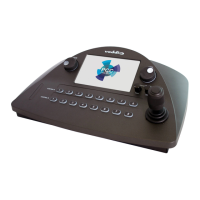
Camera Select Buttons
The buttons on the Program and Preview rows are associated with the same video sources. During normal
operation, the buttons are illuminated if they are mapped to cameras or other video sources. Color
indications:
n Red – Current program output
n Green – Current preview output
n Blue – Available video source
n Blinking blue – No video source is currently available at the mapped IP address, or further configuration
is required.
Button behavior depends on the selected switching mode.
A/B switching mode: One program output. The tally (red) indication is always on the Program row of
buttons, and the preview indication is always on the Preview row.
Dual-bus switching mode: Two simultaneous program outputs. The buttons on the Program row show the
tally for one output; the buttons on the Preview row show tally for the other output. Press another button to
select a preview source. The button turns green to indicate that it will be the next source on that bus after a
video transition (T-bar on the controller, or Take button on the multiviewer).
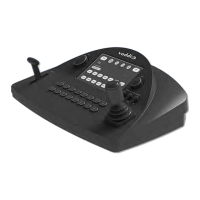
T-Bar
Manual control for video source transitions.
Joystick
Intuitive control for moving the selected camera to the desired position – left/right to pan, forward/back to
tilt. Twist the joystick clockwise or counterclockwise to zoom the camera. Press the center button to return
the camera to its home position.
The camera controller's web interface allows you to set normal or inverted directional operation, according
to the operator's preference. See Configuring Joystick Behavior.
Connector Panel
Ethernet/PoE+ connector – PoE+ Gigabit Ethernet for power, control, and access to the cameras
associated with the connected switcher.
HDMI connector – Reserved for future use.
5
Integrator's Complete Guide to the PCC MatrixMIX Live Production Controller


 To Next Page