EasyManua.ls Logo

VADDIO PCC Premier - User Manual

VADDIO PCC Premier
64 pages
Print Icon
To Next Page IconTo Next Page
Loading...
Integrator's Complete Guide to
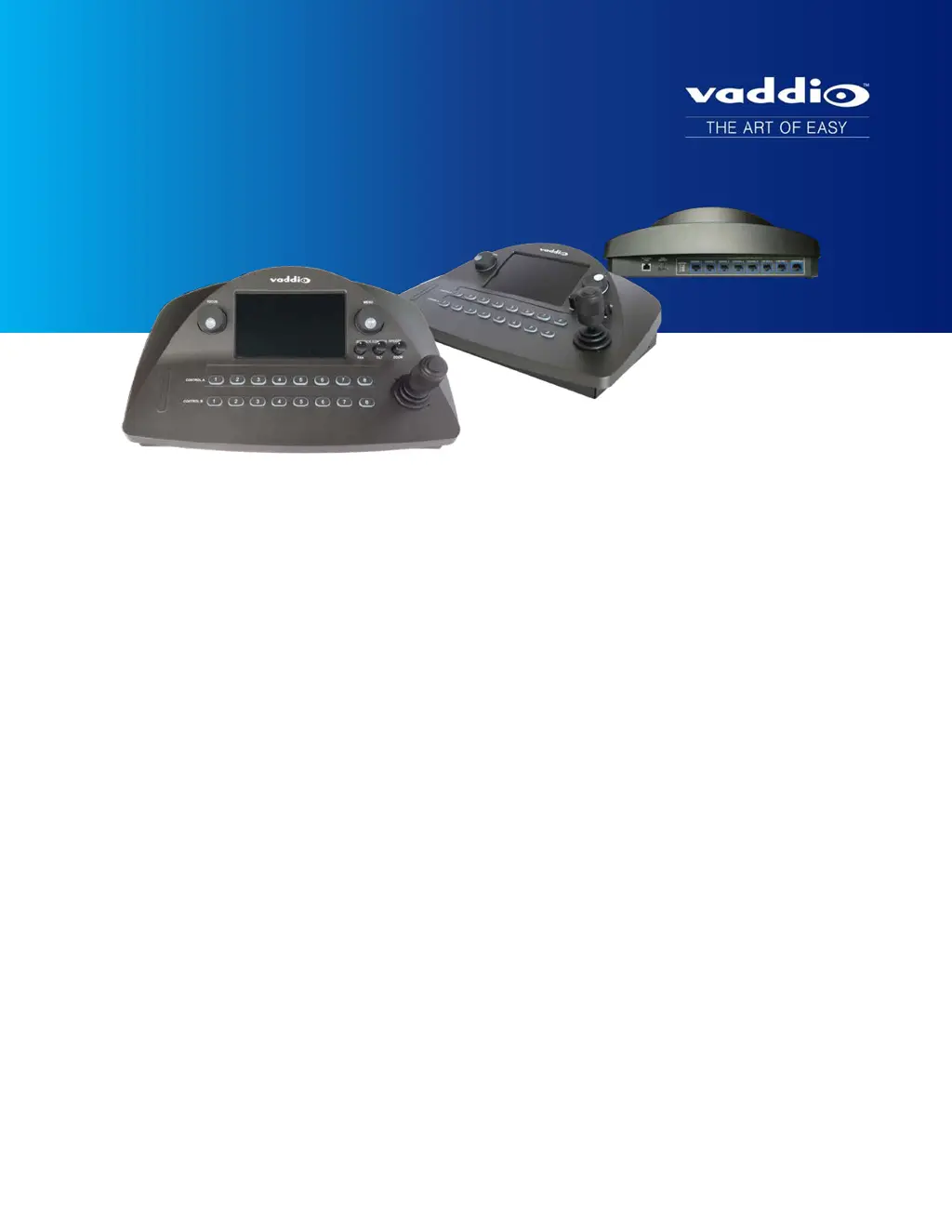
PCC Premier
Precision Camera Controller
Document 342-1135 Rev C

Table of Contents

Questions and Answers

  • J
    Jessica ColemanAug 3, 2025
    What to do if VADDIO Controller display is off and buttons don't light up?
    • S
      Sabrina WilliamsAug 3, 2025
      If the VADDIO Controller display is off and the buttons do not light up, here are some possible solutions: * Ensure the mid-span power injector's power cord is securely connected. * Try using known good network/PoE+ cables between the controller and the mid-span power injector. * Verify that the wall outlet is active by testing it with another device. * If the problem persists, there may be an issue with the camera controller or its mid-span power injector, consider contacting your reseller or Vaddio Technical Support.
  • R
    Robert BrownAug 8, 2025
    Why is there no communication with IP cameras on my VADDIO Controller?
    • L
      Linda WillisAug 8, 2025
      If there is no communication with any IP-connected cameras and the buttons for all IP cameras blink blue on your VADDIO Controller, it could be due to the following reasons: * The camera controller might not be connected to the network. To solve this, check if you can access the cameras' web interfaces with your browser. If you can, verify the connection from the power injector to the rest of the network, ensuring that the cable is connected to an active network port. * The cable on the network side of the power injector could be faulty. Try using a different cable. If the problem continues, contact your network administrator.
  • V
    Vanessa SaundersAug 13, 2025
    What to do if VADDIO Controller display shows a black screen?
    • J
      janetbushAug 13, 2025
      If the display connected to the camera controller's HDMI output shows a black screen, it is possible that the display is powered off. Power on the display to resolve this issue.
  • G
    grayrebeccaAug 18, 2025
    How to fix no communication with a specific IP camera on VADDIO Controller?
    • X
      xcampbellAug 18, 2025
      If there is no communication with a specific IP-connected camera, and the button blinks blue, there might be a few reasons: * The camera may not be available, especially during firmware updates. Wait a few minutes and check the camera's power connection. * The camera might not be at the IP address stored in the controller. Verify the camera's IP address by asking someone in the room to press the Data Screen button on the camera's remote and update the camera's IP address in the address book. * The camera may require a firmware update to communicate with the camera controller. If the camera has not been updated to version 2.0.0 or later, download and install the latest firmware for the camera.
  • M
    Mario DeleonAug 22, 2025
    Why is my VADDIO Controller display showing random colored lines?
    • J
      Jamie JohnsonAug 22, 2025
      If the display connected to the camera controller's HDMI output shows random colored lines, it means that the color space or resolution is set to a value that the display does not support. Change the resolution or color space for the video output port using the web interface or PCC Settings page.
  • M
    Monica StewartAug 28, 2025
    What does a blue screen on VADDIO Controller HDMI output mean?
    • K
      Kaitlin RobersonAug 28, 2025
      If the display connected to the camera controller's HDMI output shows a blue screen, it indicates that the selected IP-connected camera's video is muted, and the camera is streaming a blue screen as its video mute pattern. Unmute the camera's video to resolve this.

Summary

Product Compatibility

Vaddio Cameras Compatibility

Lists Vaddio camera models compatible with the PCC Premier controller.

Installation Guide

Connector Panel Details

Cabling and RS-232 Settings

Notes on RS-232 cabling and serial communication parameters for camera connection.

Connecting the Controller

Indicator Lights Reference

Camera Controller Indicators

Explains the meaning of various indicator lights on the camera controller.

System Status Indicators

Web Interface Overview

Accessing the Web Interface

PCC Settings Configuration

Network and Room Configuration

Network Configuration

Details on setting up IP addresses, hostnames, and time server.

System Security and Diagnostics

Setting Up the Address Book

Managing Cameras in Address Book

Adding and Assigning Cameras

Procedure for adding cameras and assigning them to groups within the address book.

Selecting Camera Groups for Control

Lighting and Color Settings

Adjusting Lighting and Color

How to select lighting and color settings (scenes) for cameras.

Adjusting Camera CCU Settings

Saving Custom Lighting Adjustments

Working with Camera Presets

Setting Controller Behavior

Configuring Controller Behavior

Powering Down and Standby Mode

Rebooting the Camera Controller

Device Administration Tasks

Renaming Cameras

Configuring Network Settings

Security and Session Management

Configuration Management

Exporting Configuration Data

How to back up or copy the controller's configuration settings.

Restoring Factory Defaults

How to reset the controller to its original factory settings.

Firmware and Configuration Updates

Importing Configuration Data

How to import previously exported configuration data.

Updating Controller Firmware

Procedure for updating the camera controller's firmware.

Downloading Diagnostic Log

Telnet Command API

Camera Focus Control

Camera Pan and Tilt Control

Camera Zoom and Mute Settings

Camera Zoom Control

How to control the camera's zoom function using commands.

Network Management Commands

System Status and Control Commands

System Standby Control

Commands to get, set, or toggle the controller's standby status.

System Reboot Command

Command to reboot the camera controller and connected cameras.

System Management Commands

Factory Reset Command

Command to reset the system to factory default settings.

Product Specifications

Camera Control and Video Specs

Technical specifications for camera management and video output capabilities.

Hardware and Console Specs

Specifications for hardware components and the control console.

Physical and Environmental Specs

Details on power requirements, dimensions, weight, and operating conditions.

Troubleshooting Guide

VADDIO PCC Premier Specifications

General IconGeneral
Maximum frame rate60 fps
Supported video modes720p, 1080p
Video formats supportedH.264
Ethernet LANYes
Cabling technology10/100/1000Base-T(X)
Ethernet LAN data rates10, 100, 1000 Mbit/s
Supported network protocolsRTSP
Product colorBlack
Number of persons- person(s)
Maximum number of cameras supported16
Ethernet LAN (RJ-45) ports8
Cables includedAC, LAN (RJ-45)
Sensor type-
White balanceAuto, One push
Image sensor size- \
Display diagonal7 \
Power source typePoE
Power consumption (typical)25 W
Storage temperature (T-T)-5 - 60 °C
Operating temperature (T-T)0 - 40 °C
Operating relative humidity (H-H)20 - 80 %
Control typeButtons, Joystick, Rotary, Touch
Weight and Dimensions IconWeight and Dimensions
Depth279 mm
Width432 mm
Height126 mm
Weight3180 g

Related product manuals