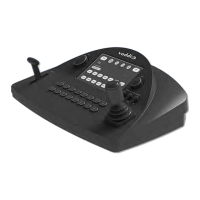
Collect the hostnames or IP addresses of the cameras to be added to the Address Book.
You may wish to add IP-connected cameras using their hostnames rather than their IP addresses. This
way, the camera controller automatically locates and connects to the camera even if the camera's IP
address changes - for example, if you move it to a different room.
If you don't have a list of hostnames or camera IP control addresses – the addresses for the cameras'
internally served web interface pages – you can get any Vaddio camera's IP control address using its
remote. Press the Data Screen button to display this.
Add the cameras.
1. Under Devices, click New Device.
2. In the Add New Device box, enter the camera's IP control address, give it a device label, and save it.
3. Repeat this until you have added all the cameras you want to assign.
Assign the cameras to groups.
1. Under Groups, click the name of the group you want to populate. Its name appears in the Edit Group
pane.
2. Under Devices, locate the name of a camera you want to add to this group. (You can add any camera to
more than one group.)
3. Do one of these things:
o
Drag a camera name to the desired button in the Edit Group pane, repeating as needed, OR
o
Check the box to the left of each camera that you want to add to the group, then click Add Selected
to add all of them to the group.
4. Save your changes.
You can now select the defined groups and control the cameras in them from the console.
22
Integrator's Complete Guide to PCC Premier Precision Camera Controller


 To Next Page