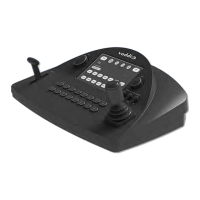
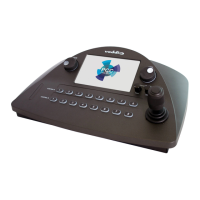
Working with the Camera Controller
You have the PCC Premier camera controller installed and powered up. You've read Controller Basics, so
you know where the controls are and what they do. Now you're ready to start using it.
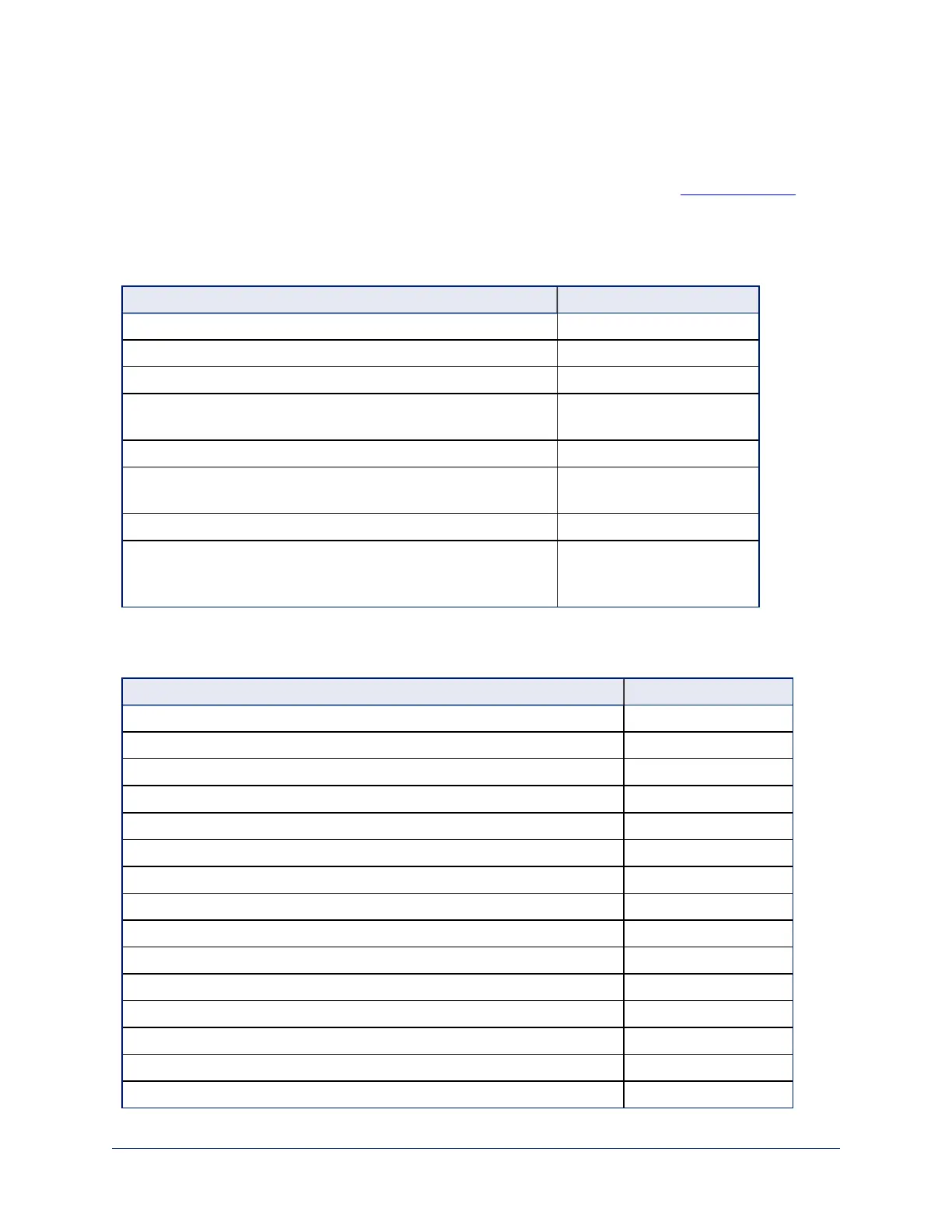
Touch-Panel Display Cheat Sheet
Where to find the camera and system controls you need right now.
What do you need? Go to this screen
System IP address and other network information Settings
Manage Control Bus A and Control Bus B Address Book
Store or recall presets for the selected camera Presets
Selecta defined set of lighting and color adjustments (recalla
CCU scene) for the selected camera
Scenes
Adjust color and lighting settings for the selected camera CCU
Store your color and lighting adjustments as a CCU scene for
the selected camera
CCU: Store as scene
Adjust the touch-panel's brightness Settings: LCD Brightness
Put the system into standby mode (may also put the cameras
mapped to Control A and Control B buttons into standby mode;
this is configurable)
Power
Web Interface Cheat Sheet
Where to find the controls you need right now.
What do you need? Go to this page
Camera controller hostname and network settings Networking
Cameras and camera groups Address Book
Camera controller behavior PCC Settings
Settings for HDMI output PCCSettings
Password for admin account Security
Information about the camera controller's location Room Labels
Backup and restore operations System
Firmware update and current version System
Time and date settings Networking
Reboot or factory reset System
Helpdesk phone number for end users Room Labels
Contact information for Vaddio helpdesk Help
Diagnostic log Diagnostics
Session timeout Security
Standby PCC Settings
20
Integrator's Complete Guide to PCC Premier Precision Camera Controller


 To Next Page