Selecting Camera Groups to Control
After you have set up the address book, you can select the groups to work with. You can do this either from
the web interface or from the console's touch-panel display.
By default, the buttons on the Control A bus are mapped to the RS-232 cameras. You can change this.
Selecting Camera Groups from the Touch-Panel Display
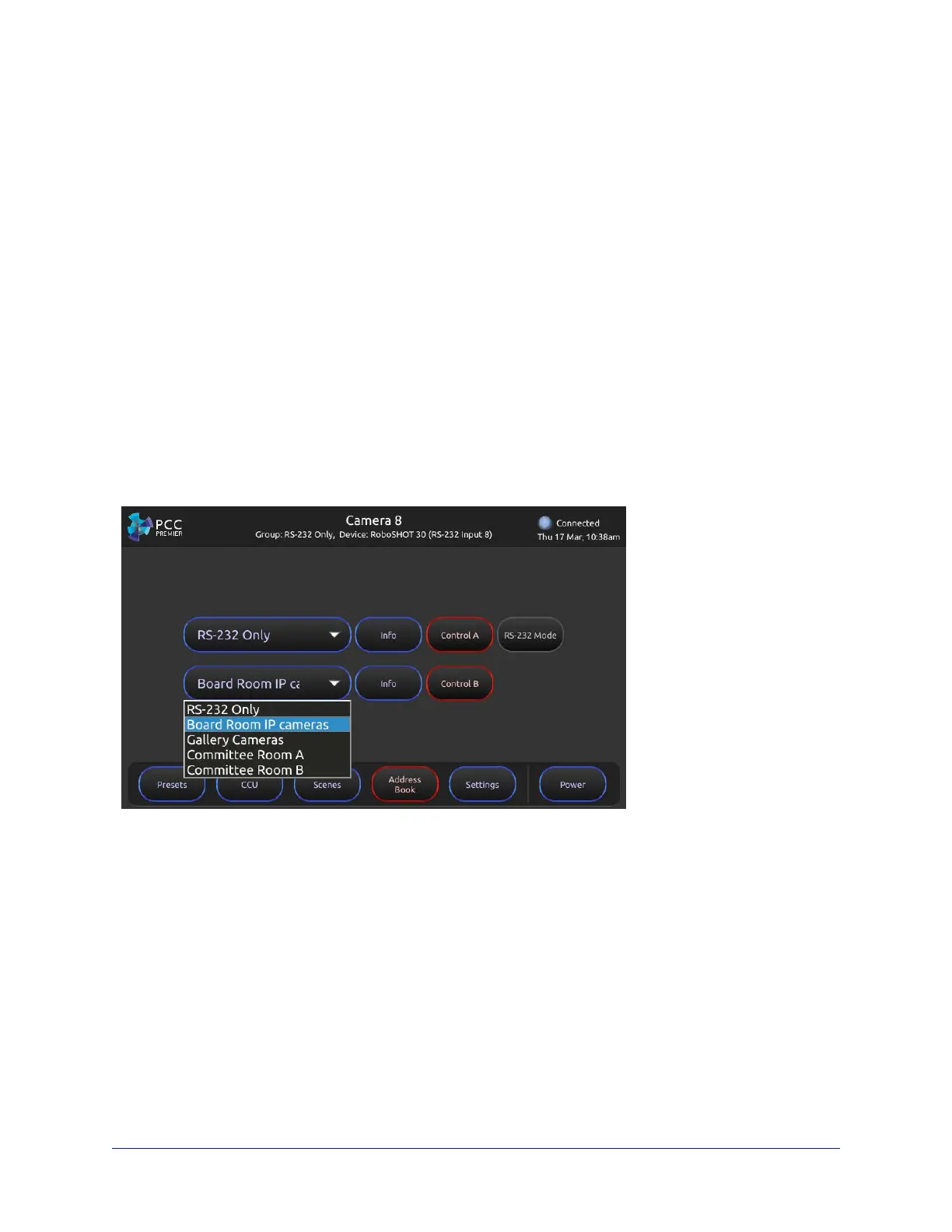
1. On the touch-panel display, open the Address Book screen to select camera groups.
2. Choose the camera control bus to define – Control A (the top row of buttons) or Control B (the lower
row) – and tap its control to make it active.
3. Tap the group name to open the list of available groups, and tap the name of the group you want. The
controls become inactive for a few seconds while the camera controller maps control bus buttons to the
cameras in the selected group.
4. If you need to verify that you have chosen the group you want, tap the Info button. This opens a list of
cameras in the group. Tap the Back button to return to the Address Book screen; or tap the Home
button to go to the Home screen.
5. The camera select buttons on this control bus are now mapped to the cameras in the group you
selected.
6. Repeat this for the other control bus, if necessary.
23
Integrator's Complete Guide to PCC Premier Precision Camera Controller


 To Next Page