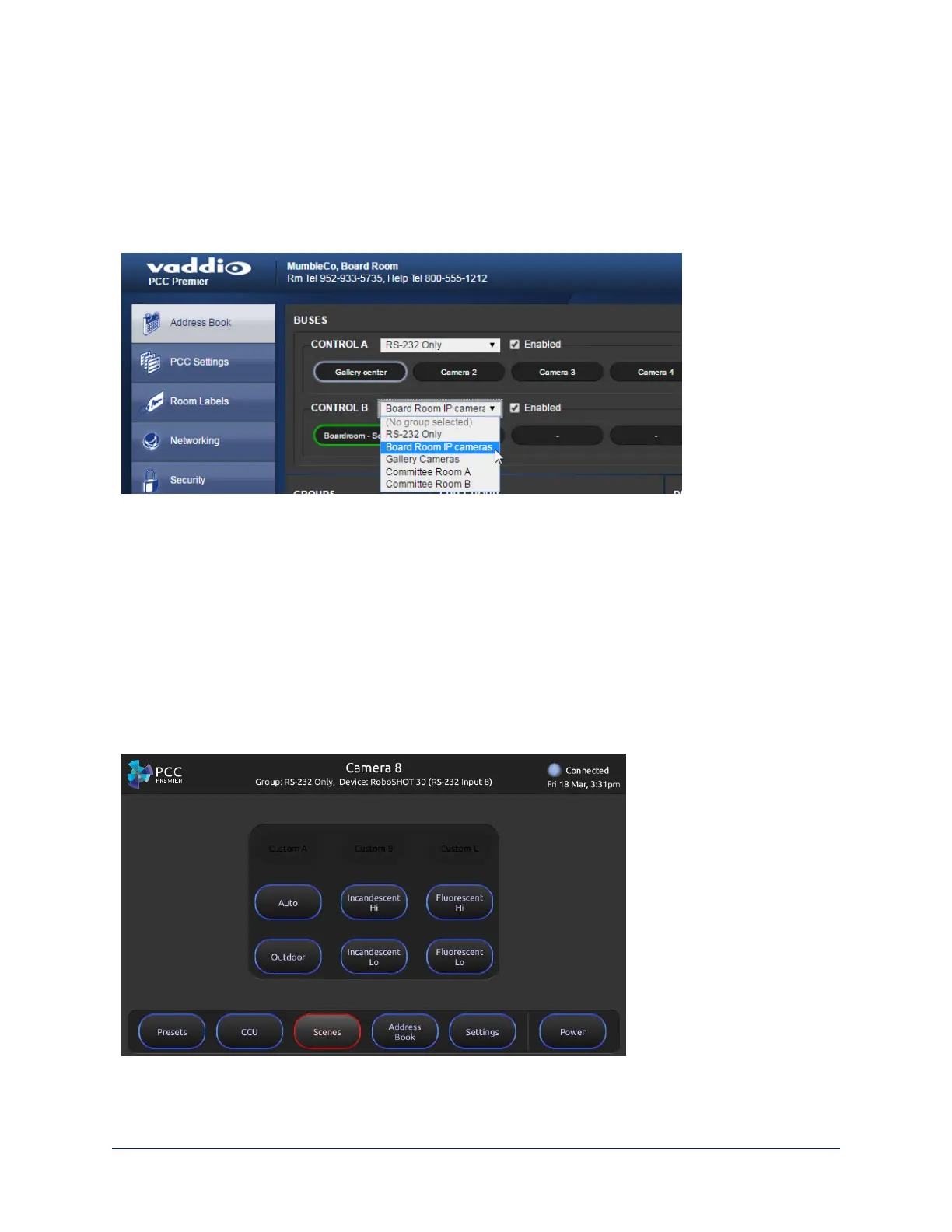
Selecting Camera Groups from the Web Interface
1. On the Address Book page of the web interface, click the down-arrow in the group name box for the
desired control bus - Control A or Control B. This displays a list of available camera groups.
2. Select the group you want.
3. Check the Enabled checkbox for this control bus. The buttons show the names of the cameras in this
group.
Now you're ready to work with the cameras.
Working with Lighting and Color Settings
The camera controller gives you access to the selected camera's defined lighting and color settings
(scenes) and its lighting and color (CCU) adjustments. You don't need to access each camera's web
interface separately to adjust for consistent video across entire camera groups.
Selecting Lighting and Color Settings
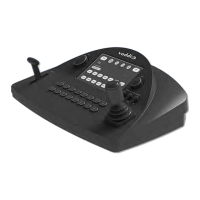
Touch-panel, Scenes screen
If the lighting or color balance doesn't look right in the video from the selected camera, go to the Scenes
screen and choose the appropriate lighting setting. These are good starting points if you are not
experienced with lighting and camera painting/shading.
If none of the available scenes produce the desired results, you can create custom settings.
24
Integrator's Complete Guide to PCC Premier Precision Camera Controller


 To Next Page