PaX-i3D Green (PHT-60CFO) User Manual
123
8 Acquiring CT Images
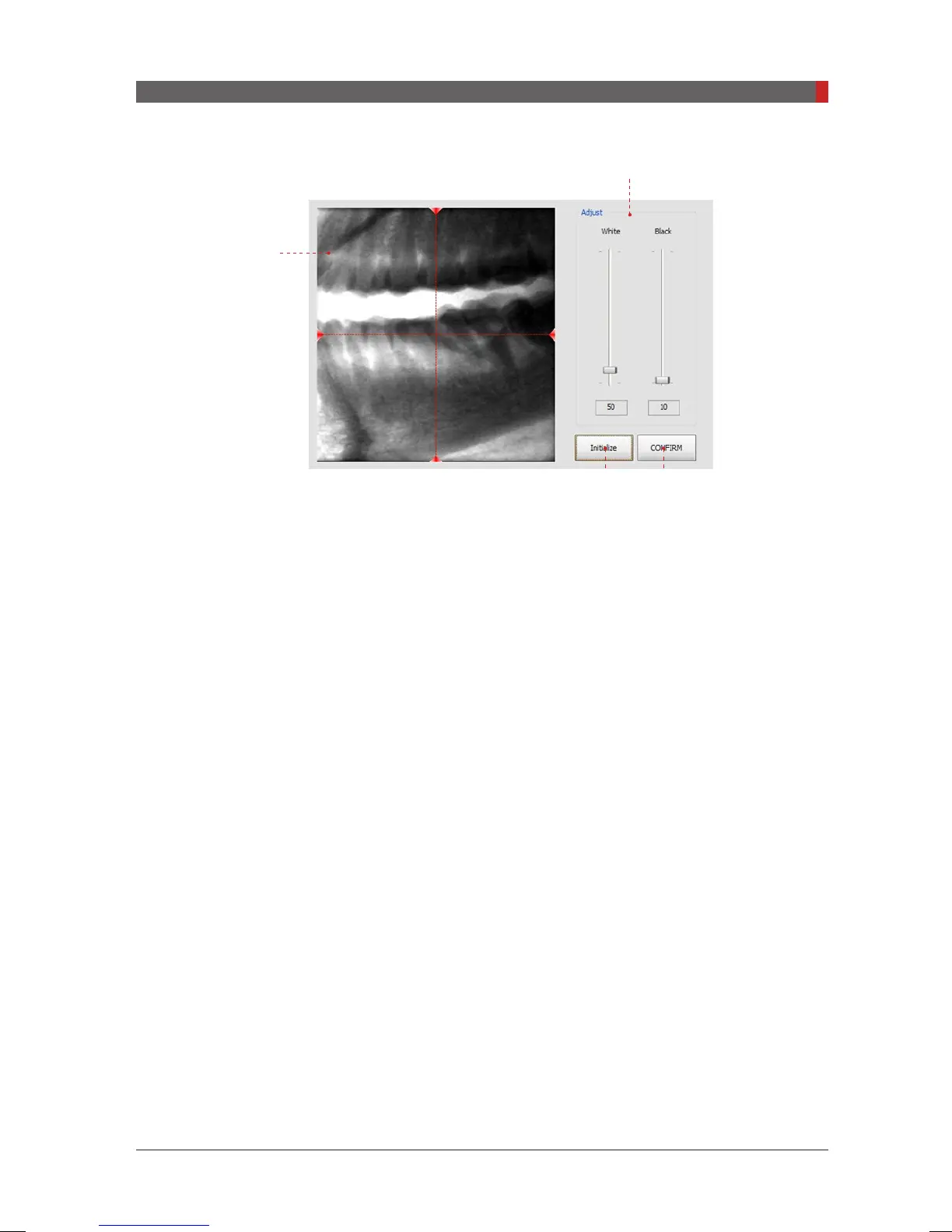
8.3.2 SCOUT Viewer
(Ex: 50 X 50)
1. Raw View Window
-
Displays the acquired image and the guideline.
-
The green-colored horizontal line appears when the mouse clicked at the
point to be moved to on the image.
2. Adjust
-
Adjust the current contrast level
White: make the current white level whiter
Black: make the current dark level darker
3. Initialize
-
When clicked, returns to the initial state of the completion of the
SCOUT
imaging.
4. CONFIRM
-
When clicked, the
SCOUT
view screen closed and the chinrest moves to
newly compensated position vertically.
1
2
3 4
[PI3DG_130U_44A_en]User Guide.indd 123 2016-05-24 오후 4:19:13



 To Next Page