24
PROCEdURE 7. CONNECT TO AN EXTERNAL MONITOR (OPTIONAL)
The external monitor must be safety‑approved medical equipment.
WARNING
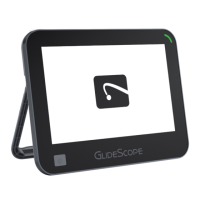
By using an HDMI‑to‑DVI cable, you can connect the GlideScope Video Monitor to an external monitor
that is approved for medical use. For more information, please contact your Verathon
®
Customer Care
representative.
Note: Image quality on the external monitor may vary according the resolution of the external monitor.
Note: To maintain electromagnetic interference (EMI) within certified limits, the system must be used with
the cables, components, and accessories specified or supplied by Verathon. For additional information, see
the System Parts & Accessories and Component Specifications sections. The use of accessories or cables other
than those specified or supplied may result in increased emissions or decreased immunity of the system.
1. Ensure that the video monitor is turned off.
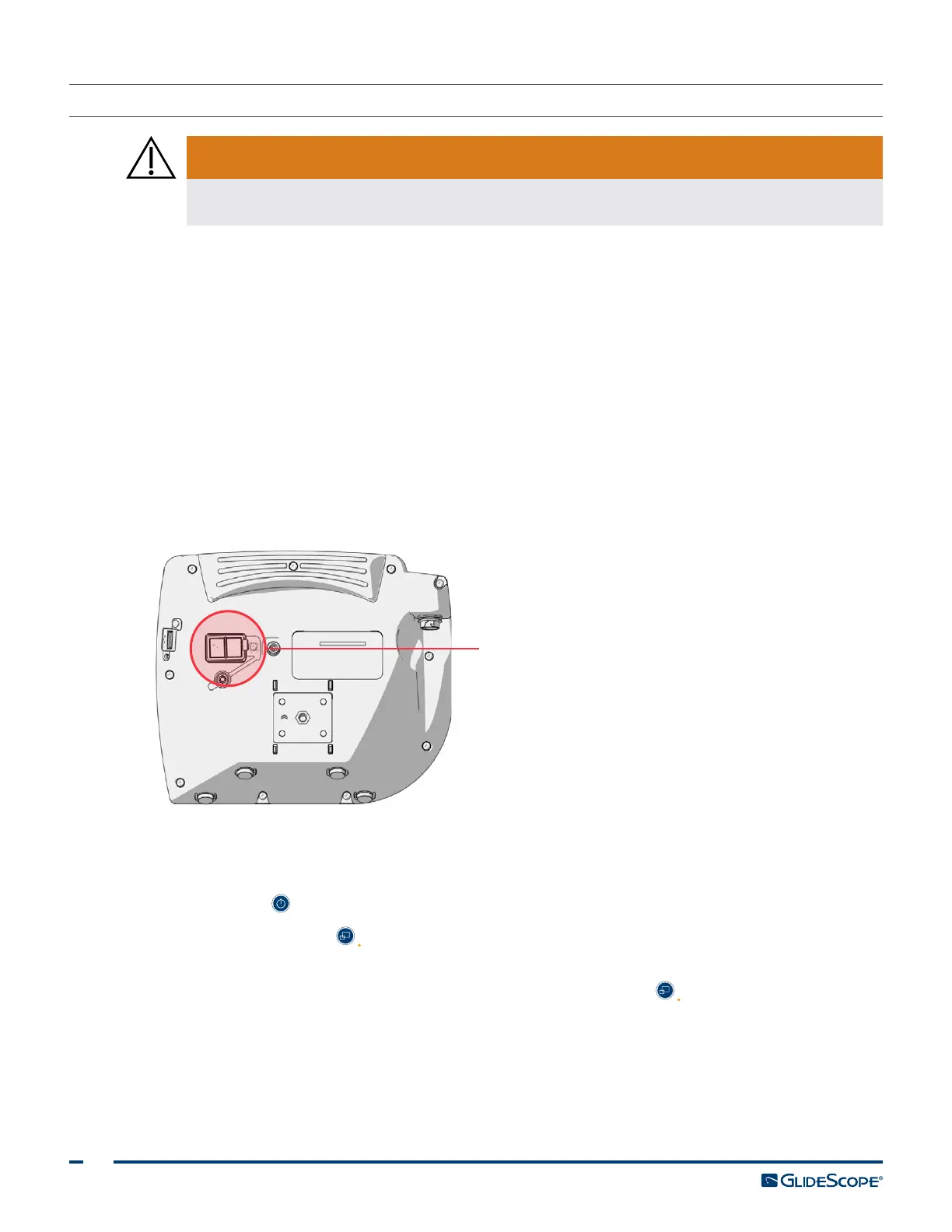
2. On the back of the monitor, remove the HDMI cap from the video‑out port.
3. Connect the HDMI end of the cable to the video‑out port.
Video‑out port
4. Connect the other end of the cable to the DVI port on an external monitor that is approved for medical
use.
5. Press the Power button. The monitor turns on.
6. Press the External Video button. The indicator LED to the right of the button illuminates when the
connection is successful, and the video displays on the external monitor.
7. To stop sending video to an external monitor, press the External Video button again.
8. Prior to disconnecting the HDMI‑to‑DVI cable, ensure the video monitor is turned off.


 To Next Page