11
NOTE: If a particular function does not appear on your menu then this means that it has not been
enabled on your terminal. Please contact the Merchant Help Desk to discuss your requirements in
detail.
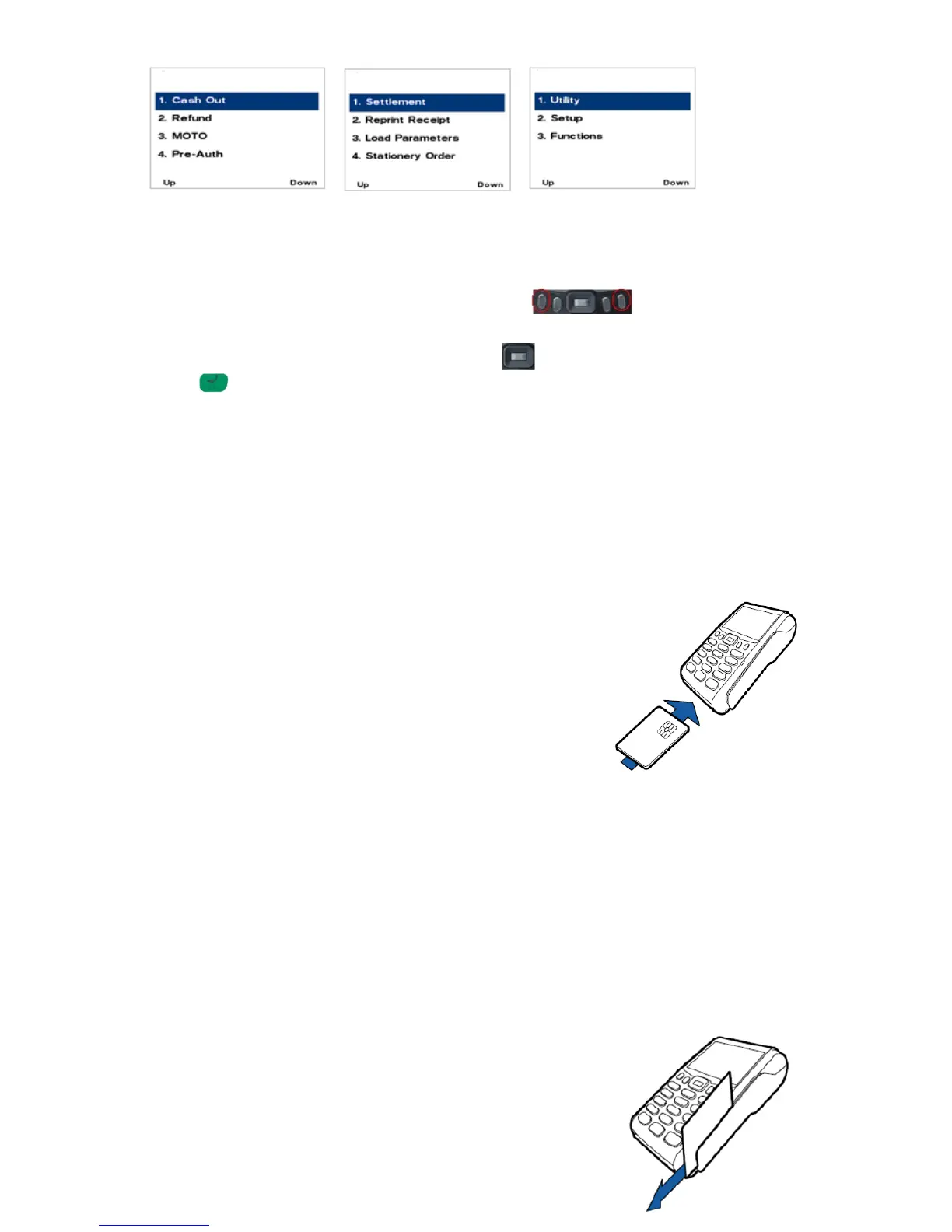
To choose a terminal function:
1. To access the terminal menu press the far right key positioned below the main
display screen.
2. Navigate to the menu item using the scroll key then push the select button or ENTER
, or
3. Enter the number shown on the display screen by using the keypad.
4 Card Presentation Procedures
INSERTING A CHIP CARD 4.1
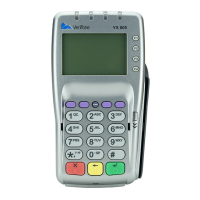
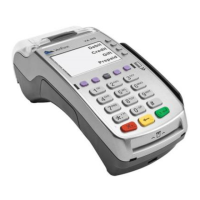
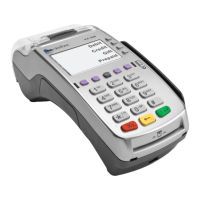
The VX675 terminal supports credit or debit card transactions.
The chip card reader is located at the bottom of the terminal below the keypad.
Instructions:
1. Position the chip card with the chip facing upward and
towards the terminal.
2. In
sert the chip card into the chip card reader slot in a
smooth, continual motion until it seats firmly.
3. The card should remain inserted in the terminal until the
transaction is complete and the terminal prompts to
remove it.
4. If there is an error with reading the chip on the card the
terminal may prompt you to swipe the card.
CAUTION: Do not remove the chip card in the card reader until the transaction is complete.
Premature card removal will invalidate the transaction.
SWIPING A MAGNETIC STRIPE CARD 4.2
The magnetic stripe reader is located on the right hand side of the terminal.
Instructions:
1. Position a magnetic stripe card with the stripe in the card reader facing inward, toward the
keypad.
2. To ensure a proper read of the magnetic stripe card, the
merchant should insert the magnetic stripe card from the top
of the unit.
3. Swipe the card smoothly through the magnetic card reader.
4. If there is no response from the terminal, or CARD ERROR
message is displayed, swipe the card again. You may be
required to swipe faster or slower.



 To Next Page