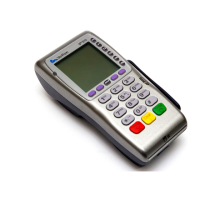
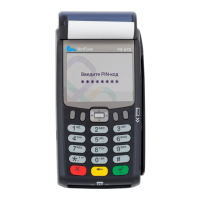
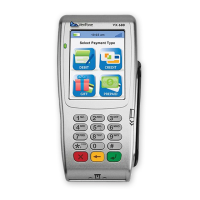
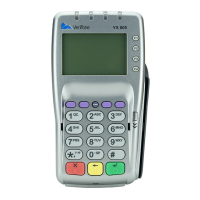
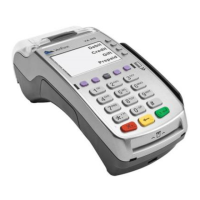
this feature is only enabled for chip cards that also have Visa payWave or MasterCard
PayPass. This tap and go function can be used on debit or credit cards.
Your customer can simply place their chip card on the terminal screen instead of inserting
or swiping. The completion of the transaction will be processed as usual. Just follow the
prompts on your terminal screen.
Q:
A RE THERE SET LIMITS FOR CONTACTLESS CARD A CCEPTANCE?
A: Yes, limits are set by the Cardholder’s bank, known as the Issuing Bank.
If the daily limit is reached or the individual transaction value is greater than the Issuing
Bank set limit, when the Cardholder places their card on the terminal screen, a message
will be sent to the terminal screen asking for a PIN to be entered. Once the PIN is entered
just follow the prompts on your terminal screen.
Q:
A RE THERE ANY LIABILITIES ASSOCIATED WITH ACCEPTING
CONTACTLESS CARD T RANSACTIONS?
A: Contactless card transactions offer the same level of security protection that you have with
traditional transactions, e.g. swiped or inserted.
Q:
W HY AREN’T ALL CARDS ACCEPTED VIA THE CONTACTLESS READER?
A: Not all cards are currently contactless enabled. Currently our terminals are only confirmed
to support Visa payWave and MasterCard PayPass cards.
Q:
H OW DO I KNOW IF A CARD IS A CONTACTLESS CARD?
A: The contactless cards will have the word PayPass or payWave plus this symbol on the
face of the card.
Q:
WHY DOES THE CONTACTLESS CARD READER REVERT TO SWIPE OR
INSERT OPTION AT TIMES
?
A: Not all Issuing Banks implement their cards the same way. Please refer to your Merchant
Operating Guide (MOG), Section 5 Transaction Processing, and follow the instructions on
how to process magstripe, chip or contactless cards.
Q:
W HY DO SOME CONTACTLESS CARDS REQUIRE PIN?
A: Issuing Banks have different limits set against different types of cards. This is normal
practice so please follow the prompts on the terminal screen.
Q:
H OW DO I PROCESS A REFUND TRANSACTION?
A: Select the grey menu function key located on the right-hand side of terminal, then select
Refund by entering the corresponding number. This will prompt you to enter your merchant
password, and follow the prompts. Refer to section 5.5 Processing a Refund.
Q: H OW DO I PROCESS A MOTO TRANSACTION?
A: Select the grey menu function key located on the right-hand side of terminal, then navigate
to and select MOTO, and follow the prompts. Refer to section 5.6 Processing a Mail
Order/Telephone Order (MOTO).
Q:CAN I ACCEPT CREDIT CARD TRANSACTIONS OVER THE PHONE OR BY
MOTO (MAIL O RDER T ELEPHONE O RDER)?
A: Yes - if you have been pre-approved by the Bank to accept MOTO, this will already be
enabled on your terminal. This functionality is only available to credit cards or charge cards
(AMEX/Diners/JCB). If you do not currently have this function and your business requires
it, please visit our Corporate Website or contact your local BOQ branch to complete the
relevant form.



 To Next Page