Using the LabQuest
®
App
16 Vernier Software & Technology
Enable Data Marking
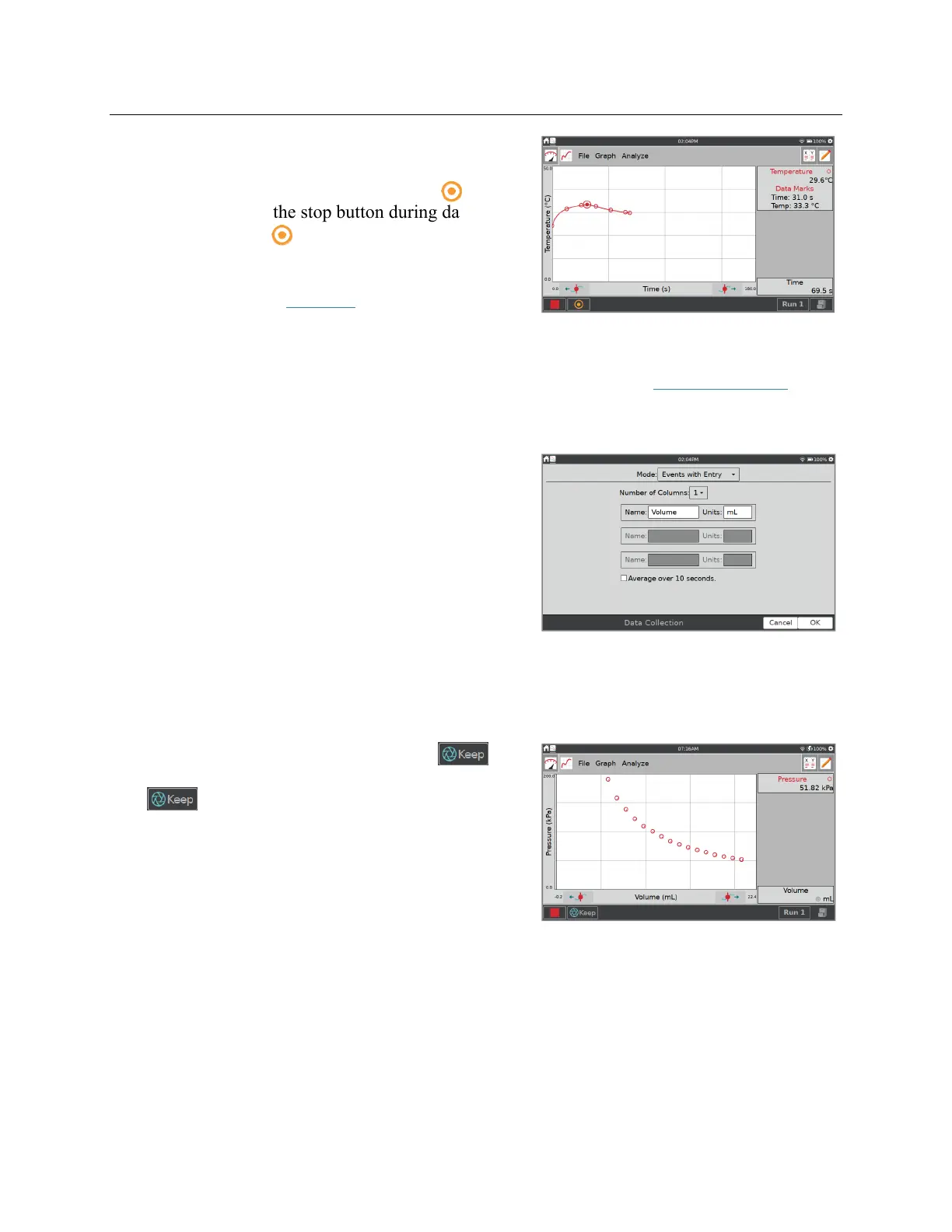
can be used to mark points
of interest during a time-based data collection.
When enabled, the Mark Data button, ,
appears next to the stop button during data
collection. Tap to mark a particular point of
interest. After completing data collection, data
marks can be named using the panel to the right
of the graph. See Tag Data for more information.
Photogate Mode
—This mode is used for photogate experiments that also use a time-based
sensor. Examples include impulse and momentum and centripetal force experiments that
use a photogate and force sensor to collect the necessary data. See Photogate Timing
.
Mode: Events with Entry
Sometimes experiments depend on a quantity other
than time. For example, a Boyle’s law experiment
investigates pressure as a function of the volume of
gas in a closed container.
TIP! In Events with Entry mode, no time information
is recorded.
Name and Units
—Enter a name and units for
each independent variable.
Average over 10 seconds
—You can choose to average data over ten seconds and report
the averaged reading. When selected, each time you keep a point, data are collected for
10 seconds and the average reading over that time period is recorded.
In Events with Entry mode, a Keep button, ,
appears next to the stop button during data collection.
Tap to record the sensor value (e.g., gas
pressure in the Boyle’s law experiment).
In response, you are prompted to enter a value for the
independent variable (e.g., gas volume in the Boyle’s
law experiment). Sensor data are plotted against the
independent variable.


 To Next Page