Using the LabQuest
®
App
28 Vernier Software & Technology
Naming a Column
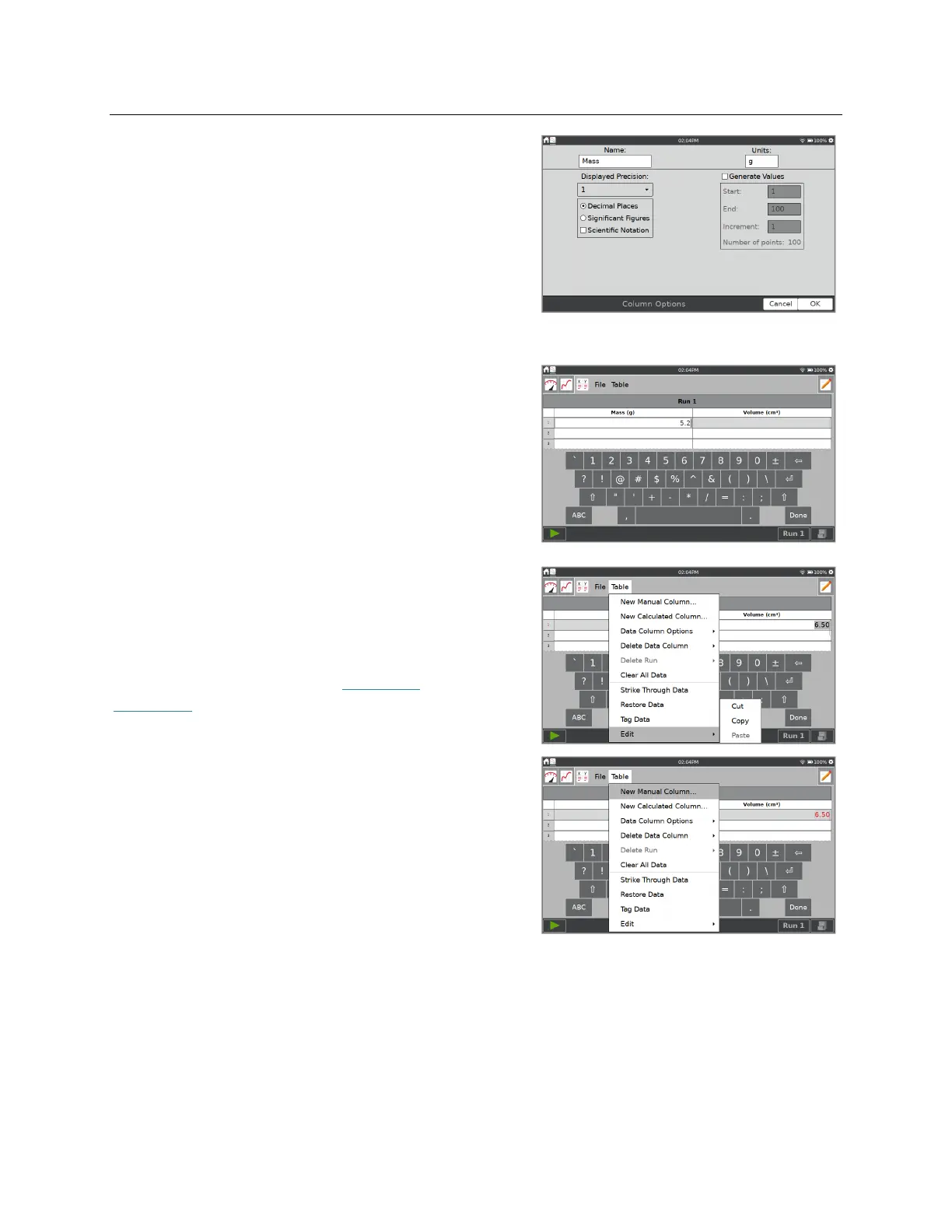
From the Table screen, double-tap the column name to
access Column Options. Update the fields as needed.
Name
—Change the column name.
Units
—Enter units for your data.
Displayed Precision
—Choose the number of
decimal places or significant figures to show in the
table.
Entering and Editing Manual Data
From the column options dialog box, you can
automatically generate values, or you can enter data
manually.
Double tap a cell to enter or edit the cell data. Only
manual columns can be edited directly in this manner.
Sensor and time data cannot be edited in this way.
From the Table menu, you have access to edit tools
Cut, Copy, and Paste. Use these tools to copy data
from one column to another.
TIP! You can copy values to and from the table and
other applications such as the Calculator or the
Stopwatch.
Adding Manual Columns
Choose New Manual Column from the Table menu to
create additional manual columns as needed. Modify
the Name, Units, and Displayed Precision as desired.
TIP! You can also add a manual column to an
experiment file that includes sensor data.
Creating Calculated Columns
Calculated columns are columns with values that are based on other columns through a
mathematical formula. For example, you might define a calculated column as the inverse square
of another column, or you might calculate the ratio of mass and volume columns to create a
density column.


 To Next Page