LabQuest
®
3 User Manual
www.vernier.com/labq3 29
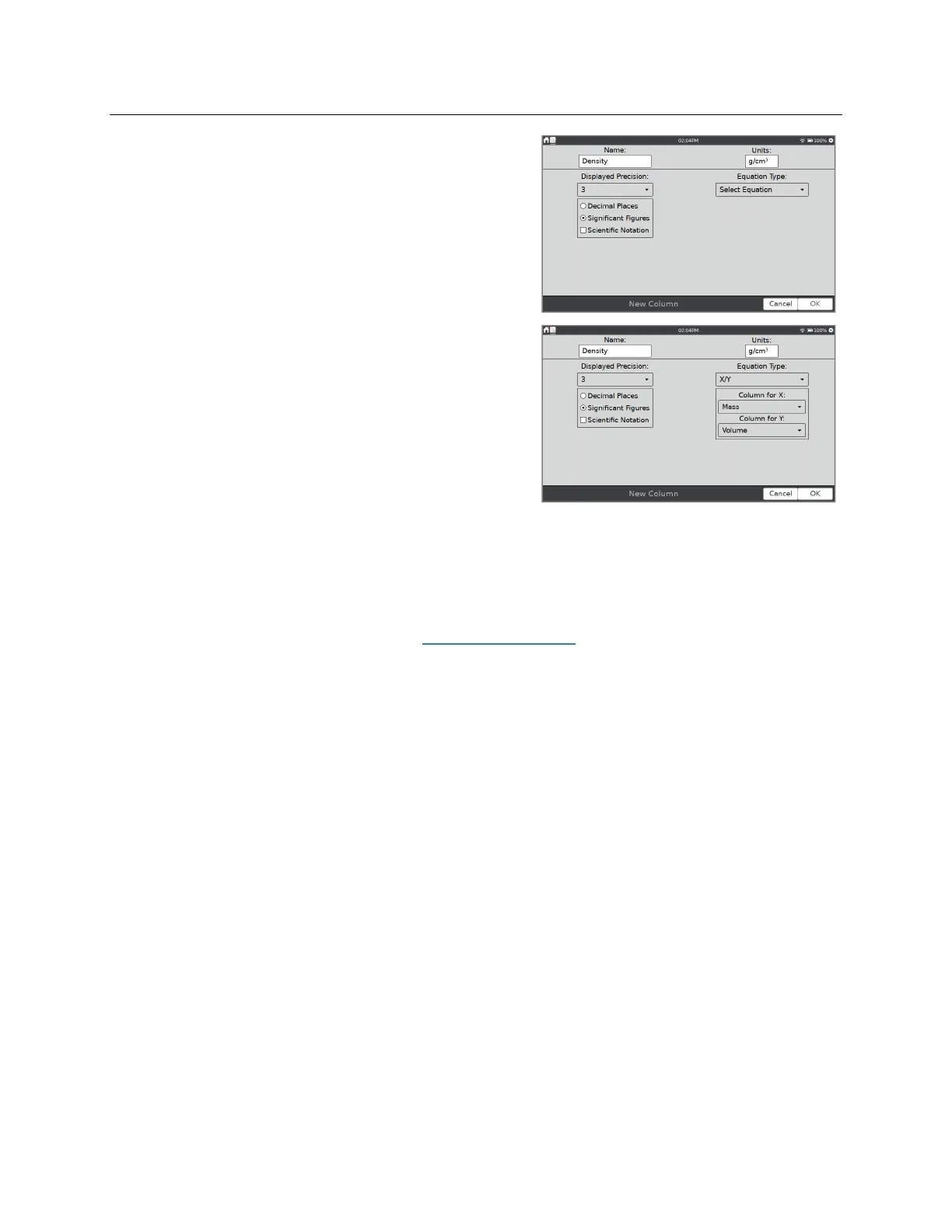
Choose New Calculated Column from the Table
menu. Modify the Name, Units, and Displayed
Precision as desired.
Tap the Equation Type field and select an equation
type for your calculation. Note that A, B, C, etc.,
represent constants and X, Y, and Z represent other
data columns.
Define the data columns and coefficients for your
equation and tap OK.
TIP! Calculated columns can also be used with sensor
data and can be a useful data-analysis tool.
Managing the Data
Data that you have collected but no longer want can be deleted from the LabQuest App file.
Delete Data Columns
—Choose Delete Data Column from the Table menu and choose the
column you want to delete. Note that you cannot delete data collected from a sensor;
however, you can hide data using the Strike Through Data tool.
Delete Run
—If you have collected multiple runs, you can delete runs that are no longer
needed. Choose Delete Run from the Table menu and select a run to delete. Note that you
cannot delete the last dataset created.
Clear All Data
—Choose Clear All Data from the Table menu to delete all data from the
table. Upon choosing this option, you are prompted to confirm. This option is used when
you wish to clear previously manually entered data or collected sensor data without
changing any custom settings.


 To Next Page