Touchscreen Display40
3.4.5. Acknowledging Alarms
Depending on the notification settings, alarms and warnings must be acknowledged or reset. An event is active as long as
it is unacknowledged, except for the network-failure events described in Table 3-5. Once acknowledged, an event remains
active until the situation that triggered the event is resolved, see Table 3-4 for event-status indicators. When the event is
acknowledged and cleared, it is removed from the Alarms panel and the LED stops flashing red.
Note: Acknowledging alarm events does not clear them, to clear an issue, it must be corrected, reset automatically by the
controller or reset manually.
To acknowledge alarms
1. On the ALARMS panel, press Acknowledge All: A check mark overlays the status indicator of the active alarms and
warnings, and these automatically clears when the condition is no longer present.
2. If a critical event must be reset manually, then the acknowledged items are listed with a Reset All button on the ALARMS
panel.
3. Touch Reset All to manually reset the condition.
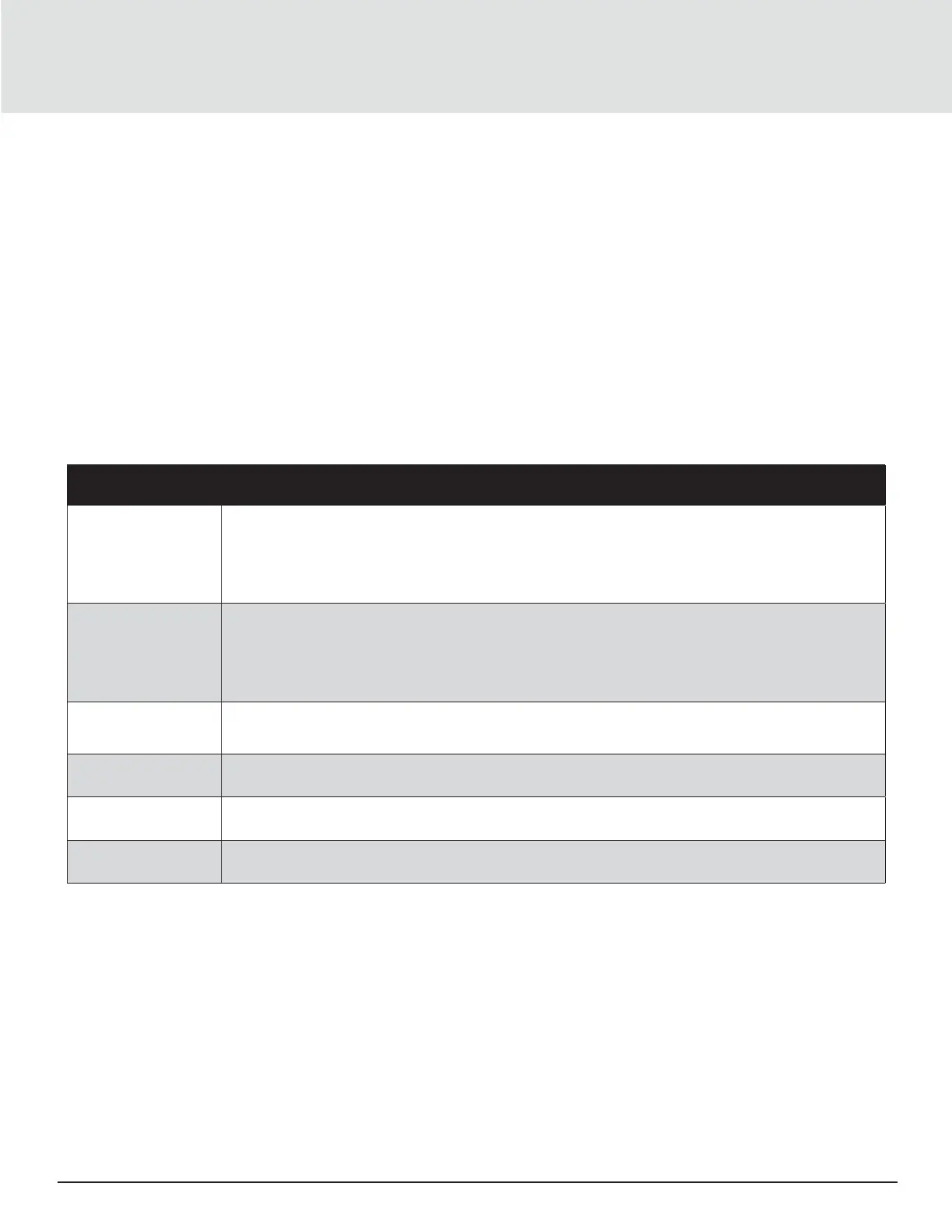
Table 3-5 Events that Clear without Acknowledgment
Network Failure Description
Unit xx
disconnected
• The iCOM I/O board assigned as U2U address number XX (two up to thirty- two) has lost
communication with the group
• Make sure all units are powered-on at the disconnect
• Check cable connections and network setting wherever applicable
No connection
W/unit 1
• The iCOM I/O board assigned as U2U address number 1 has lost communication with the
group
• Make sure all units are powered-on at the disconnect
• Check cable connections and network setting wherever applicable
BMS disconnect
• The BMS/ BAS has not completed a handshake within the time defined by the BMS/ BAS
• Verify monitoring connection and communication to the BMS/ BAS panel
Unit code missing The Factory unit code must be confirmed, saved and executed
Unit code mismatch The Factory unit code must be confirmed, saved and executed
Ambient sensor
failure
The outdoor temperature/ humidity sensor used on the air economizer unit has become
disconnected or is no longer working properly
3.4.6. Viewing the Event Log
The event log is a list by date/ time of the last 400 events generated by iCOM for the thermal-management unit. On the User
menu, press Event Log. The EVENT LOG for the cooling unit opens. Table 3-6 describes the
color-coded status for each event.
Note: Depending on the type of thermal management unit, included components and control settings of your system, the
options on your iCOM display may dier.



 To Next Page