Vertiv | SmartAisle2 | User Manual 116
Operation & Display Panel
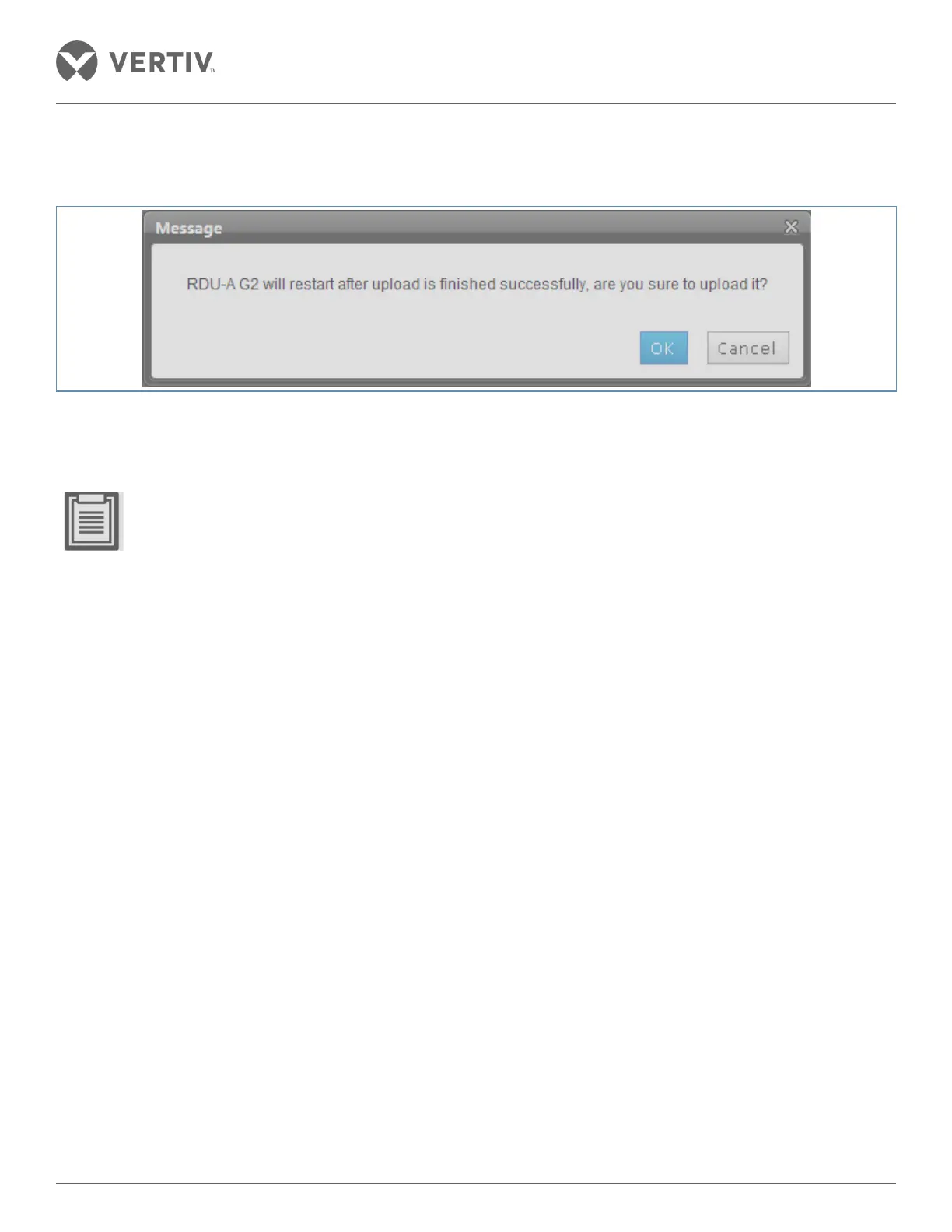
5. Select the required files to upload followed by clicking on the OK button as shown in the confirmation dialog
box in Figure 3-3.
Figure 3-3 Confirmation Dialog box
6. Click the OK button following which the user authentication box will pop up. Enter the user login password
and click OK to upload the file to RDU-A G2.
• Only the admin user can perform an upload operation - the operation should be performed under the guid-
ance of professionals.
• Configuration file name must be System Batch Configuration + date.iru or the upload will fail.
• In case of an optional device access control system, ensure that bulk configurations operations are per-
formed after the implementation of optional equipment configuration, else the original configuration infor-
mation will be lost.
• Refer to the RDU-A G2 intelligent monitoring user manual to understand the functionality.
• Monitoring by the RDU-A G2 supervision platform of each device to confirm it is in an operational state.
• The equipment must be functioning correctly before users can open servers and other IT equipment.


 To Next Page