ADJUSTING THE ISIS SCAN SETTINGS 109
4. When you’re ready to scan, replace the preview page in its original
position in your document then press Scan All.
The document is scanned with the new scan settings.
ADJUSTING THE ISIS SCAN SETTINGS
You can adjust the scan settings for the selected type of scan.
To adjust the Color Document, GrayScale, or Text Document
settings:
1. On the OneTouch ISIS Scan window, click the Color Document
button, the GrayScale button, or the Text D o cu m e n t button, then
click the Define button.
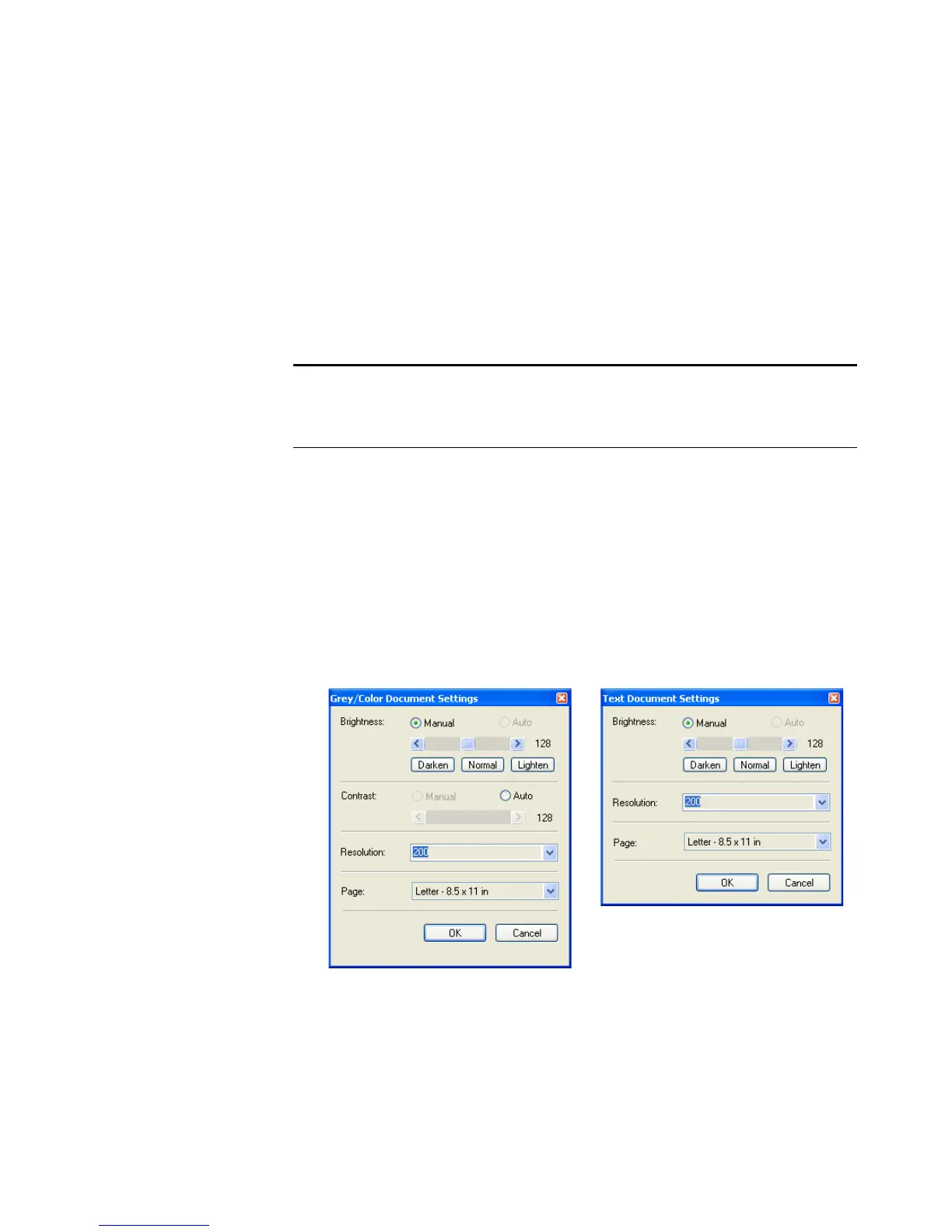
The dialog box on the left opens for the Grey/Color Document
Settings. The dialog box on the right opens for Text Document
Settings. A Text Document scan is in Black and White.
Brightness—Drag the sliders or click the arrows to the right or left
to adjust the brightness one unit at a time. Click the buttons
Darken, Normal, or Lighten to move the slide in larger steps.
Note: Some of the options for the ISIS scan settings are “grayed out”
and are not available. Grayed out options are not appropriate for your
Visioneer Strobe XP 450 scanner.









 To Next Page