66 VISIONEER STROBE XP 450 SCANNER USER’S GUIDE
EDITING OR DELETING SCAN CONFIGURATIONS
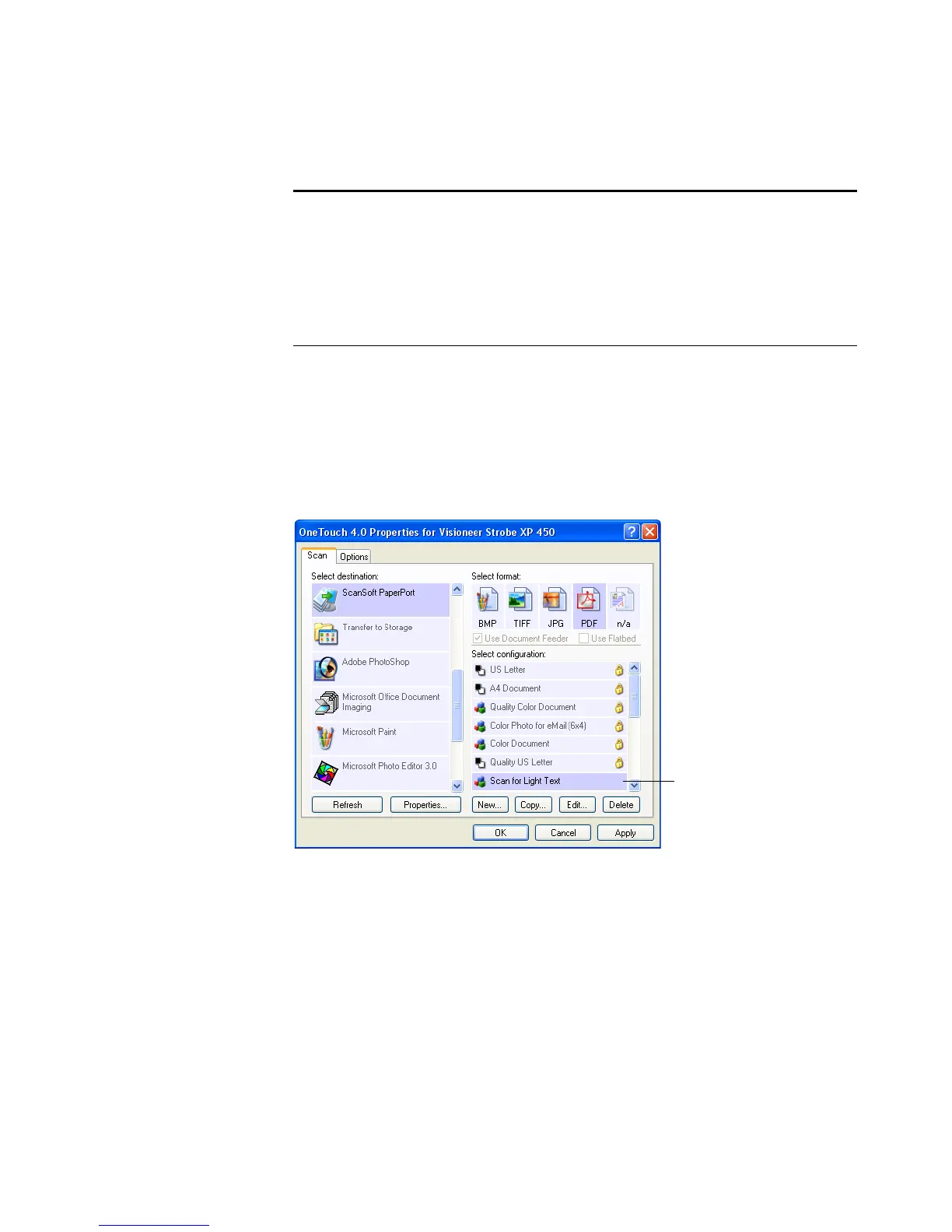
To edit or delete a scan configuration:
1. Open the OneTouch Properties window.
2. Select the scan configuration you want to edit or delete. The
following example shows a new scan configuration that was created
named “Scan for Light Text.”
3. To delete the configuration, click the Delete button.
Note: Your scanner comes with a number of configurations pre-set at
the factory. We recommend that you keep those configurations locked
and do not edit or delete them. That way, you will always have the
factory-settings available. If you do edit or delete them, and want to
get the factory pre-sets back again, you will need to uninstall then re-
install your scanner driver.
Select the scan configuration
to edit or delete. It must be
unlocked, as indicated by not
having a lock displayed here.









 To Next Page