28 VISIONEER STROBE XP 450 SCANNER USER’S GUIDE
SCAN FROM THE ONETOUCH PANEL
You can scan from the OneTouch Panel on the screen.
1. Adjust the paper guide for the width of paper and load the
documents with their tops into the Automatic Document Feeder.
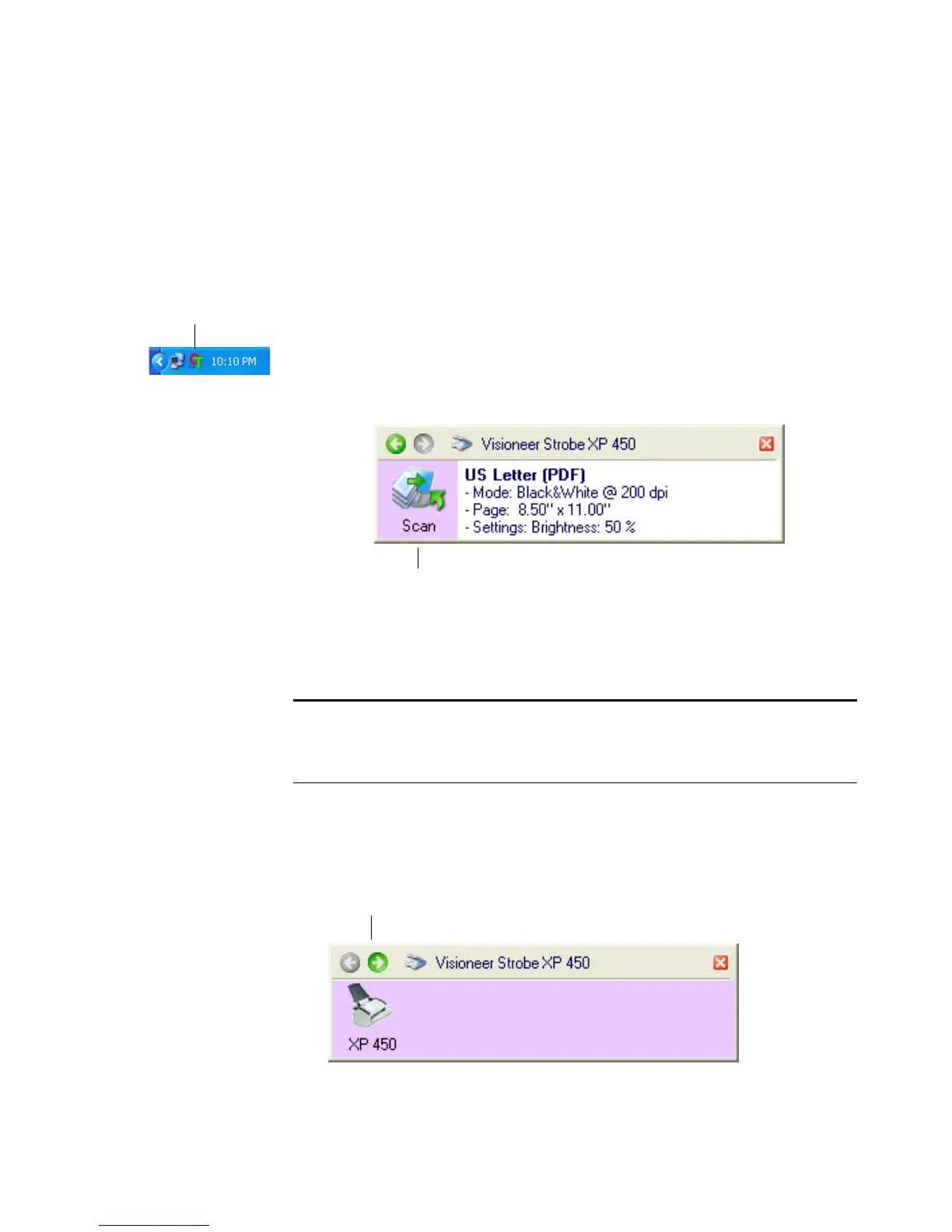
2. Now click on the OneTouch icon in the Windows Notification
Area (at the bottom right corner of the screen).
3. Click the Destination Application icon in the Panel to start
scanning. In this sample, it is the PaperPort icon.
The scanner begins scanning. When the process finishes, the
scanned images appear in the Destination Application or are stored
in a folder, just as if you scanned with the Scan button.
Notice the green arrows at the top of the panel. Click the arrow
pointing to the left to see the scanners connected to your computer.
Click the arrow pointing to the right to get back to previous panel.
The OneTouch Icon
Note: When scanning from the panel, the OneTouch Properties
window cannot be open at the same time. If it is, close it first before
scanning.
Click the icon to start scanning.
Click the green arrows to toggle between the panels.









 To Next Page