70 VISIONEER STROBE XP 450 SCANNER USER’S GUIDE
SCANNING WITH OPTICAL CHARACTER RECOGNITION (OCR)
Optical Character Recognition (OCR) converts text and numbers on a
scanned page into editable text and numbers. You can then work with
the text and numbers to edit, spellcheck, change font or type size, sort,
calculate, and so forth.
To scan with OCR:
1. Select a Destination Application that has one of the Text formats
(TEXT, RTF, XLS, or HTML).
2. Scan the document.
Your scanned pages appear in the Destination Application with
their text ready for editing and other text processing.
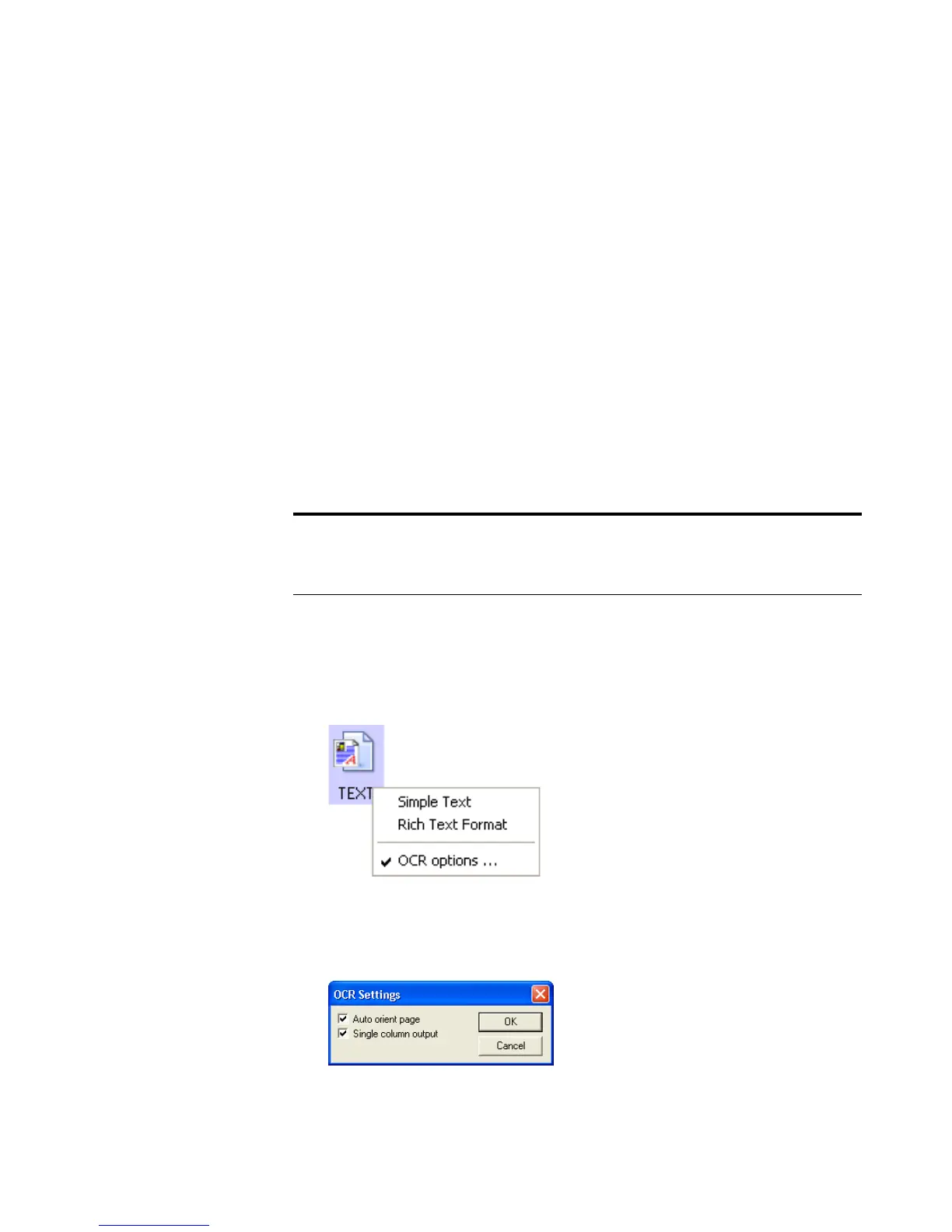
To s e l e c t O C R se t t i n g s :
1. Select the Destination Application.
2. Right-click on a text format icon to see the drop-down menu.
3. Choose OCR options.
A dialog box of OCR options opens.
Note: OCR scanning is also for spreadsheets so you can work in
Microsoft Excel (or other spreadsheet applications) with the figures
and text from the original spreadsheets.









 To Next Page