SELECTING NEW SCAN SETTINGS FOR THE SCAN BUTTON 45
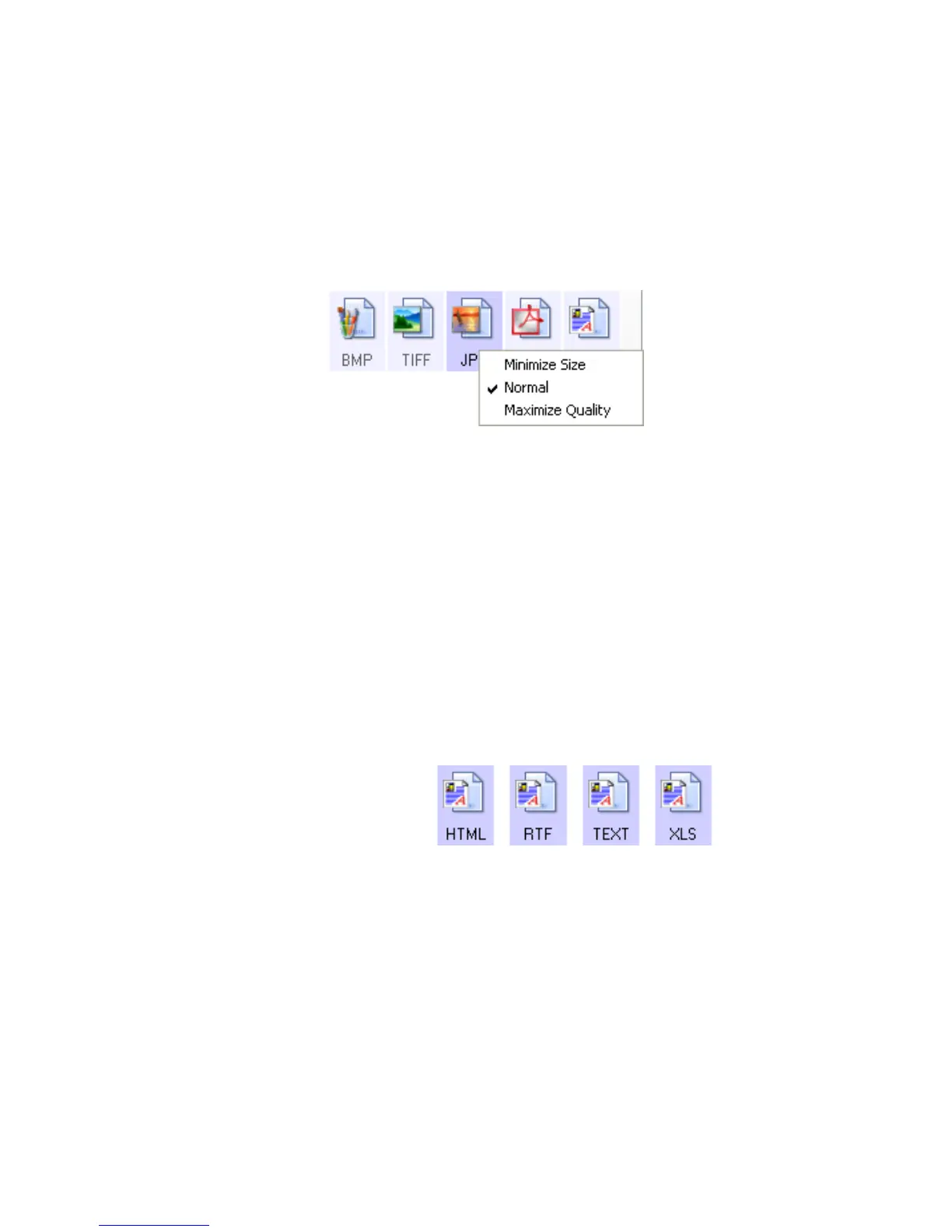
To select a JPEG or PDF file size:
1. Select JPG or PDF as the page format.
2. Right-click on the JPG or PDF icon.
A menu opens.
3. Choose the file size/image quality option for your scanned images.
Minimize Size—Smallest file size, lowest image quality.
Normal—Medium file size, some loss of image quality.
Maximum Quality—Largest file size, no loss of image quality.
4. Click OK or Apply on the OneTouch Properties window.
TEXT FORMATS
The Text Formats are for text file types. The names of the formats
indicate their file types.
Selecting the text format option also selects OCR processing as an
automatic step for scanning. Therefore, when you scan a document
with the text format selected, the text portions of the document are
automatically converted to editable text. See “Scanning with Optical
Character Recognition (OCR)” on page 70.









 To Next Page