SmartBoard
Diagnosis
46
6.4.2 Updating the internal operating software of the SmartBoard
The menu item <Download Application> from the <System> menu can be used to
update the operating software of the SmartBoard. The software is provided in the
form of a file.
This file can be selected using the button <Read from file>. The button <Write to
ECU> must be selected to start the download.
Only official operating software approved by WABCO can be downloaded into the
ECU.
In the event that the download is interrupted, it can easily be started again at a later
point. However, the ECU will not function until the download has been completed
successfully. The vehicle is then not permitted to be used on public roads.
6.4.3 Download of the "Splash Image"
The PC Diagnostics provides a dialogue for writing any desired flash image to the
ECU.
For instructions and requirements for creating the file, see chapter 4.6.1 "Start
Screen (Splash Image)", page 39.
– Open menu item <Download Start Logo> from the <System> menu.
– Select splash image using the button <Read from file>.
After it has been selected, it appears in the preview window.
– The splash image is written to the ECU when the button <Write to ECU> is
pressed.
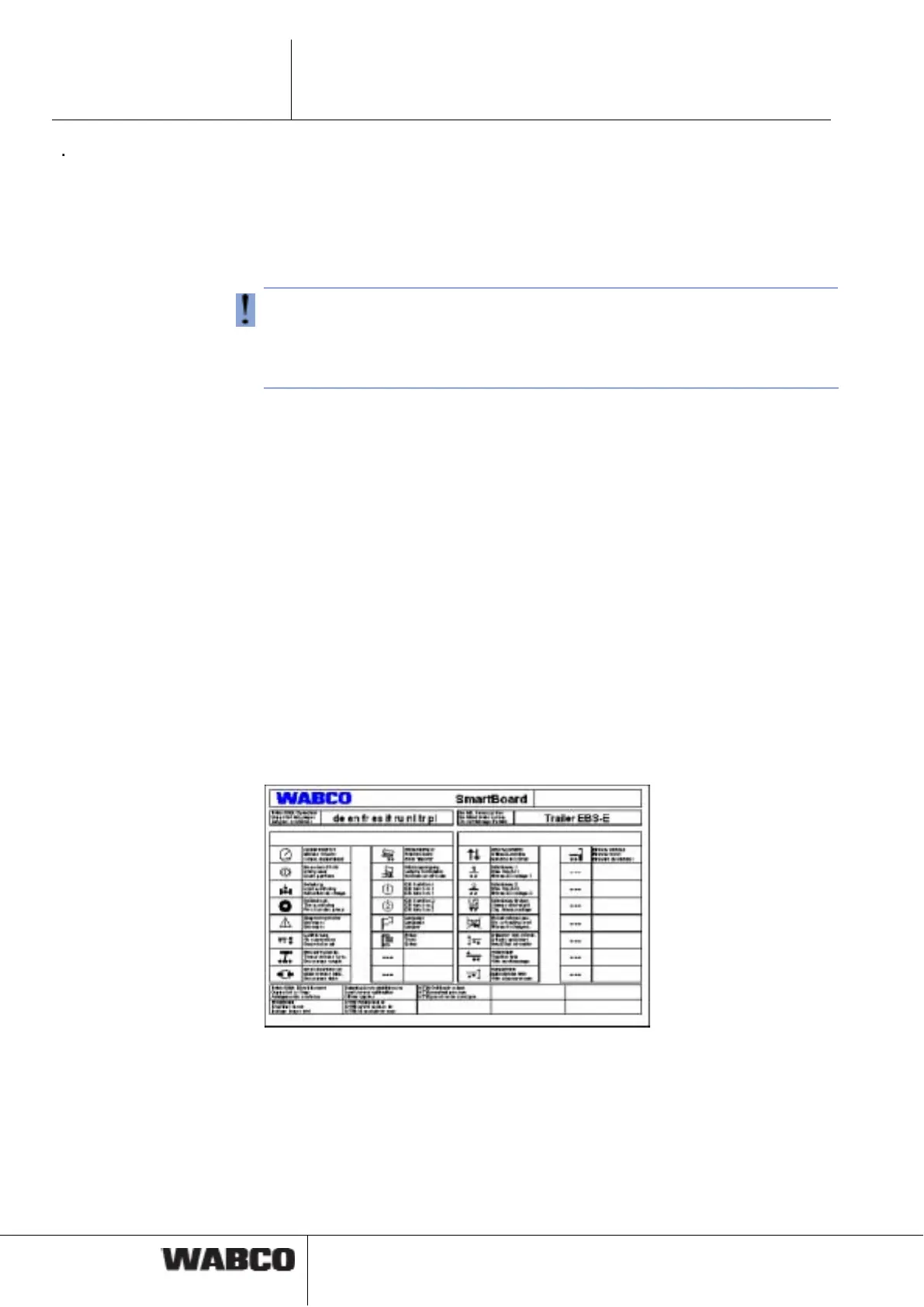
6.4.4 SmartBoard system plate
The Diagnostic Software can be used to create a SmartBoard system plate that
shows the settings. Attach this system plate clearly visible next to the SmartBoard.
fig. 6-2: SmartBoard system plate
The blank foil for this system plate can be obtained from WABCO, order number
899 200 922 4. A laser printer must be used to print the date onto the foil.



 To Next Page