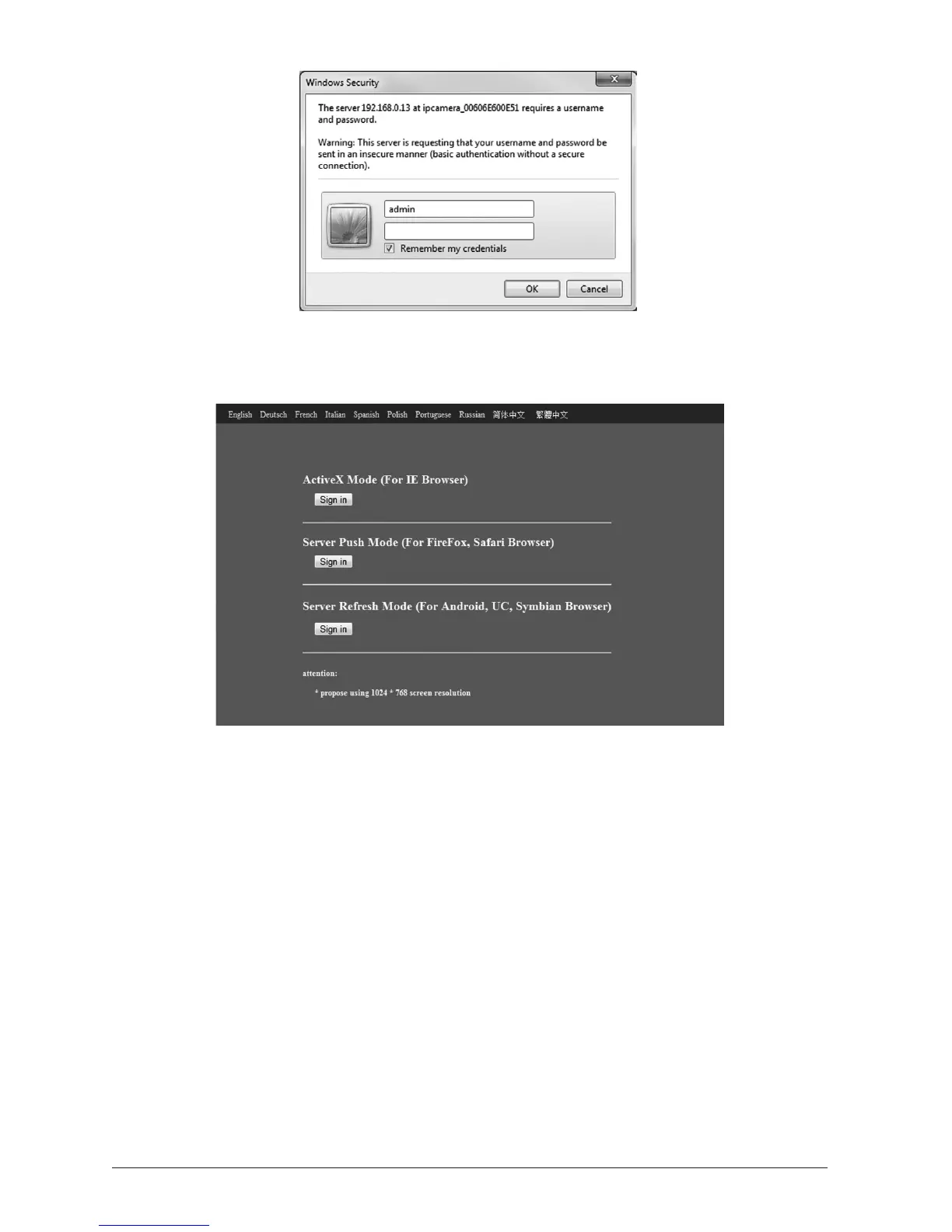
A Sign In screen will appear as shown below. Click the ‘Sign-In’ buon in the top secon
labelled ‘AcveX IE Browser’. You will then be logged into the camera control interface.
1.5.1 ImportantInformaonaboutMicrosoAcveXControls
AcveX controls are small programs, somemes called add-ons, that are used on the Internet.
They can enhance your browsing experience by allowing interacve content or they can help
with tasks such as installing security updates. Some websites require you to install AcveX
controls to see the site or perform certain tasks on it. When you visit such a site, Internet
Explorer asks if you want to install the AcveX control. Some WatchBot camera funcons such
as recording and audio require AcveX controls to be enabled. If you experience any issues
with enabling AcveX on your computer, please visit hp://windows.microso.com/en-GB/
windows-vista/Why-does-Internet-Explorer-block-some-AcveX-controls for more assistance.
AcveX is not required when using other browsers such as Firefox, Chrome or Safari, however
features are much more limited. (Seesecon4fordetails).
Once AcveX is correctly congured within Internet Explorer, you will see the live video feed
from your WatchBot camera and a green light will appear next to ‘1’ under ‘Device Status’.
The camera is now available to your local network. If required, focus can be manually adjusted
by gently turning the camera’s focal lens.


 To Next Page