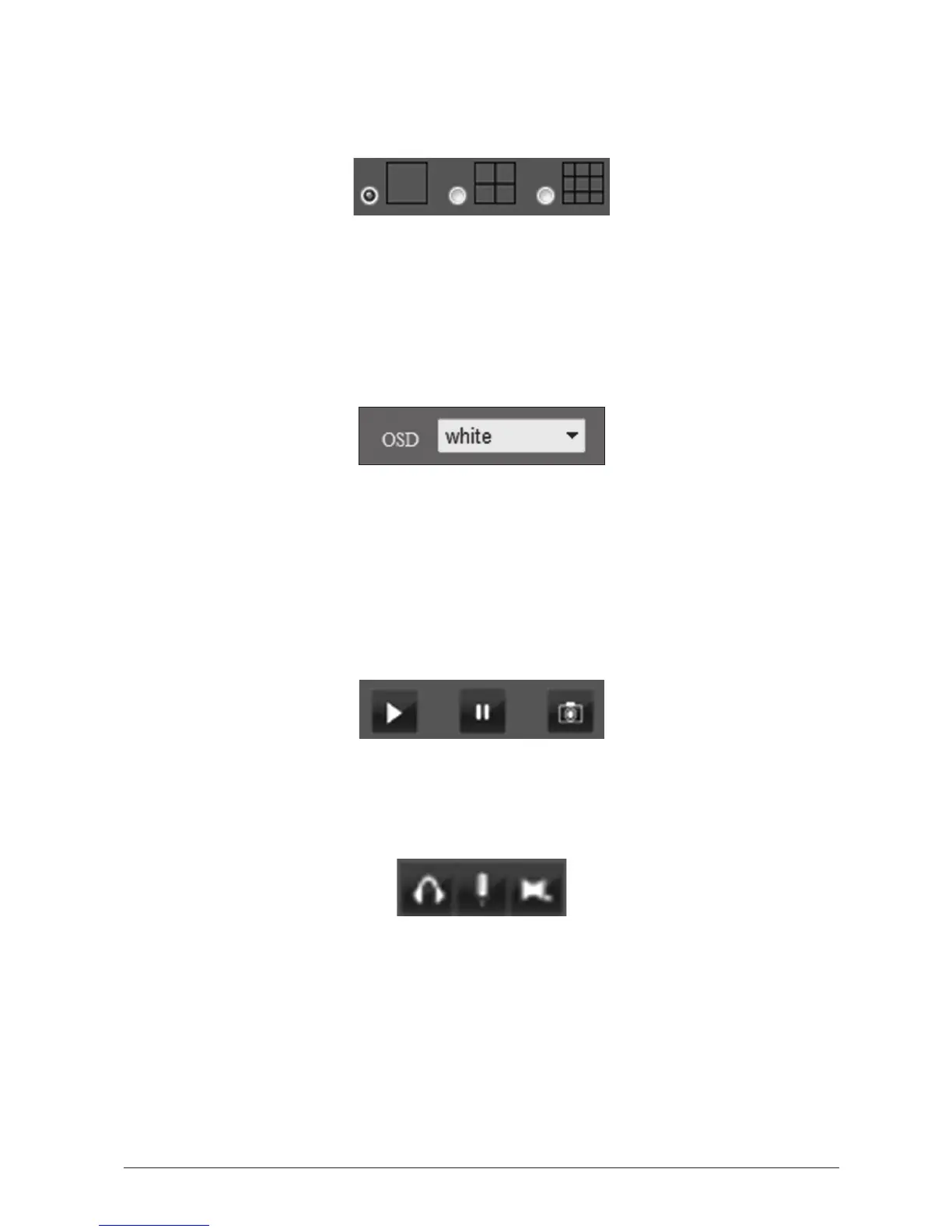
1.7.1 Mul-View
Up to nine WatchBot cameras can be connected and monitored simultaneously via a
split-screen. Click the mul-view icons to monitor up to 1, 4, or 9 cameras.
1.7.2 AddTimestamp
Check this box to add a mestamp to your video footage for accurate me-tracking.
1.7.3 On-ScreenDisplay(OSD)
Choose from a range of colours to display the camera name, date and me on screen and
recorded footage.
1.7.4 AudioBuer
If experiencing slow internet speeds, set the Audio Buer to a higher number. This will
however result in more of a sound delay.
1.7.5 LivefeedOn/OandSnapshot
Click the ‘PLAY ARROW’ icon to monitor the live video feed, click the ‘PAUSE’ icon to turn o
the live video feed and click the ‘Camera’ icon to take a sll snapshot of the current view.
1.7.6 Recordingvideoandaudio
Simultaneous recording of up to nine WatchBot cameras can be performed using the record
funcons. Each camera is listed from 1 - 9 and has it’s own set of icons:
i ii iii
i. Toggle recording of audio on/o.
ii. Toggle voice interacon on/o. (Don’t forget to connect a speaker via the mini jack).
iii. Toggle Recording of video on/o. (On clicking this buon, you will be asked where you
wish to save the subsequently recorded .AVI video le).
1.7.7 MoonSensor,AlarmandEmailAlert
Your WatchBot camera comes complete with comprehensive moon detecon, alarm and
email alert funcons. PleaseseeSecon3.6fordetailsofthesefeatures.


 To Next Page