1.4 RuntheWatchBotCameraToolSoware
The WatchBot Camera Tool icon will have appeared on your Computer Desktop.
Double-click the icon to run the camera soware.
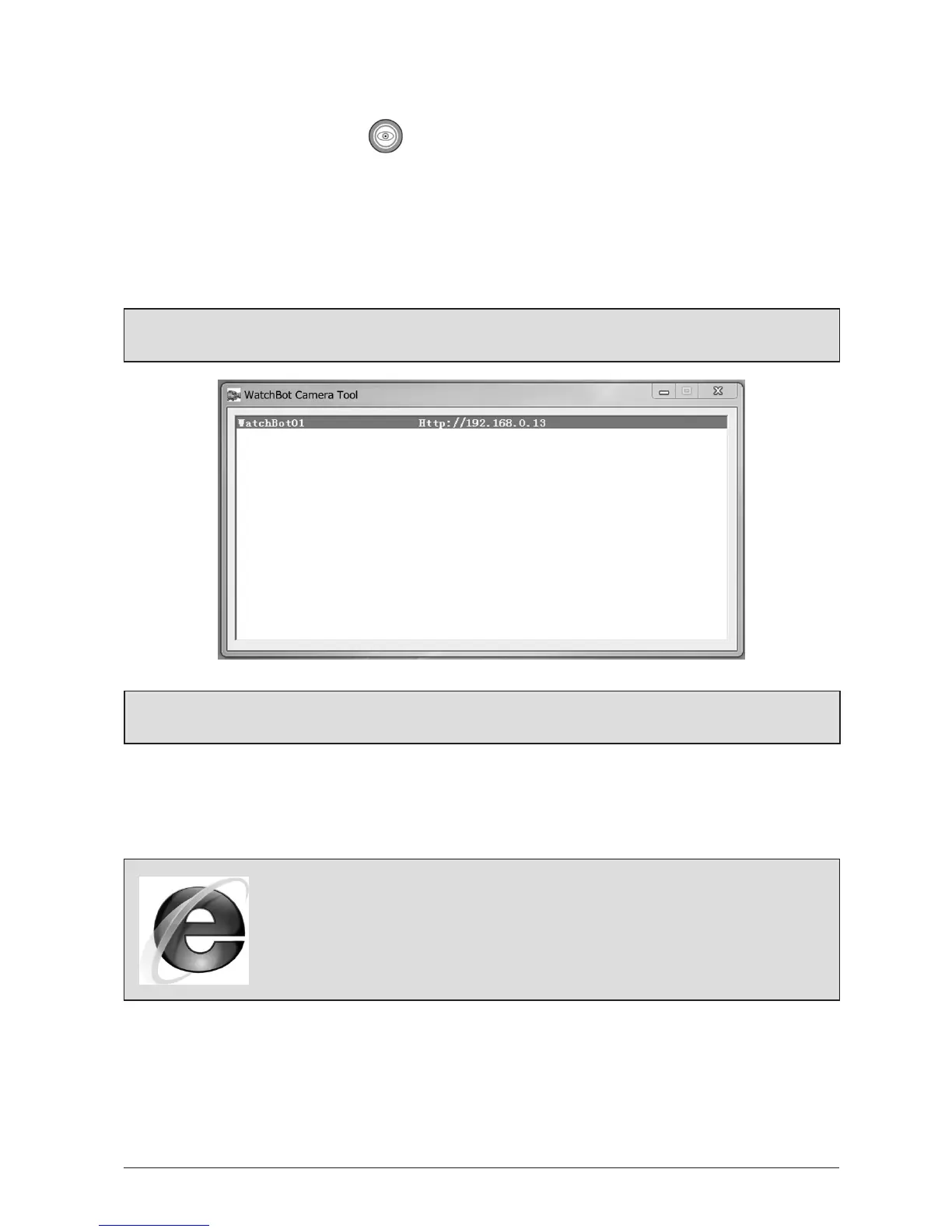
A dialogue window will appear similar to the one shown below. You should see your camera
listed and it’s assigned Local IP (Internet Protocol) Address. This is usually takes the form of
192.168.0.X or 192.168.1.X. If no camera(s) are listed, or you see any other error message,
pleasegotoSecon5-FAQs,formoredetails.
Note: The assigned IP Address will change each me the WatchBot Camera Tool is
launched or if the camera is rebooted.
Note: Right-clicking on the entry above will give access to a context menu for funcons
described in detail later in this manual.
1.5 SengupyourWatchBotcameraonyourLocalArea
Network(LAN)
Note: This Quick Setup Guide assumes you are using Microso Internet
Explorer web browser. Other browsers will work for viewing the camera’s
live video feed, however less features will be available. Please upgrade
your browser to the latest version of Internet Explorer available to you.
Using another browser? Please see Secon 4.
Before your camera can be accessed via the Internet, it needs to be setup on your LAN.
Double-click on the camera lisng as shown above in the WatchBot Camera Tool soware.
Aer a short me, a Log In window will appear as shown overleaf.
As we have not yet set up any extra Administrators or Users, log in with admin/nopassword.


 To Next Page