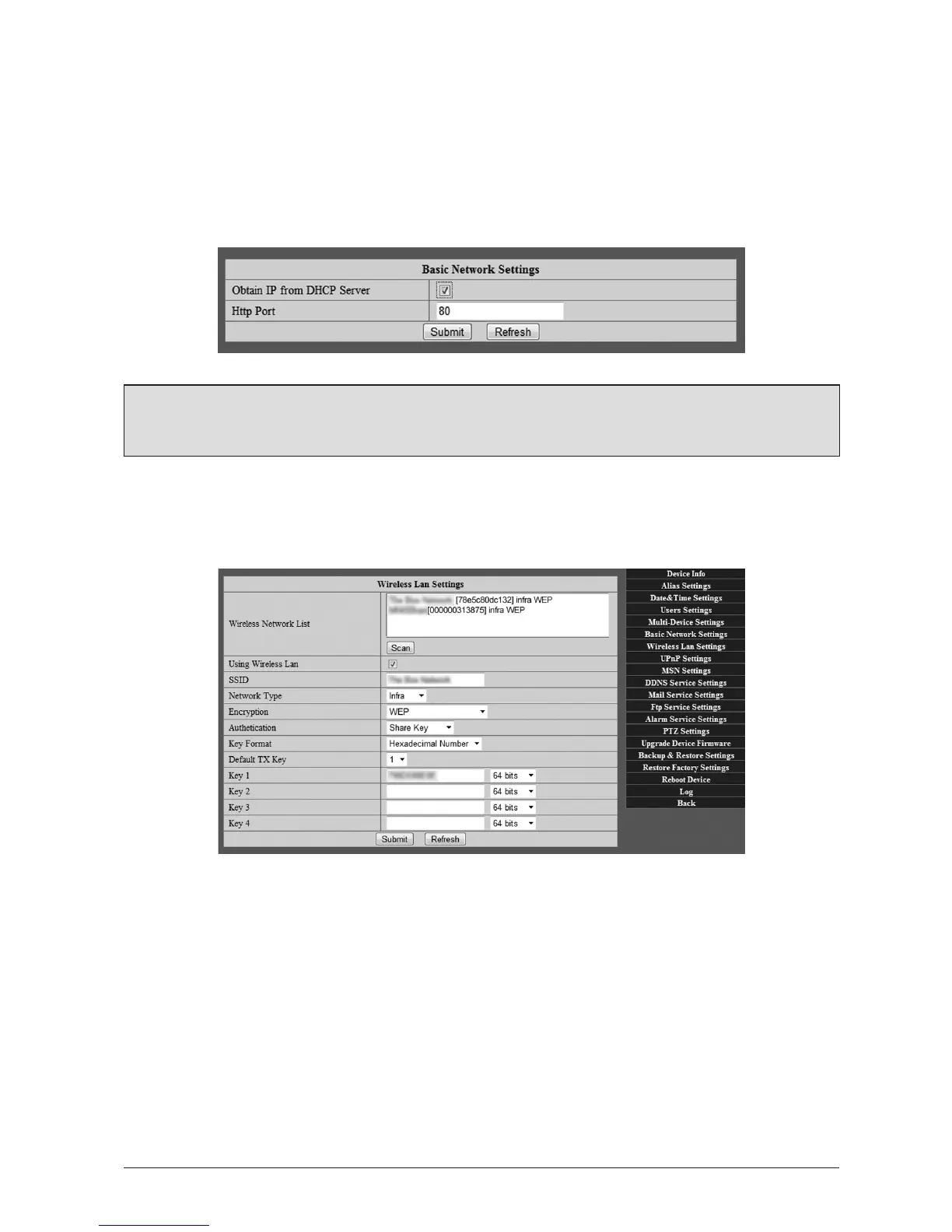
3.1.6 BasicNetworkSengs
Your WatchBot camera needs an IP address in order to appear on your local network and
subsequently to be accessed via the Internet. This page allows you to either manually enter
the network details (these would be available from your Internet Service Provider), or in most
cases, obtain these details from the DHCP (Dynamic Host Conguraon Protocol) server.
‘Hp Port’ can usually be le as the default.
Note: If in doubt, try DHCP rst, as in many cases this will work by assigning your
camera an IP address automacally.
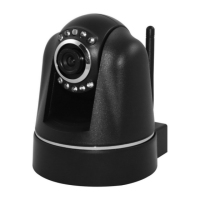
3.1.7 WirelessLANSengs
Your WatchBot camera can funcon wirelessly on your local network, negang the need for a
network cable to be aached to the device.
By adding your wi- sengs here, your camera will remember them and funcon wirelessly.
3.1.7.1UsingyourWatchBotcamerawirelessly
First, ensure your camera has mains power and that your Wi-Fi antenna is aached to your
camera. Also ensure your Wireless LAN is using WEPencrypon. (See note overleaf).
Click ‘Scan’ to search for your wireless network, then complete the details on the page. If the
scan does not nd your network, your SSID can be obtained from your router page. If you have
problems, please consult your router manual and/or contact your Service Provider


 To Next Page