Startup
This section will guide you through the process of setting up WAZER Pro to cut the "Welcome Cut".
We strongly recommend everyone to follow every single step listed in this section. Additionally,
at the end of this section you will find two copies of the “Cutting with WAZER Pro Checklist”. We
highly suggest prominently displaying one of those pages in a highly visible location near your
WAZER Pro, for all users to reference with every cut.
Insert the SD Card
Transferring Cut Files to WAZER Pro is done through an SD Card. To transfer Cut Files onto the
SD Card, connect the card to your computer, and drag-and-drop the Cut Files onto the SD Card.
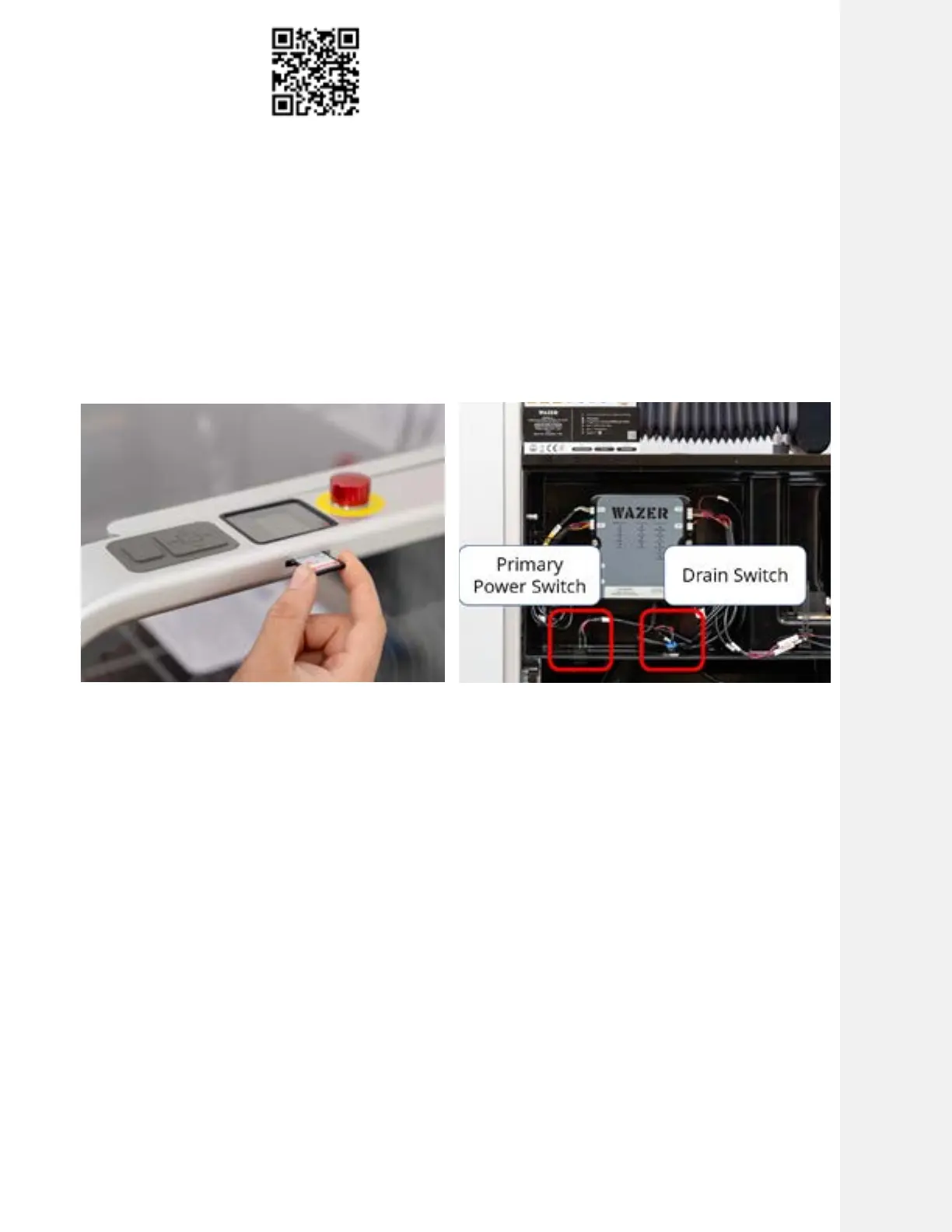
WAZER Pro has a slot near the Control Panel that accommodates a standard sized SD Card. It is
important that you insert the SD Card before turning WAZER Pro on.
An SD Card is provided with your Setup Kit. This SD Card contains several Cut Files for the
Welcome Cuts for you to select from. Place it in WAZER Pro now.
Turn On WAZER Pro
There are 5 things to check before you can turn on your WAZER Pro:
• The Power Cords must be plugged into appropriate outlets.
• The RCBO/GFCI lever is pulled down.
• Correct water level must be present in the tank. Too low or high of a water level will prevent
machine turn on.
• The barrel plug must be plugged into the controller, and fuse is properly inserted.
• The E-stop must be reset and in the up/disengaged position.
• The primary power switch is turned on.
Note 4 Pg.18
If the E-Stop is engaged (in the down position), please turn it clockwise until it resets and pops up. Only
use this E stop in case of an emergency and not as a primary means of switching on and off. As your
primary method of turning the machine on and off, the Power Switch is located at the bottom right
corner of the Main Unit. This power switch should be used. Reaching under the Right Side Cover will give
you access to this Power Switch.
Cutting With WAZER Pro |
SECTION 5
45



 To Next Page