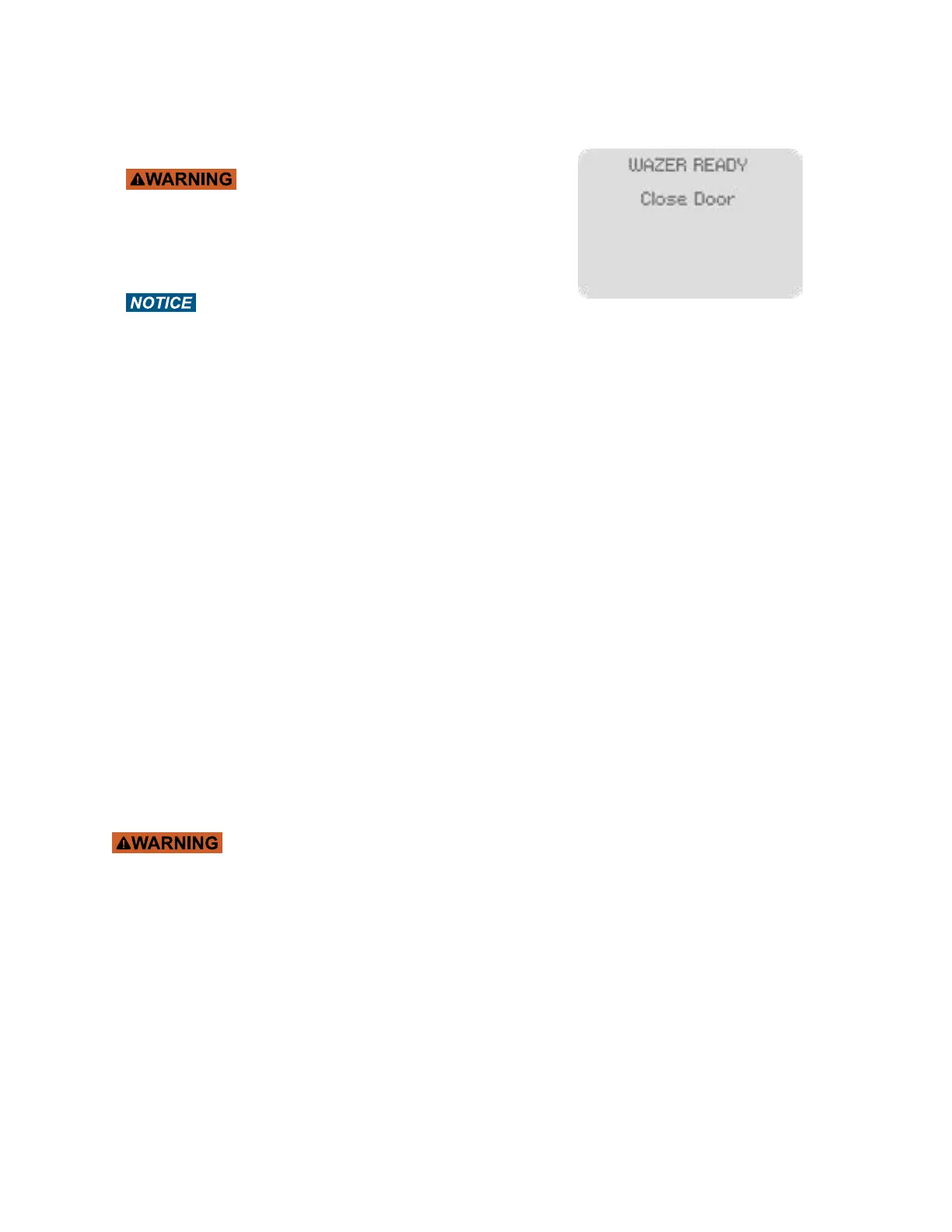
Start Cutting with WAZER Pro
Now that you have completed the setup, you can begin your Cut:
•
protective equipment.
•
• Verify that WAZER Pro is cutting properly.
or property. Carefully watch the Cut:
to Pause the Cut and refer to the website support section.
• When WAZER Pro starts, you will first see the Main Unit gantry
move to its pierce location.
• The Pump turns on and a vibration sound comes from the Abrasive Hopper.
• WAZER Pro will then start to pierce through the Material. This may be noticed as a sudden “burst-like”
experience. Used Abrasive will build up on top of your Material.
• If you listen carefully, once the pierce is completed you will hear a distinct difference in noise where the
water stream pierced material and rushing into the water tank.
• Within a couple seconds of completing its pierce the Nozzle will begin to move slowly, cutting out your part.
• As the cut progresses WAZER Pro will have a constant vibrating buzz while cutting along with a few ticking
sounds
• The Pump should emit a smooth hum – there should be no erratic sounds coming from the Pump or
constant “ticking”. WAZER Pro will also generate noise from the Jet cutting the Material and creating
turbulence in the Tank.
• If you observe the Control Box, all four LEDs on the left side will be on, the top and bottom lights of the
middle column will be on, the middle two LEDs of the middle column will be flashing. Lastly, some, if not all,
of the LEDs on the right side will be on, depending on what state the WAZER is in.
• Feed Rate Override: this feature allows you to increase or decrease the speed of cut to compensate for
Never open the Door while WAZER Pro is running. Never leave WAZER Pro unattended, either
running, pausing or stays at the main menu.
A pressure gauge for the high pressure system is located on the front panel of the WAZER Pro. It is recommended
that you check this gauge periodically throughout the cut. As a reference to the colors:
• If the pressure stays in the green zone, the high pressure system is operating in good condition.
• If below the green area: You may experience partial cutting but it is safe to continue.
• If in the yellow zone during the middle of a cut, pause the machine, cancel the cut, and contact WAZER
support.
• If the needle is in the red zone, pause the machine, cancel the cut, and contact WAZER support.
When the pressure exceeds 8600psi/59MPa (red zone on gauge), the pressure relief valve inside the pump will
open and release the excess pressure. When this occurs a small amount of water is released. It may be noticed
as sprays coming out from the bottom of the WAZER Pro. If noticed during a cut segment, pause WAZER Pro
immediately. Cancel the cut, and contact WAZER customer support.
54



 To Next Page